Background
This procedure outlines the steps necessary to create a planned event template. Planned events are time or meter-based events such as 8-week inspections, annual services, or 100KM timing belt changes. The planned event template is created once and used many times in Assetminder. There are two types of triggers:
- Time-based (e.g. every 6 months)
- Meter reading-based (eg. every 10,000KM)
This procedure focuses on meter-based events.
Procedure
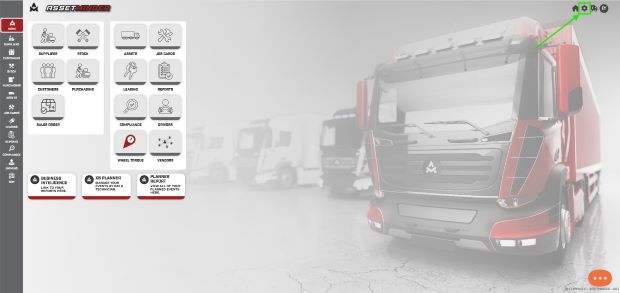
1. Click the Administrator Settings icon on the home screen.
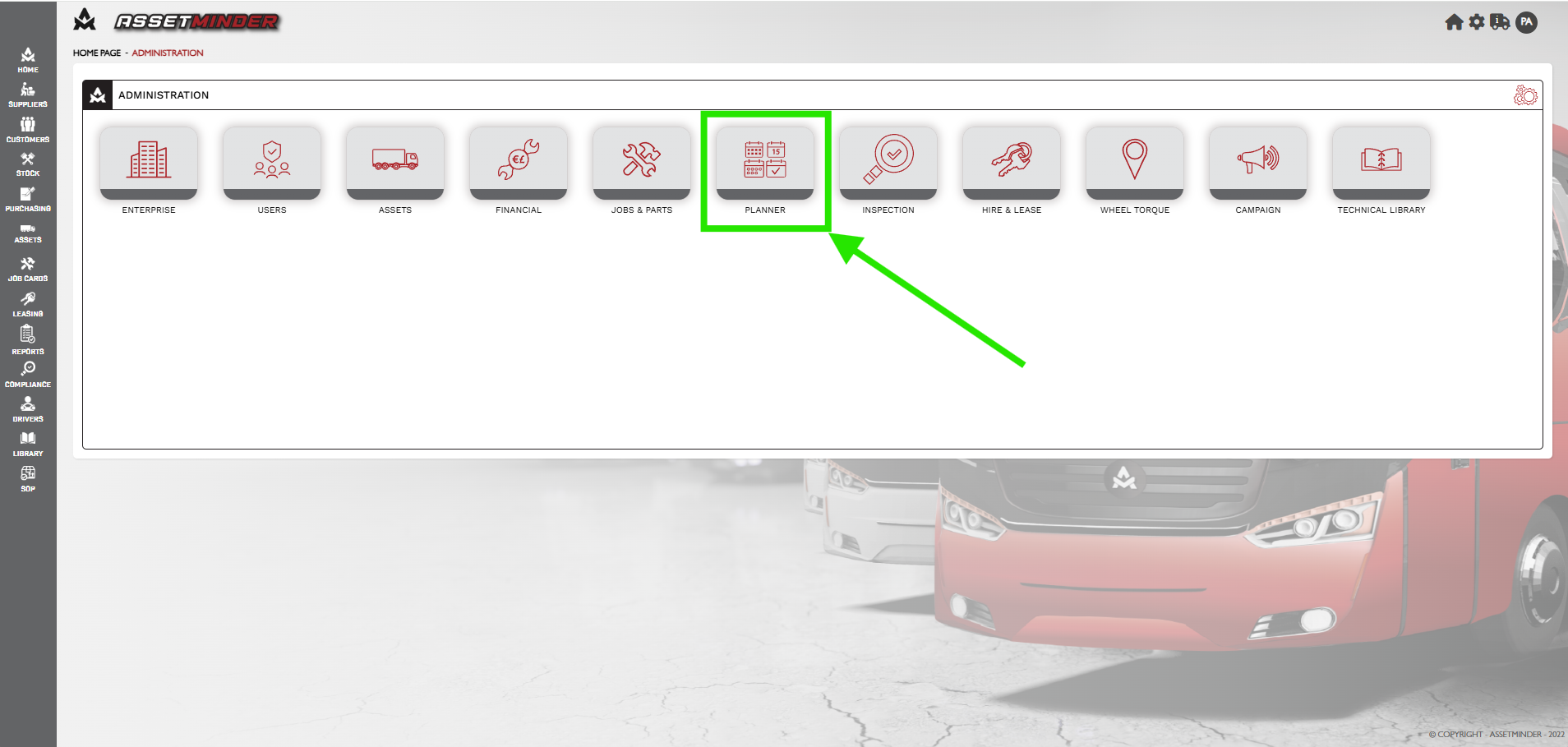
2. Click on Planner icon.
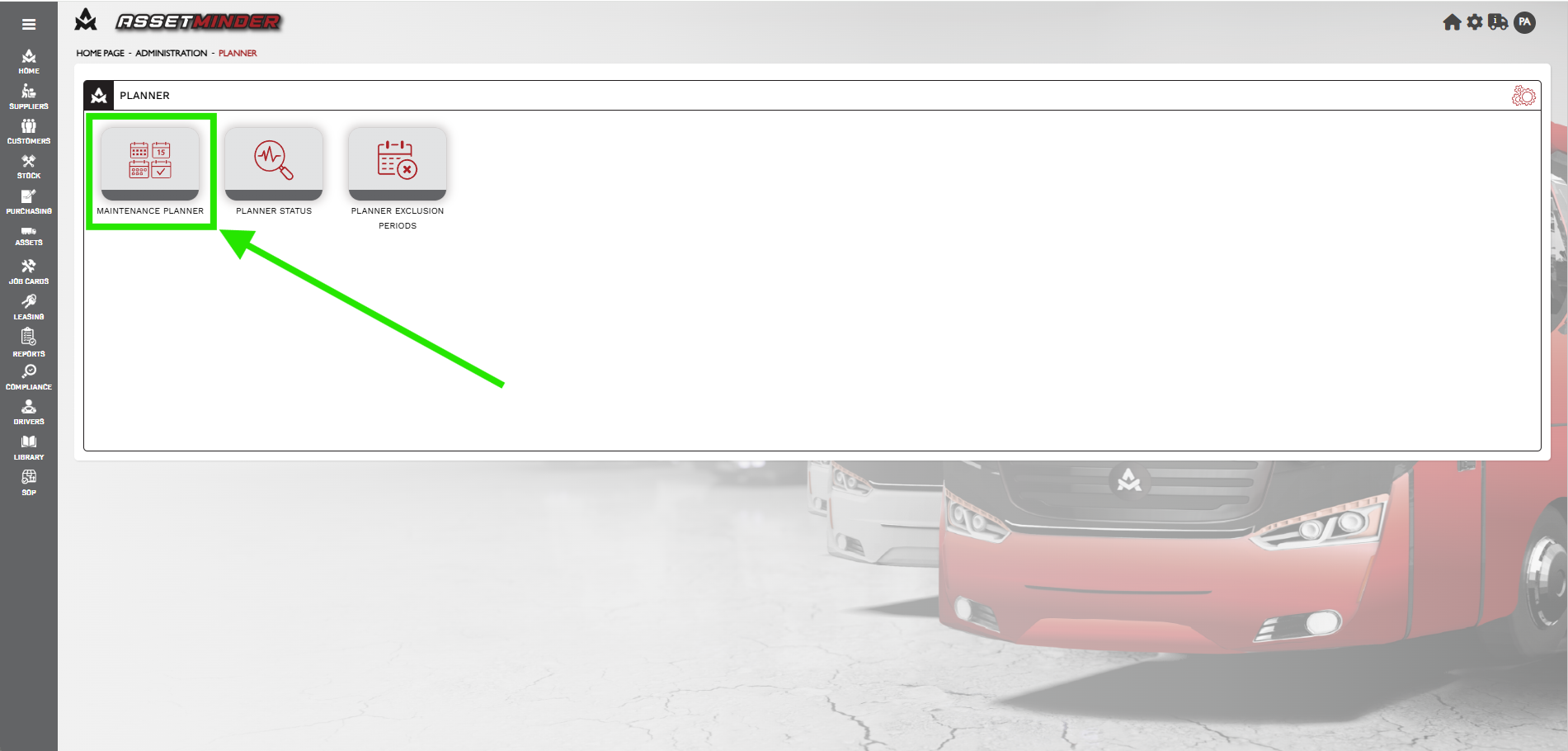
3. Click on Maintenance Planner icon.
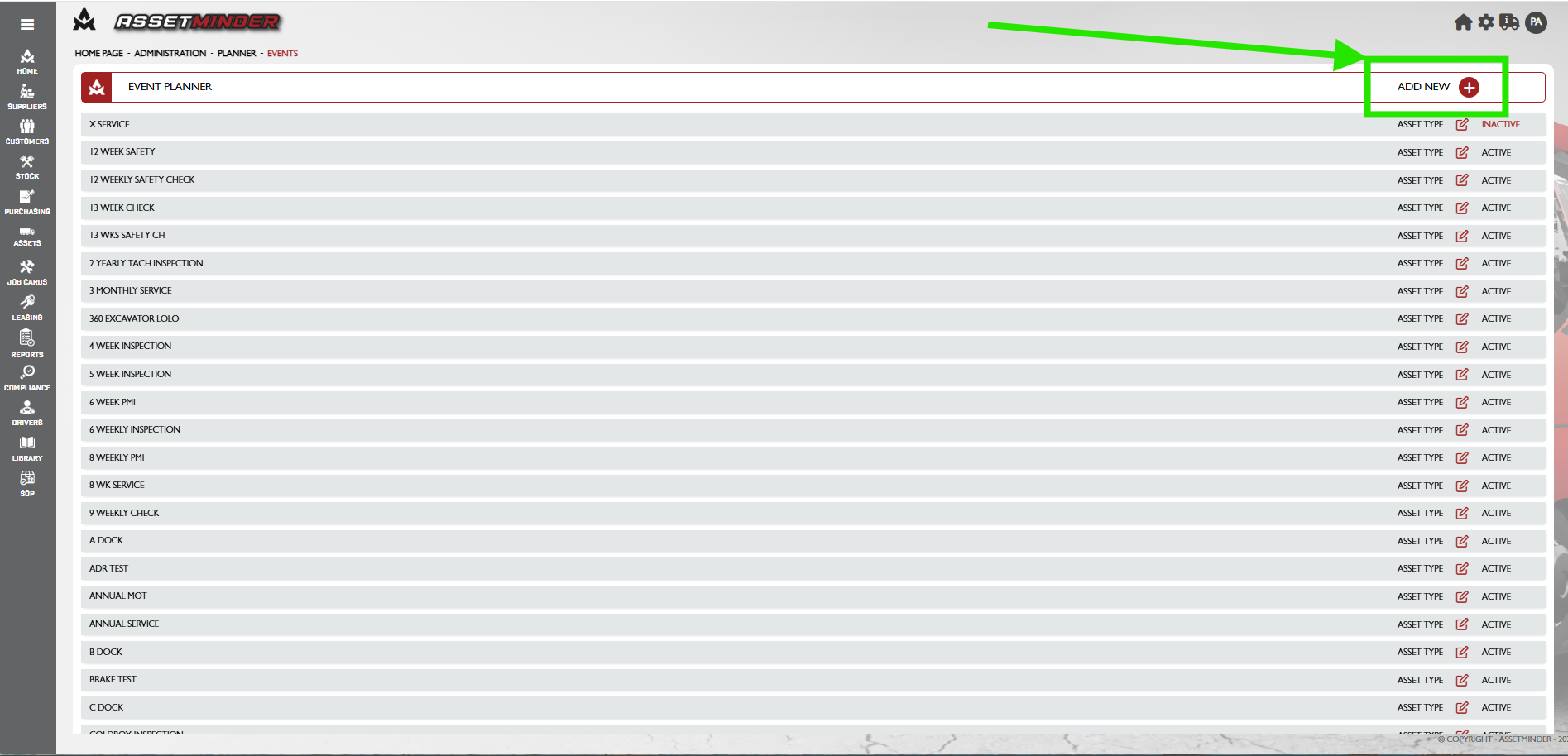
4. Click the ADD NEW icon on the top right-hand side of the screen.
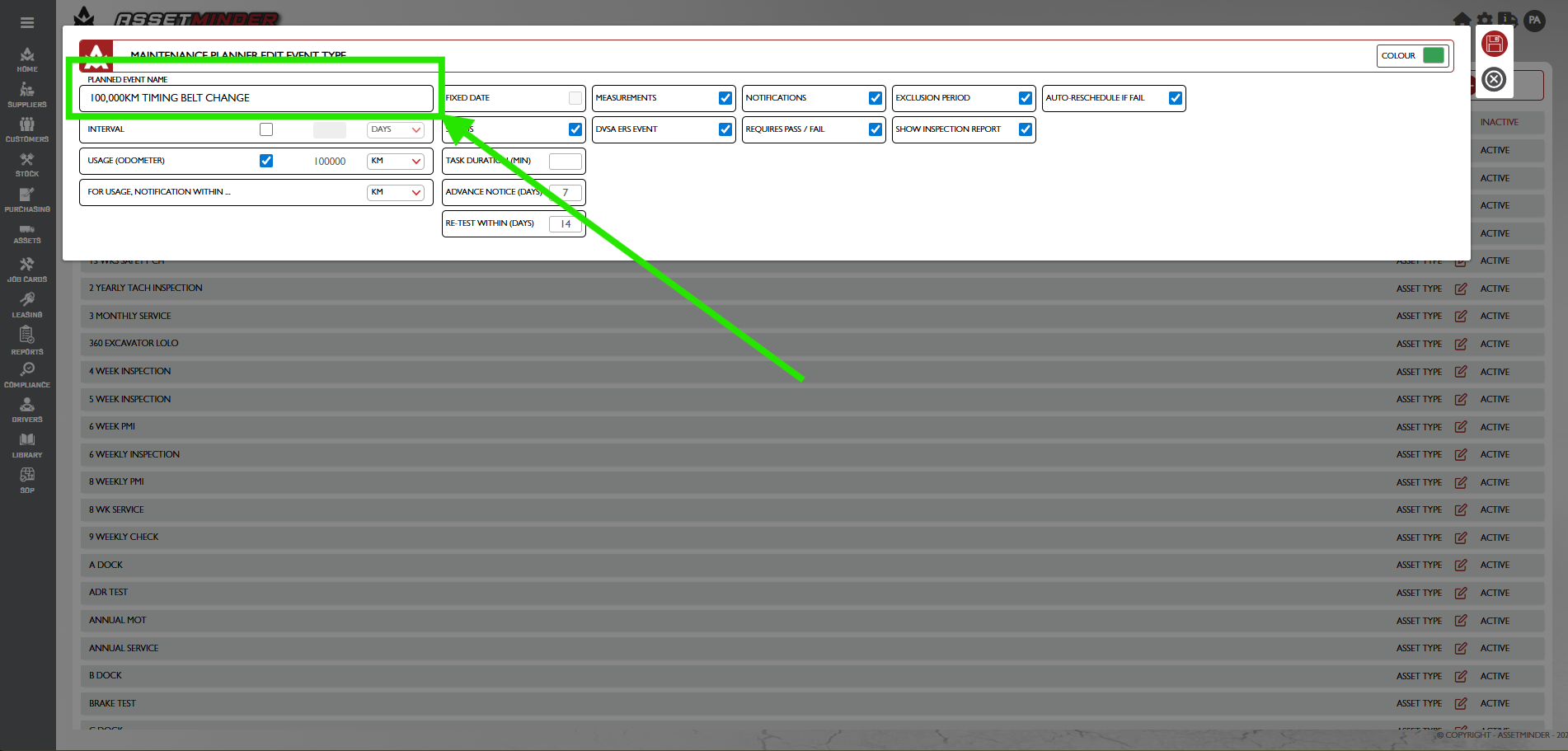
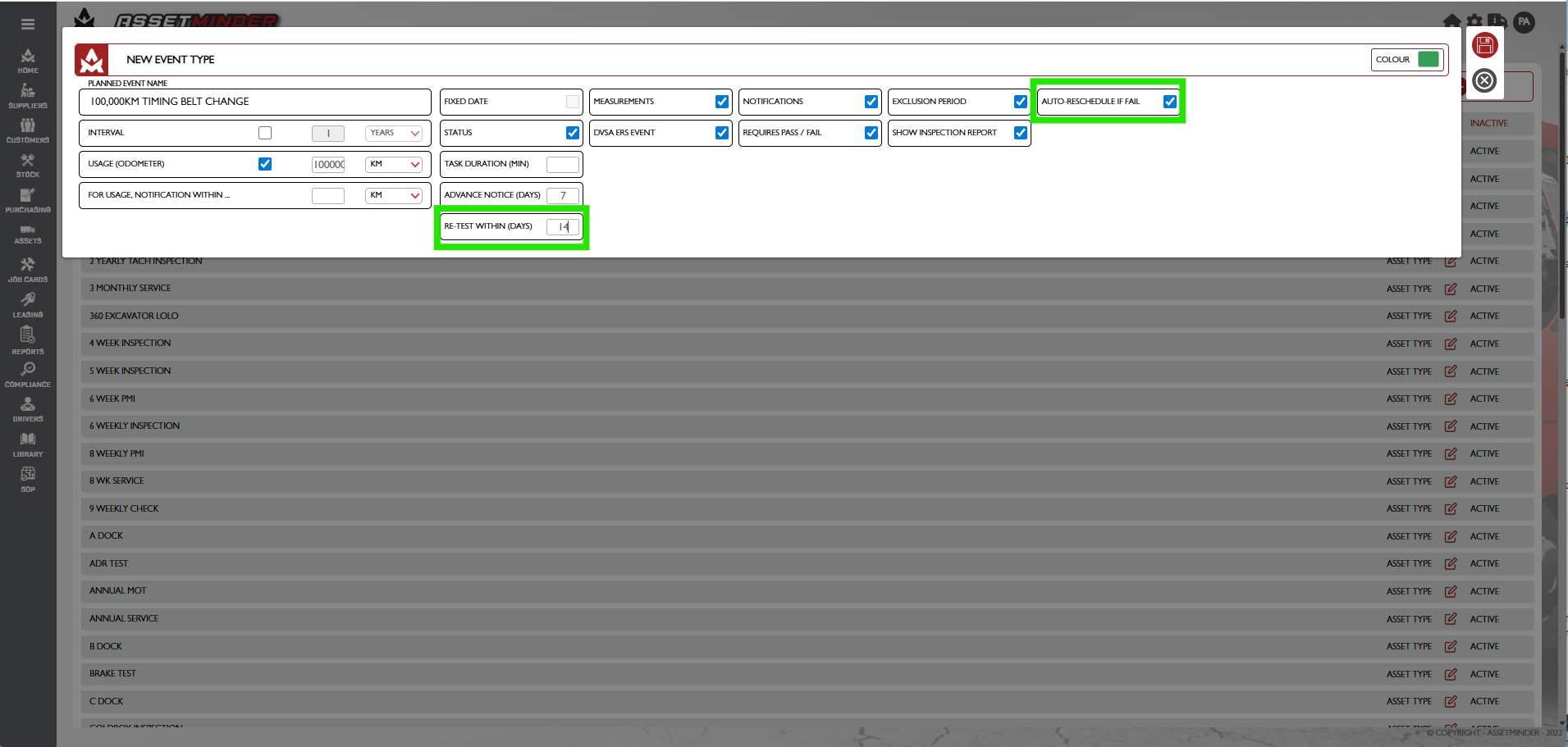
5. Fill in the event type field at the top. In this case, it's a 100,000KM timing belt change.
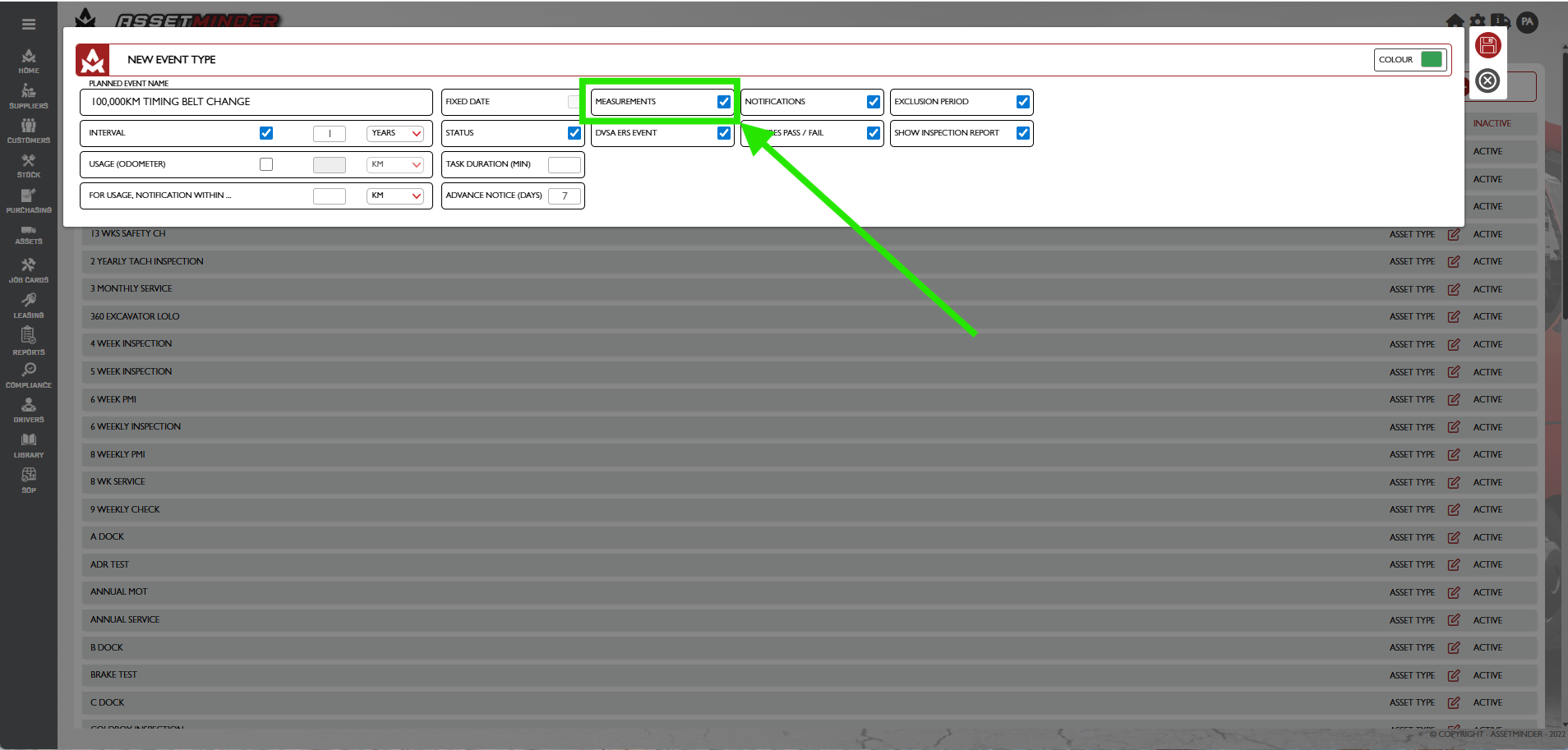
6. Click the measurements checkbox.
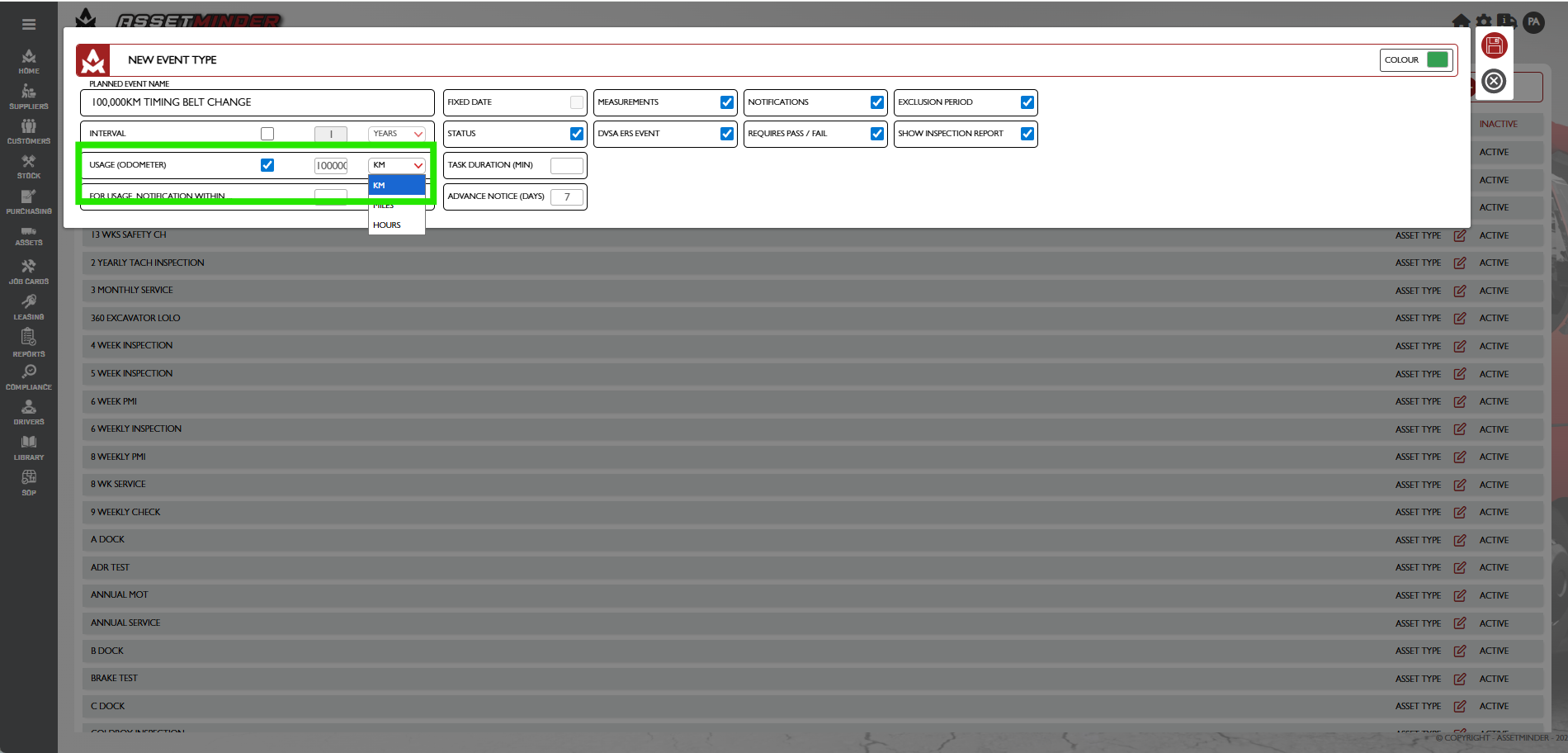
7. In this example, it's a meter based event every 100,000km. Click Usage, and add the interval of 100,000KM.
- Notifications - Enable the ability to send notifications for this planned event.
- Colour - The colour set appears on the maintenance planner.
- Advanced notice - advance warning window for time-based trigger.
- For Usage Notification Within - advance warning window for usage-based trigger.
- Task Duration - time required for the planned event.
- DVSA ERS Event - For UK customers - this checkbox tags the event as a DVSA event. DVSA events require a pass/fail check at the end of the event.
- Requires Pass/ Fail - If the inspection has a clear pass or fail.
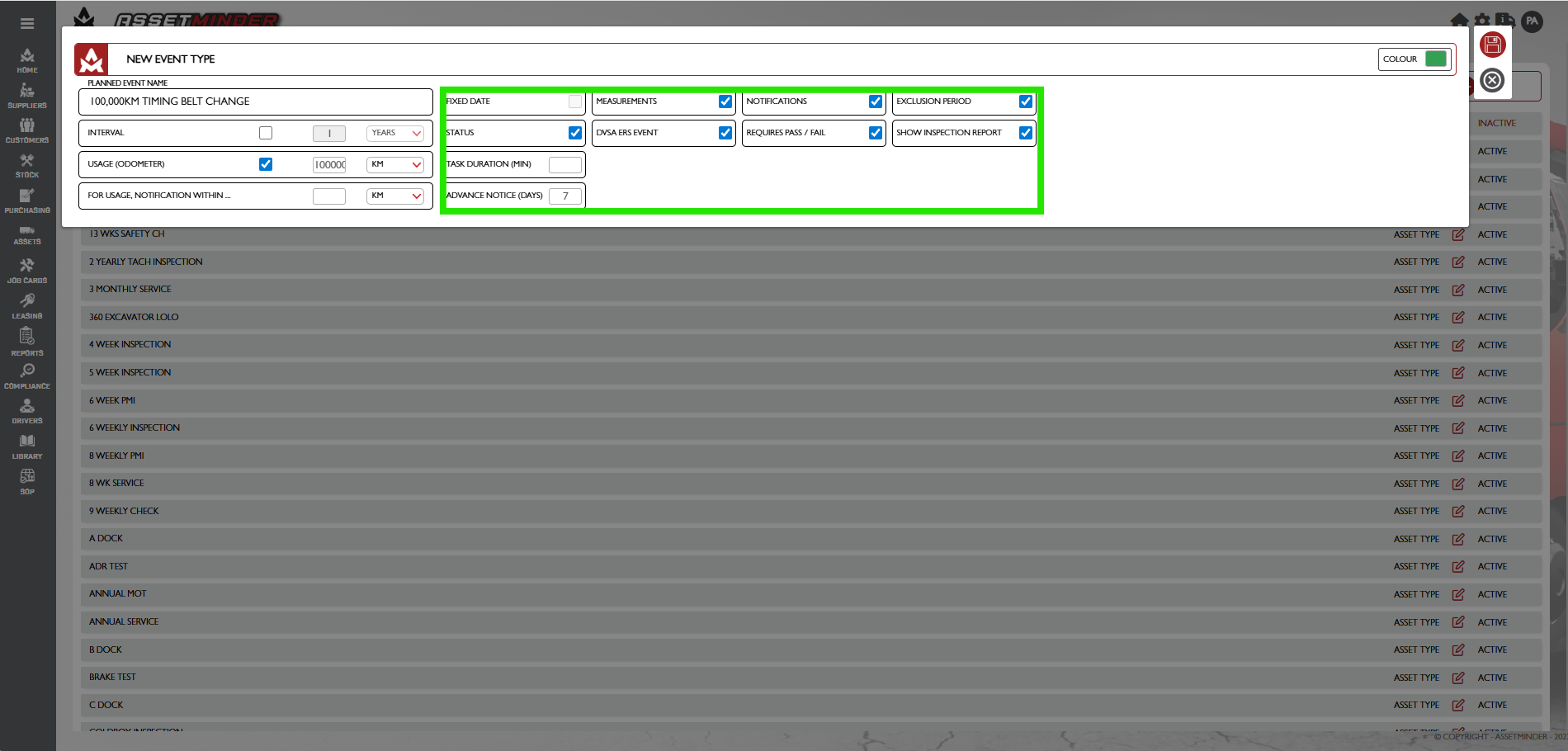
- If this event fails, the system will automatically trigger and reschedule a new event based on this template 14 days later.
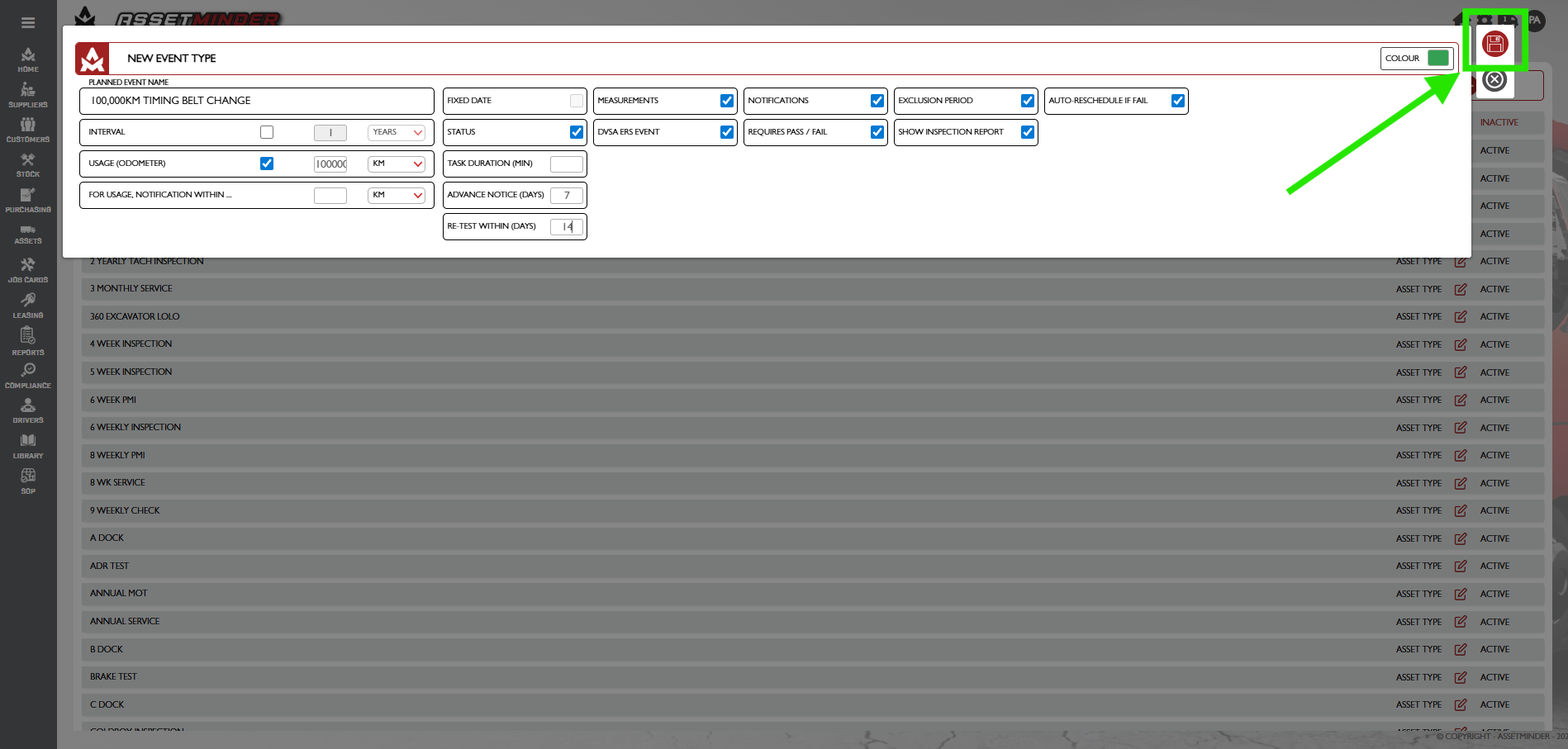
8. Click Save when all the settings have been configured.
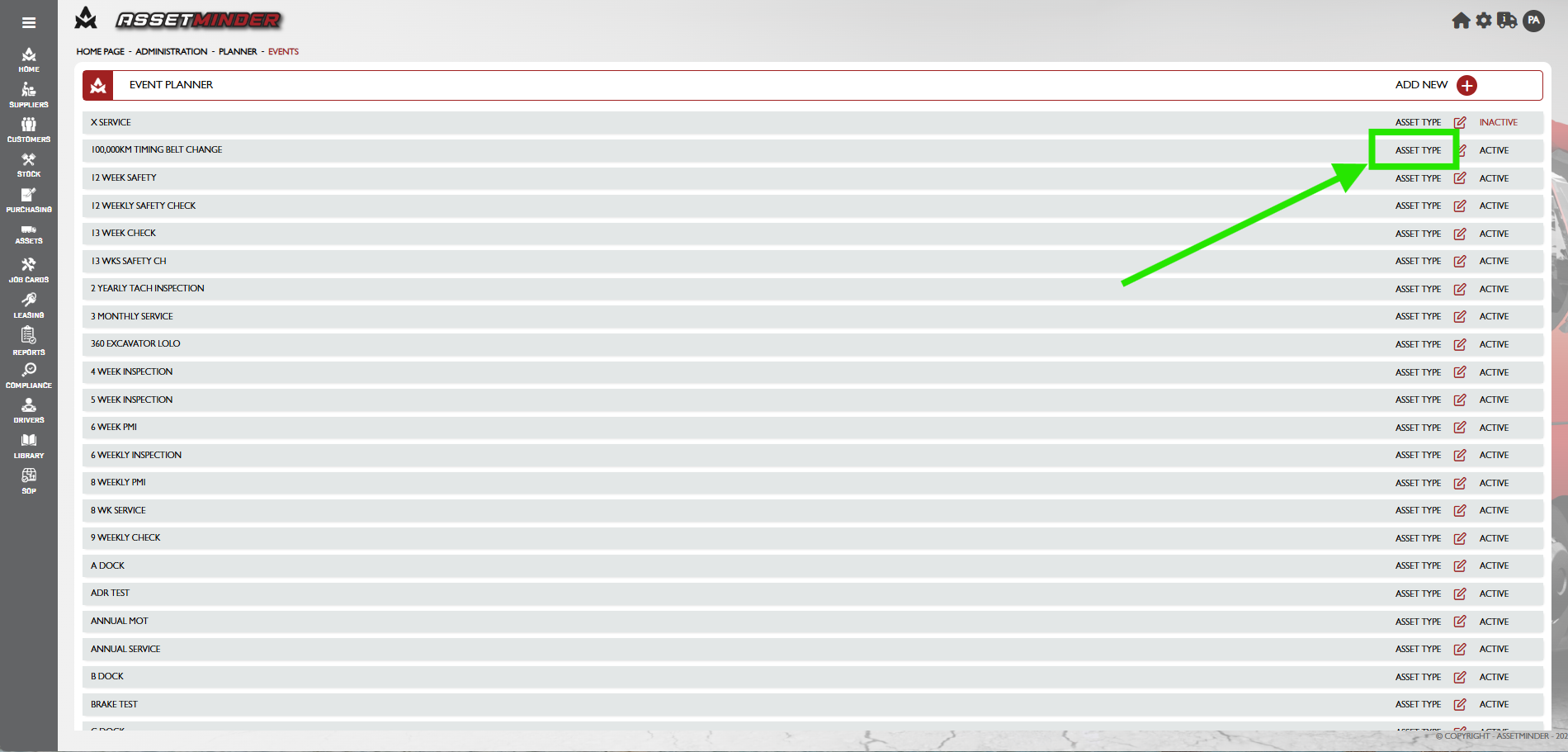
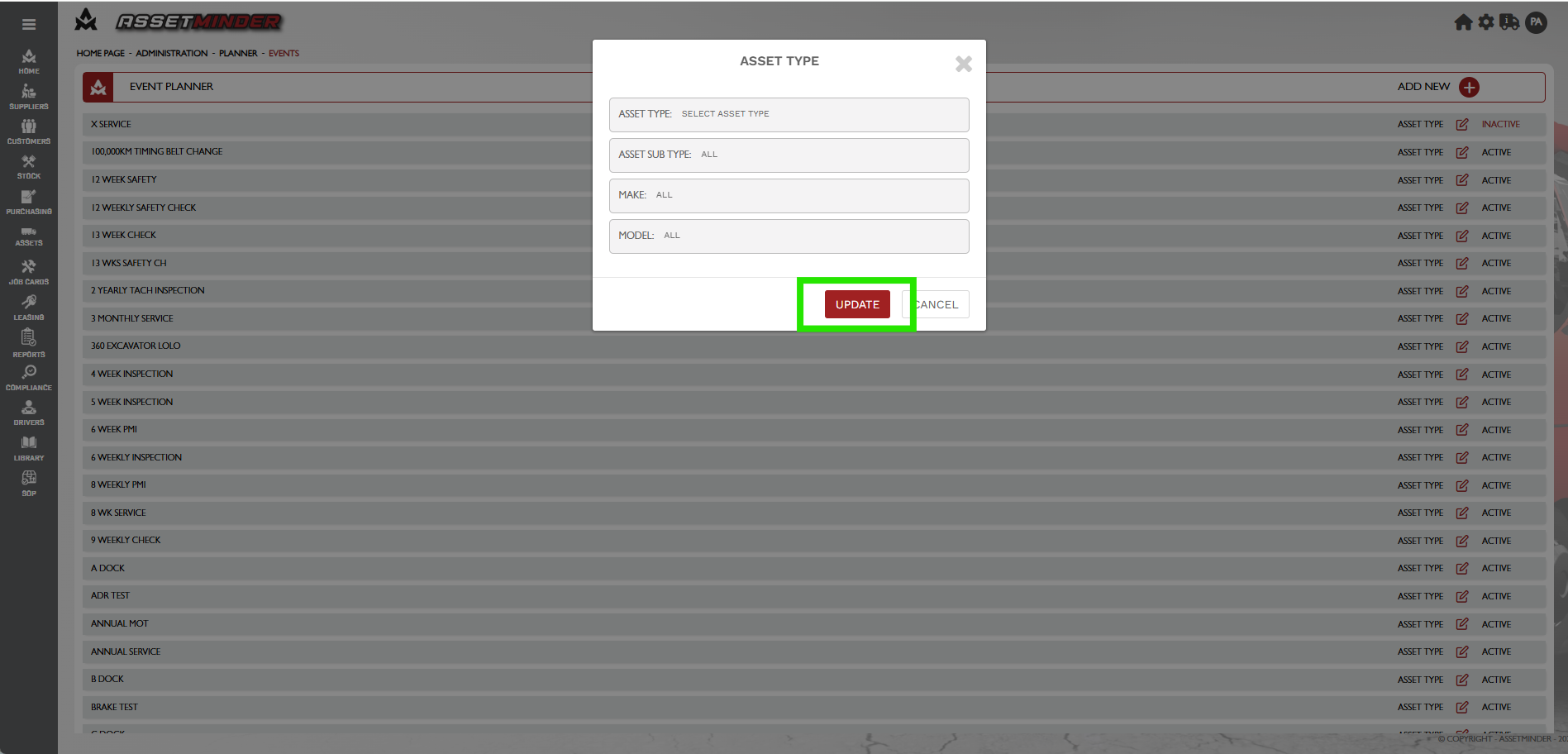
9. The planned event template now exists in the system and can be used on assets. Click Asset Type on the relevant planned event template.
10. Select the asset types and asset subtype by clicking on the required field. Multiple fields can be selected as required. Once this is done the Make and model can be selected.
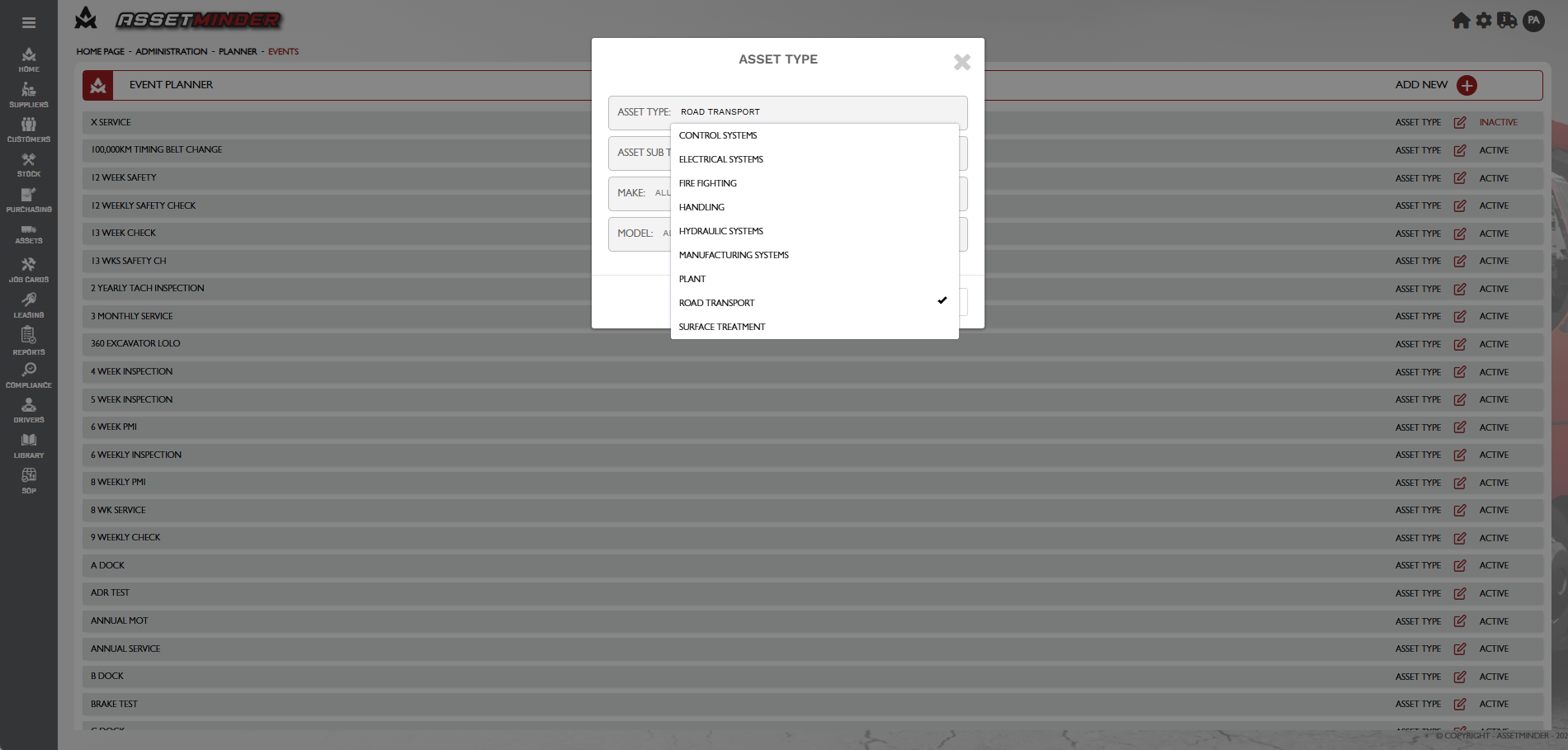
11. Click Update when done. Those asset types can now use this planned event template.
13. Repeat the process for all other planned event types.
Paul Murray
Comments