VIP users are special account that allows access to certain features of assetminder.
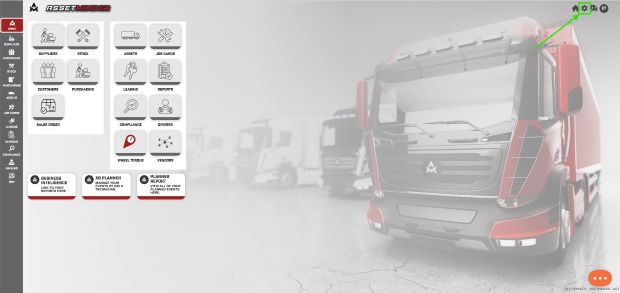
1. Click the Administrator Settings icon on the home screen
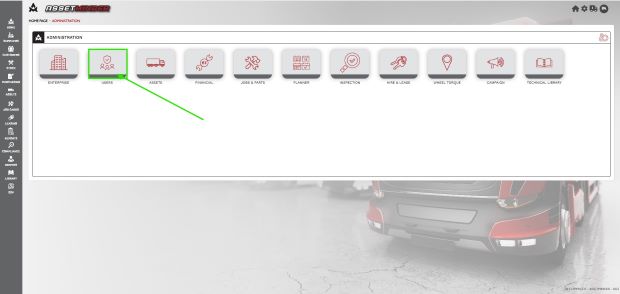
2. Select Users from the admin list
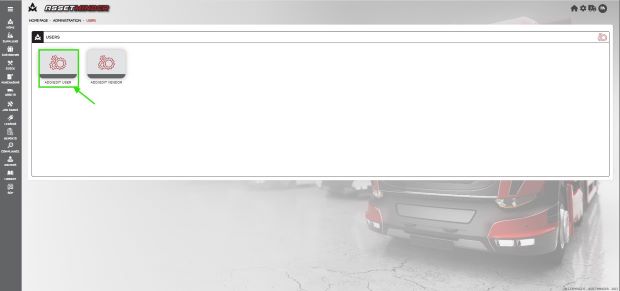
3. Click New User to add the new user
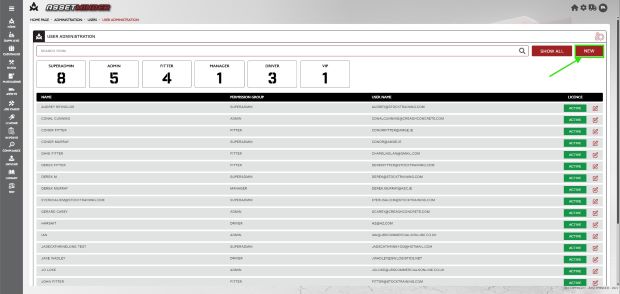
4. Click NEW to add the new user
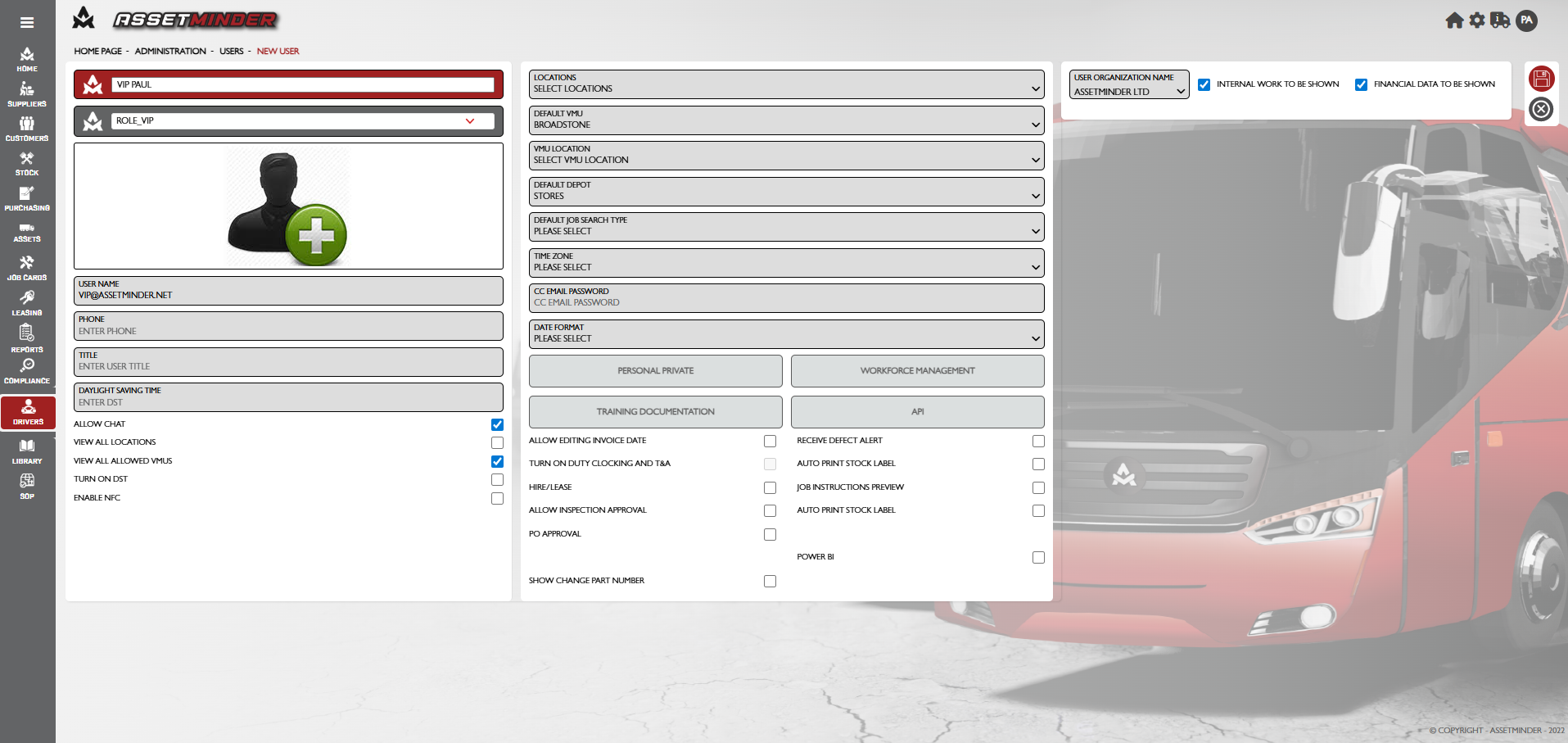
5. Add the new VIP user details to the user record
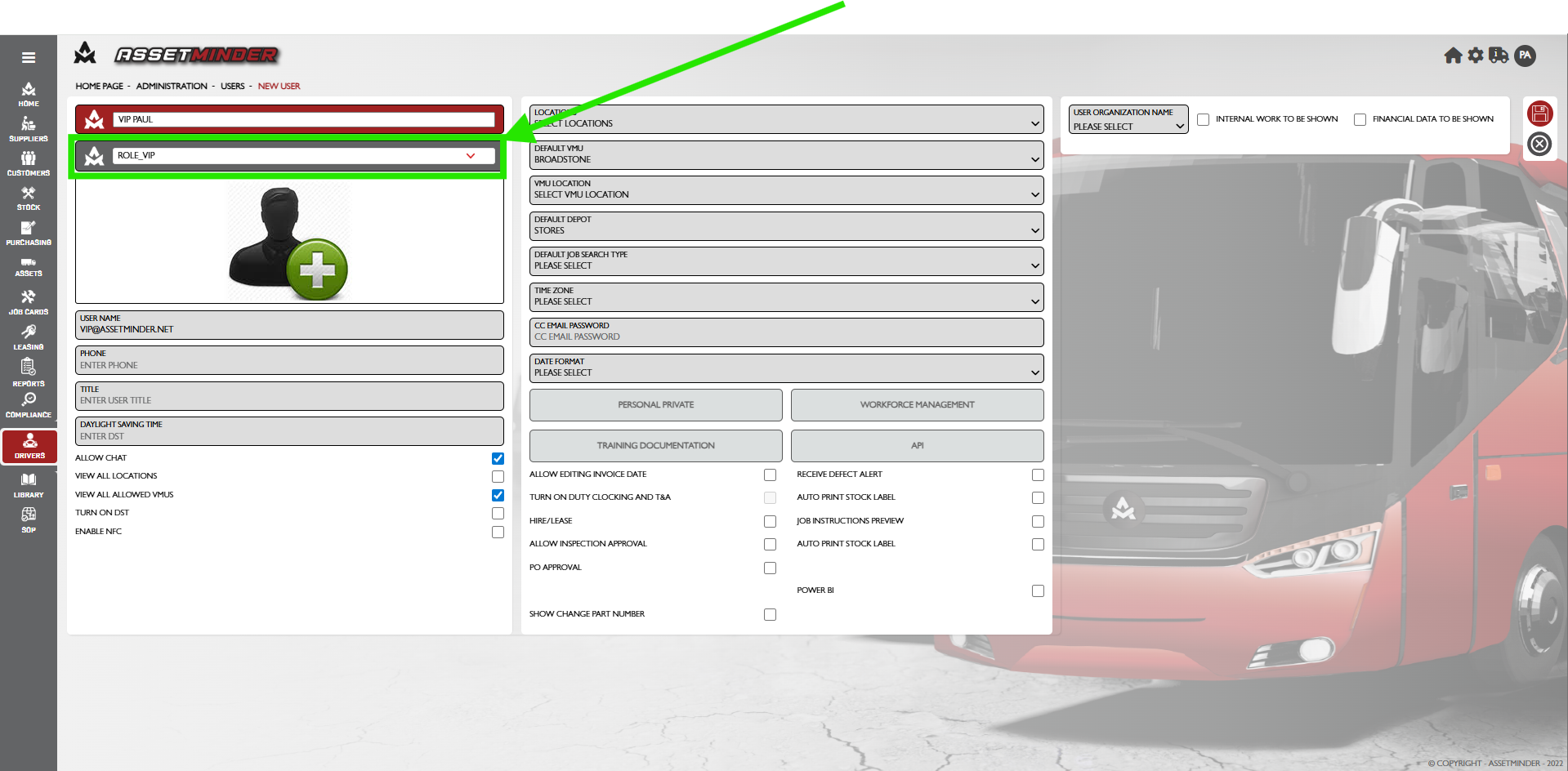
- Permissions group - Set to ROLE_VIP. This defines the user role in the organisation and determines how much of the system they have access too. To give more access to more features, grant the user a role with more access. The roles are set by Assetminder.
- User Name - The user name is used to log into Assetminder and serves as the email address for receiving password resets. If an email address is not available for a new user, the user name must still follow the standard email format (e.g., "johndoe@companyname.com") without any spaces.
- View all locations checkbox - The user sees the data by location as set in the Locations setting. Check this checkbox so the user can see the data across all sites if needed.
- View all allowed VMUS - The user sees the data by VMU as set in the VMU Location setting. Check this checkbox so the user can see the data across all sites if needed.
- Locations - That user can access the jobs and assets at that location.
- Default VMU - The user can select the default VMU
- VMU Location - The user can select which VMU locations they can access
- Default depot - home storage location for the user on each form.
- Default Job Search Type - This will display a default search type when searching jobs (e.g. Show all, Asset Registration number , Job number, etc )
- Timezone & Daylight savings - Inspections will appear in the set timezone.
- CC email Password - Allow to add additional email to retrieve password.
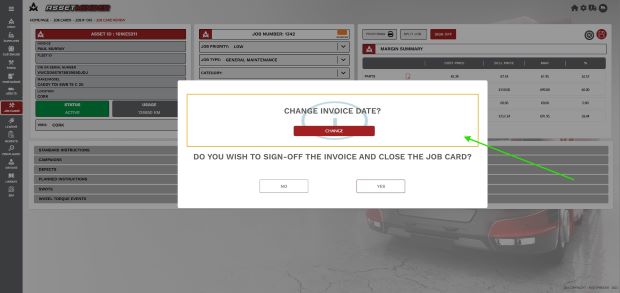
- Allow editing invoice date - before sending an invoice, the user is prompted to review the date and change if needed.
- Receive defect alerts - Check the checkbox so the user can receive defect notifications for their location.
- Auto Print Stock Label - Will automatically print stock labels when part is added to Job
- Allow inspection approval - gives the user the permissions to sign off inspections in the inspection module
- PO approval - Allow user to sign off PO's
- Show Change Part Number - Access to update part number option on stock card.
- Turn on duty clocking - Turning this feature on enables duty clocking functionality on the mobile app.
- Job Instruction Preview - Automatic pop-up of job instructions each time a job card is opened.
- Power BI - Allow access to power Bi reports
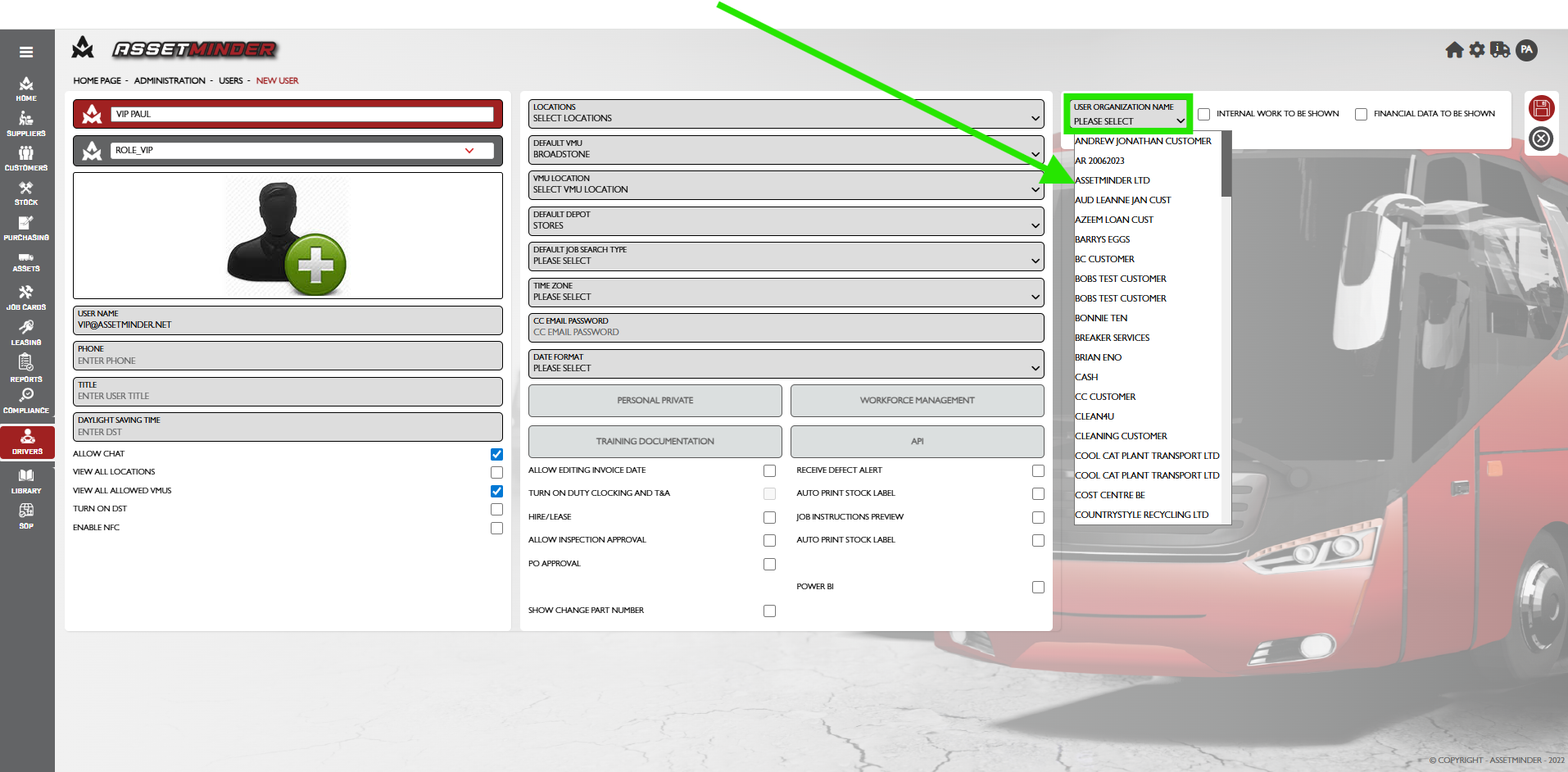
- User Organization Name - Select the name of the organization the VIP user is from.
- INTERNAL WORK TO BE SHOWN - Restricts access to to Job cards
- FINANCIAL DATA TO BE SHOWN - Restricts access to Financial data.
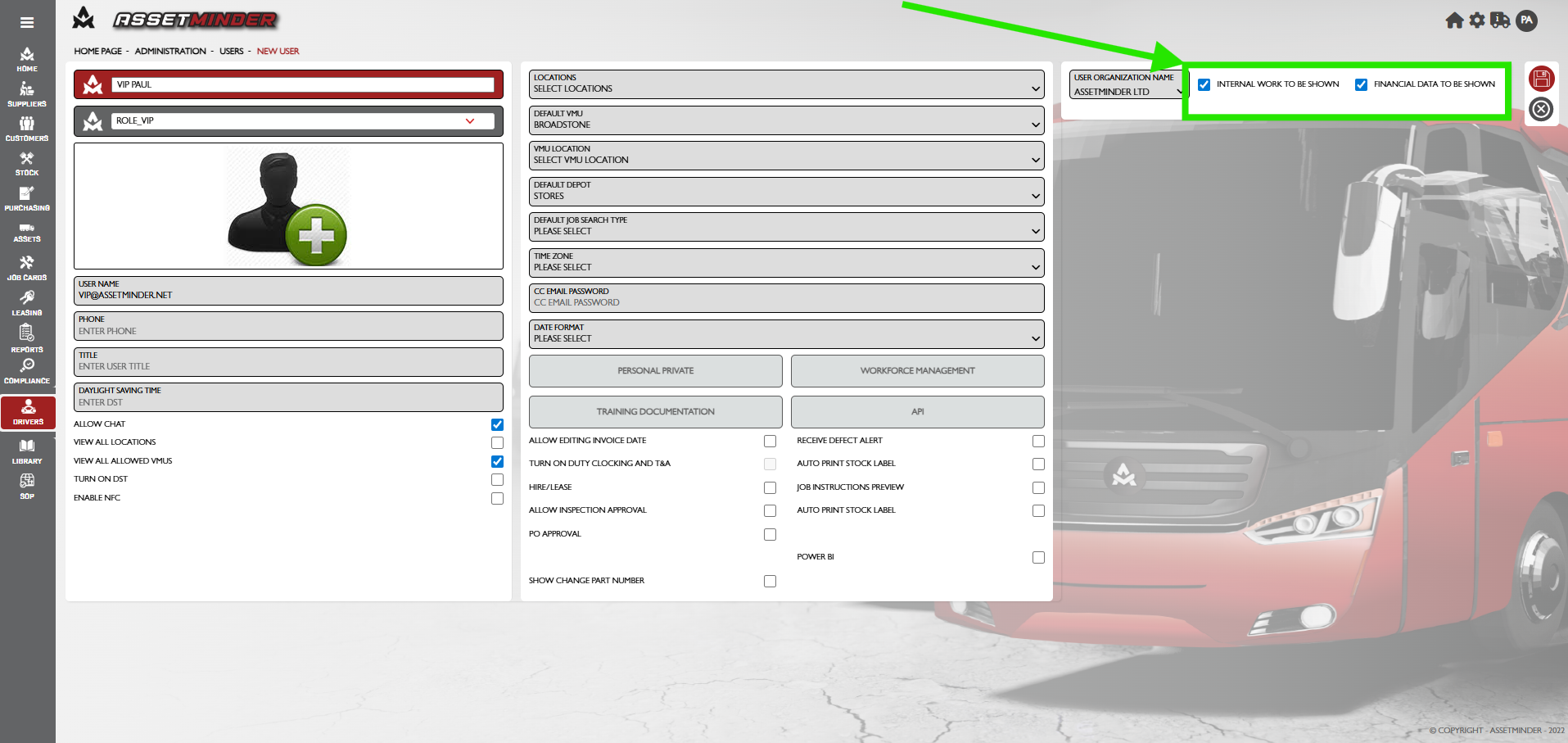
6. When all fields are filled in, the user record will look like the following:
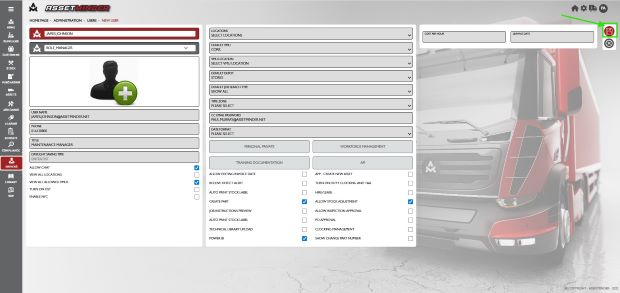
7. Click Save on the bottom right-hand side of the page when done.
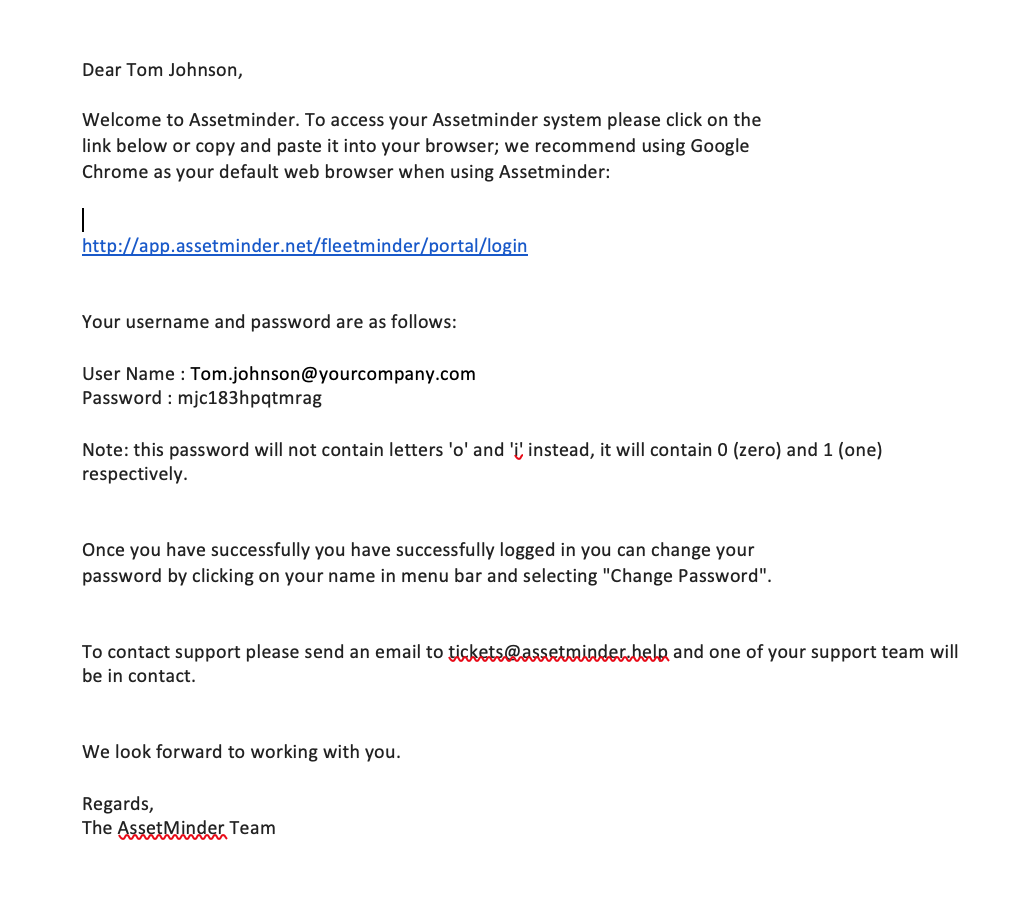
8. The new user is sent a welcome email with login details and a temporary password.
9. Repeat process for all additional VIP users
Paul Murray
Comments