1. Login into the web app using your credentials.

2. Click on the XB Planner icon.
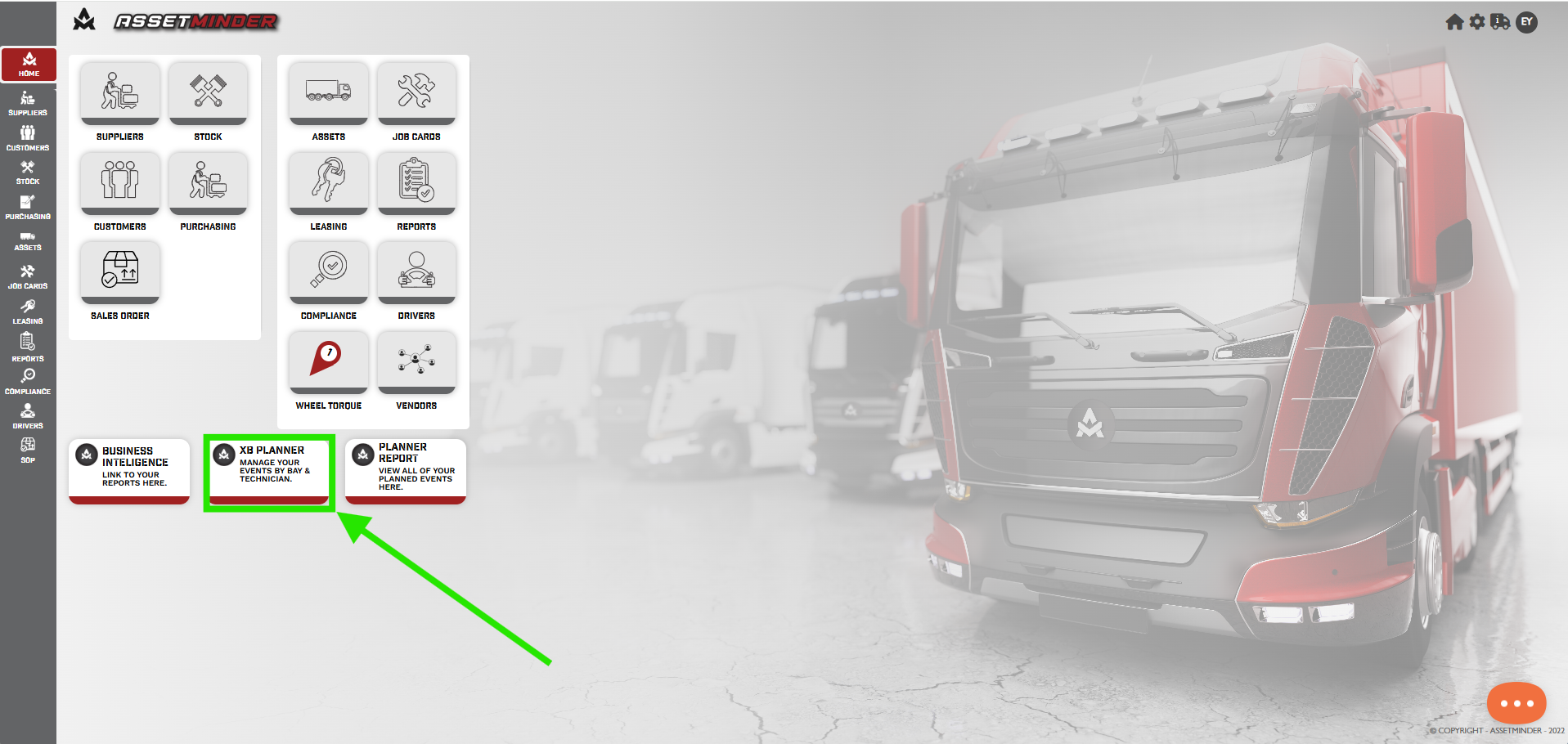
3. The XB Planner will open in a new browser window.
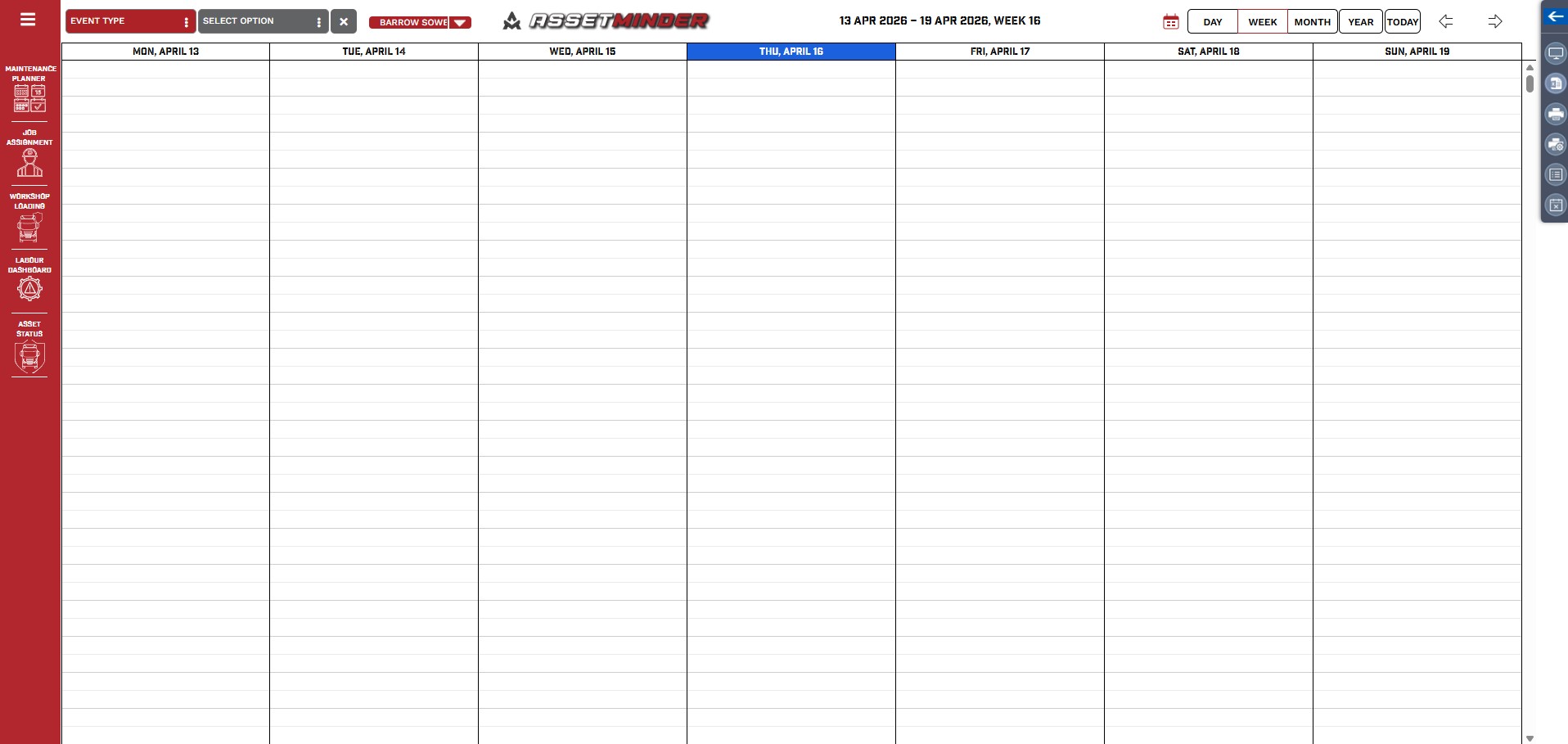
4. For first time users of the planner, the planner needs to be configured. Click on the Burger menu on the Top left had corner.
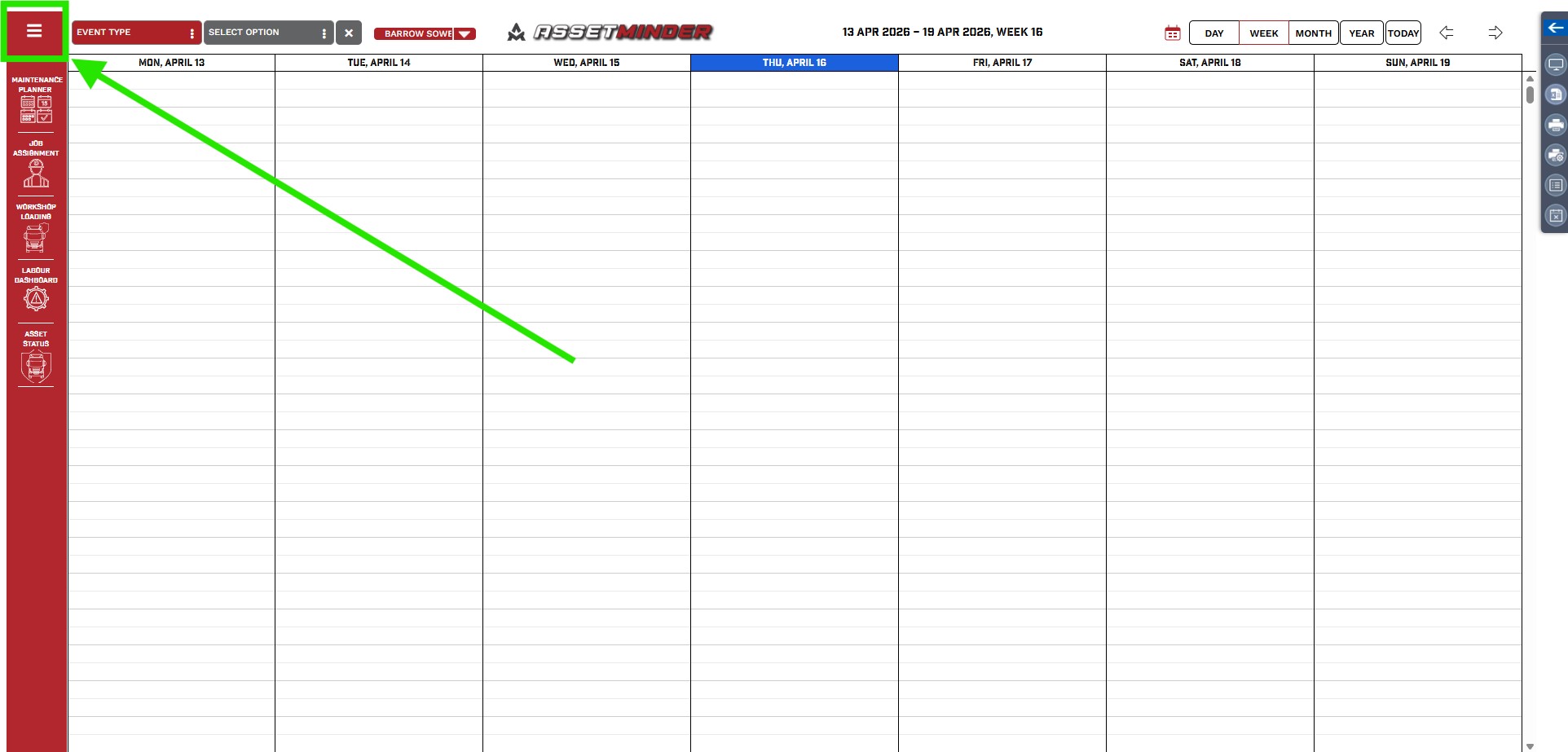
5. Click on the Gear icon to open the Dialogue box.
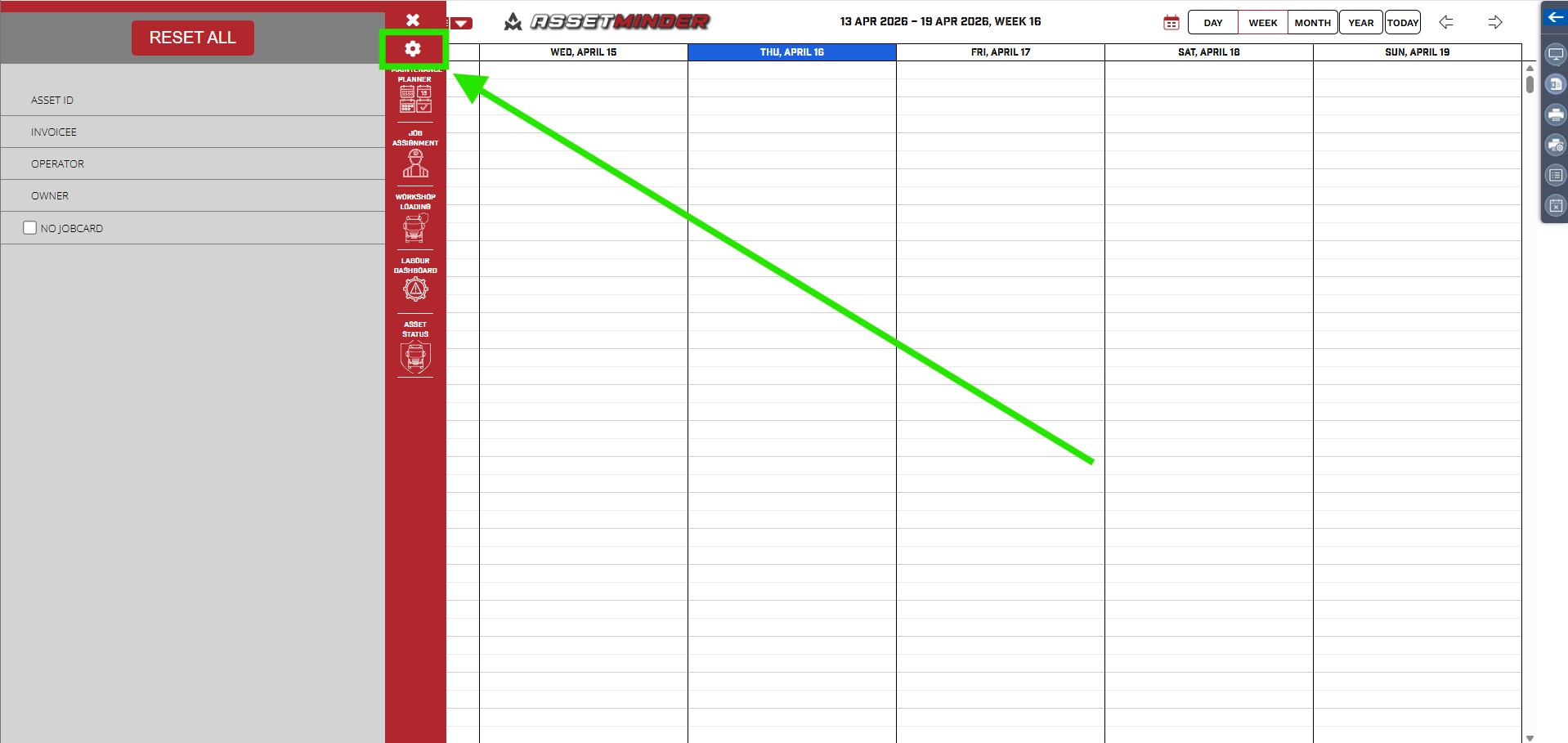
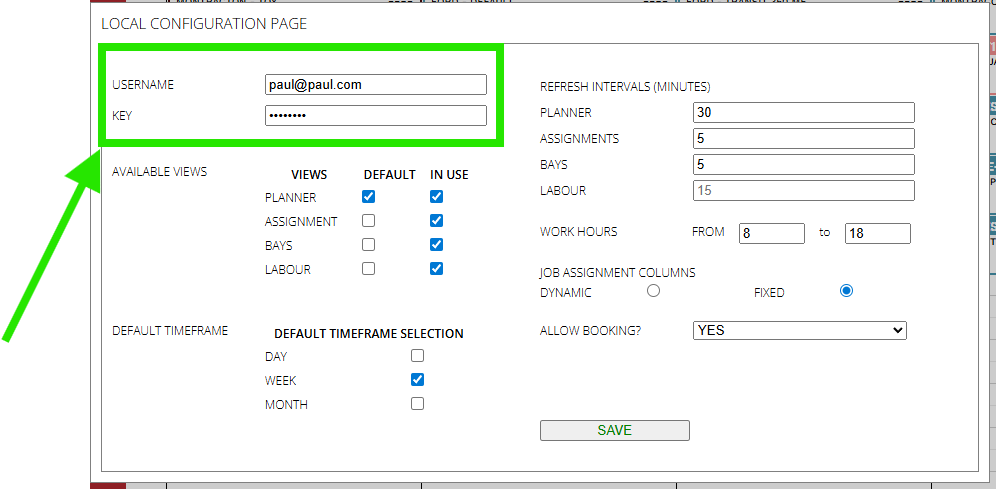
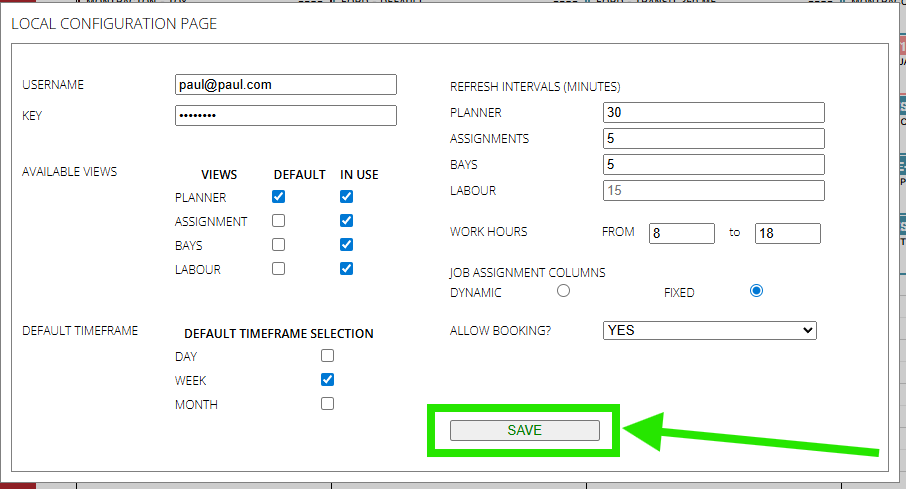
6. Type in your regular Assetminder login credentials into the Username and Key fields. The Key is your regular password.
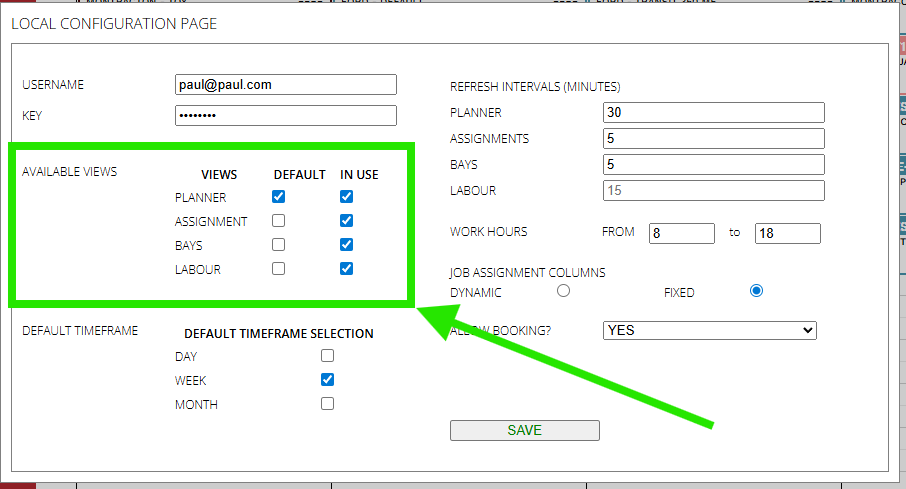
7. Tick the Available views.
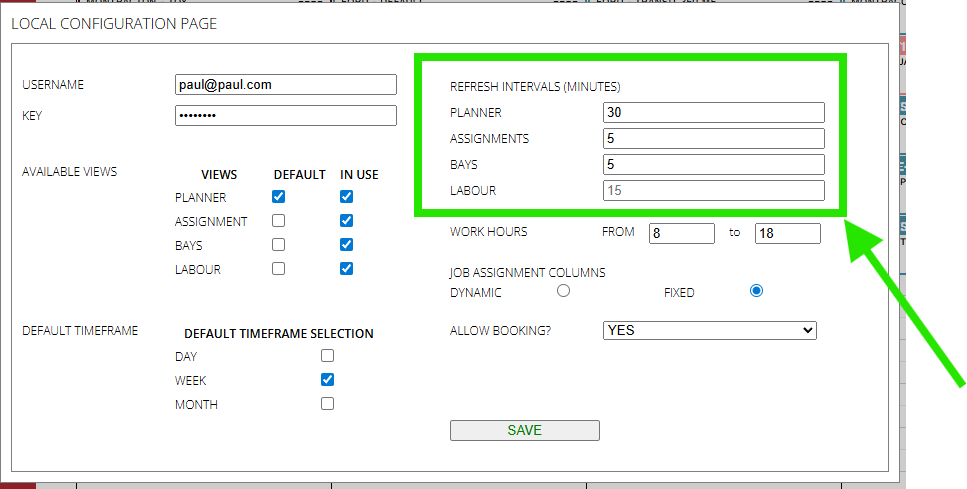
8. Configure the Refresh interval (minutes). This will determine how often the Planner, assignments and bays are refreshed.
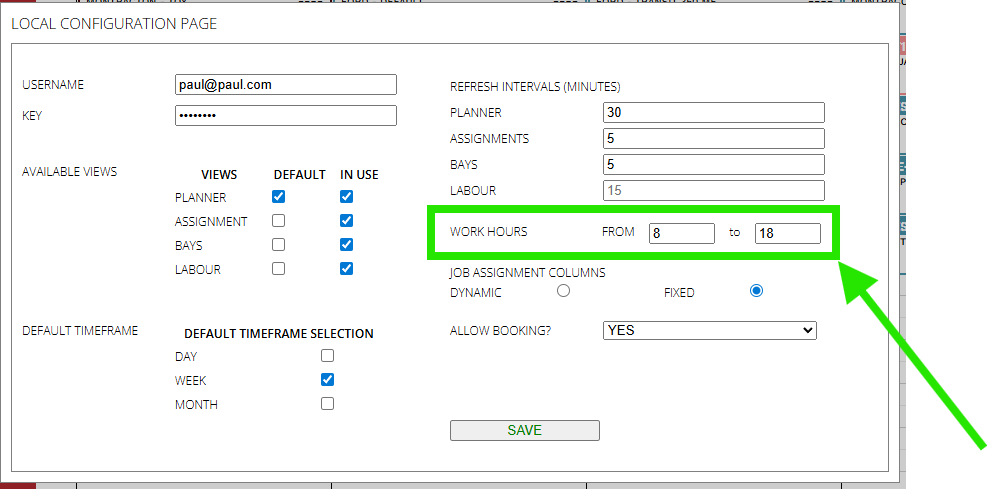
8. Configure your work/business hours.
9. Click Save when done.
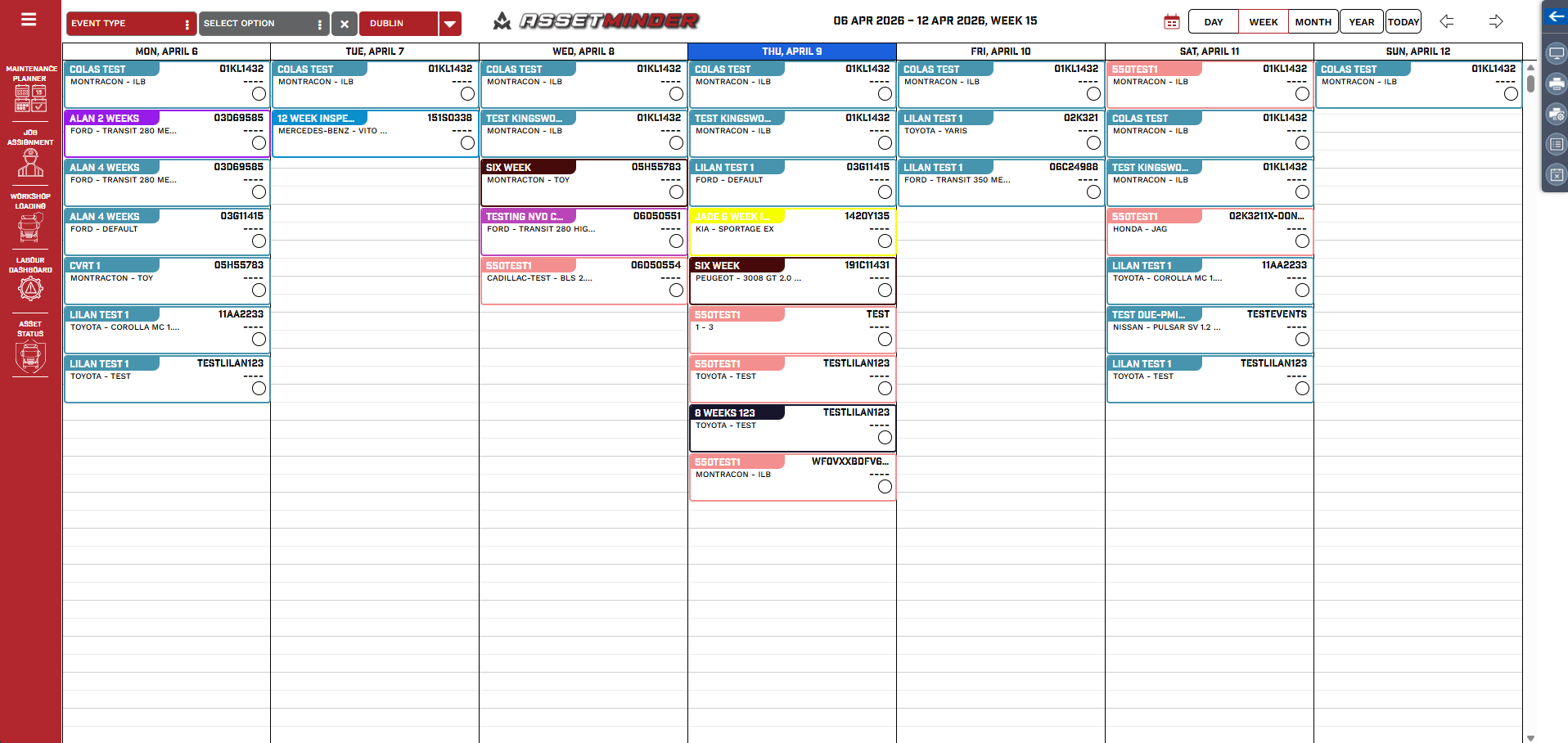
11. The system will log you into the planner.
12. If you get a password error, try clicking the mouse into both the username window and password window again, and click save.
Paul Murray
Comments