Background
Job estimates and sales estimates are very similar. Job estimates are issued against a vehicle whereas sales estimates are issued against the company. For example, a client may wish to buy some parts from your company, so a sales estimate and sales order are created.
Procedure
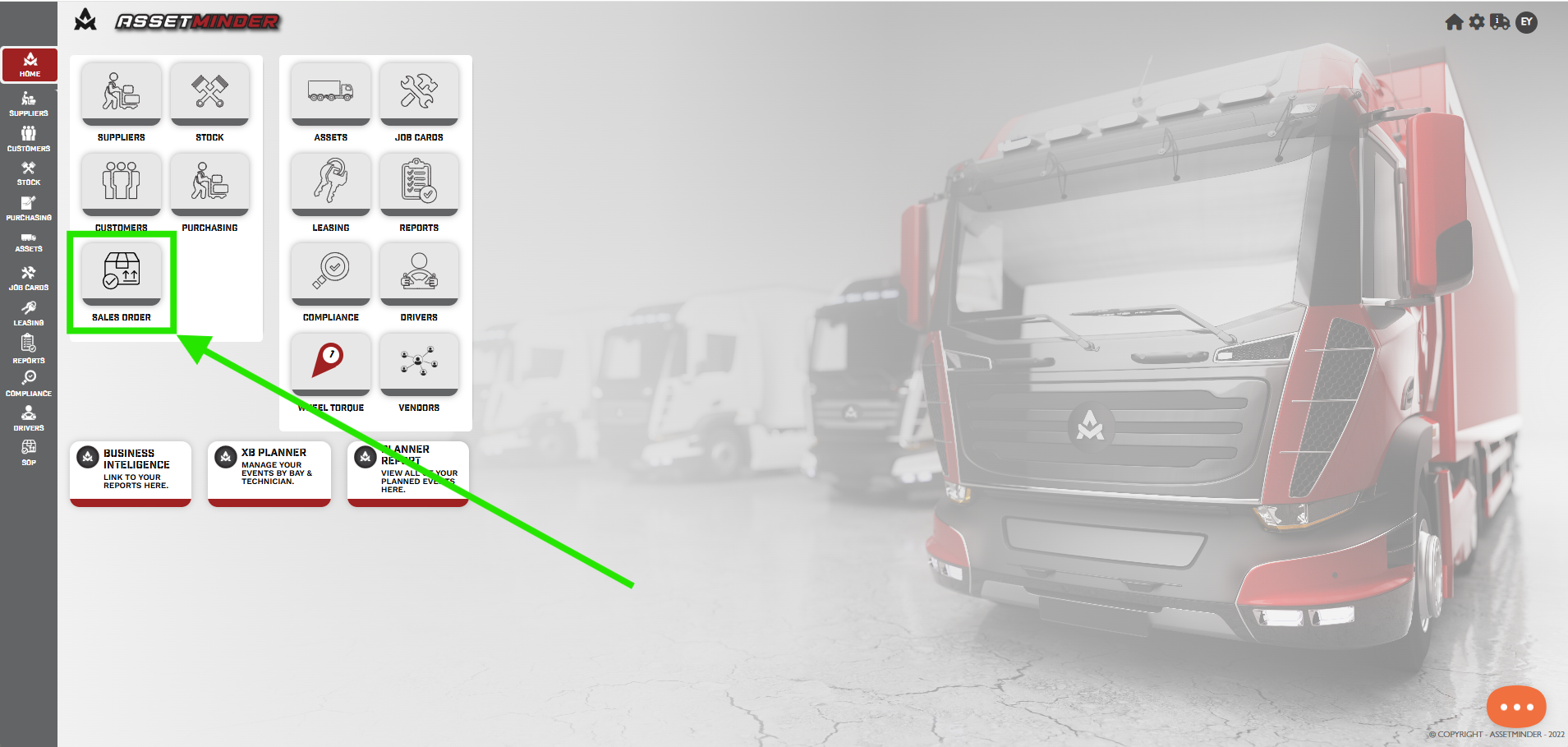
1. Click Sales Order on the home screen.
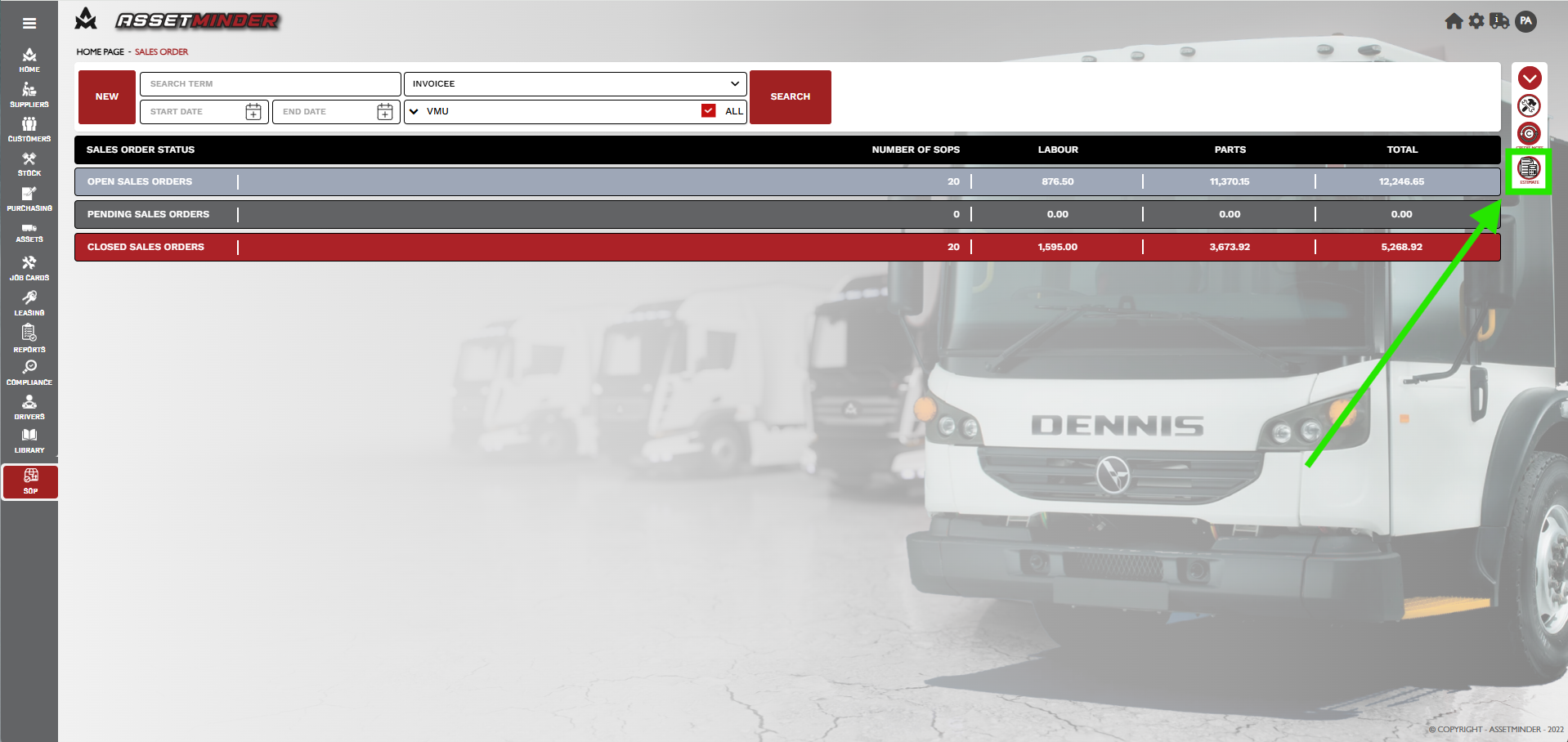
2. Click the Sales Estimates icon on the right-hand side of the screen.
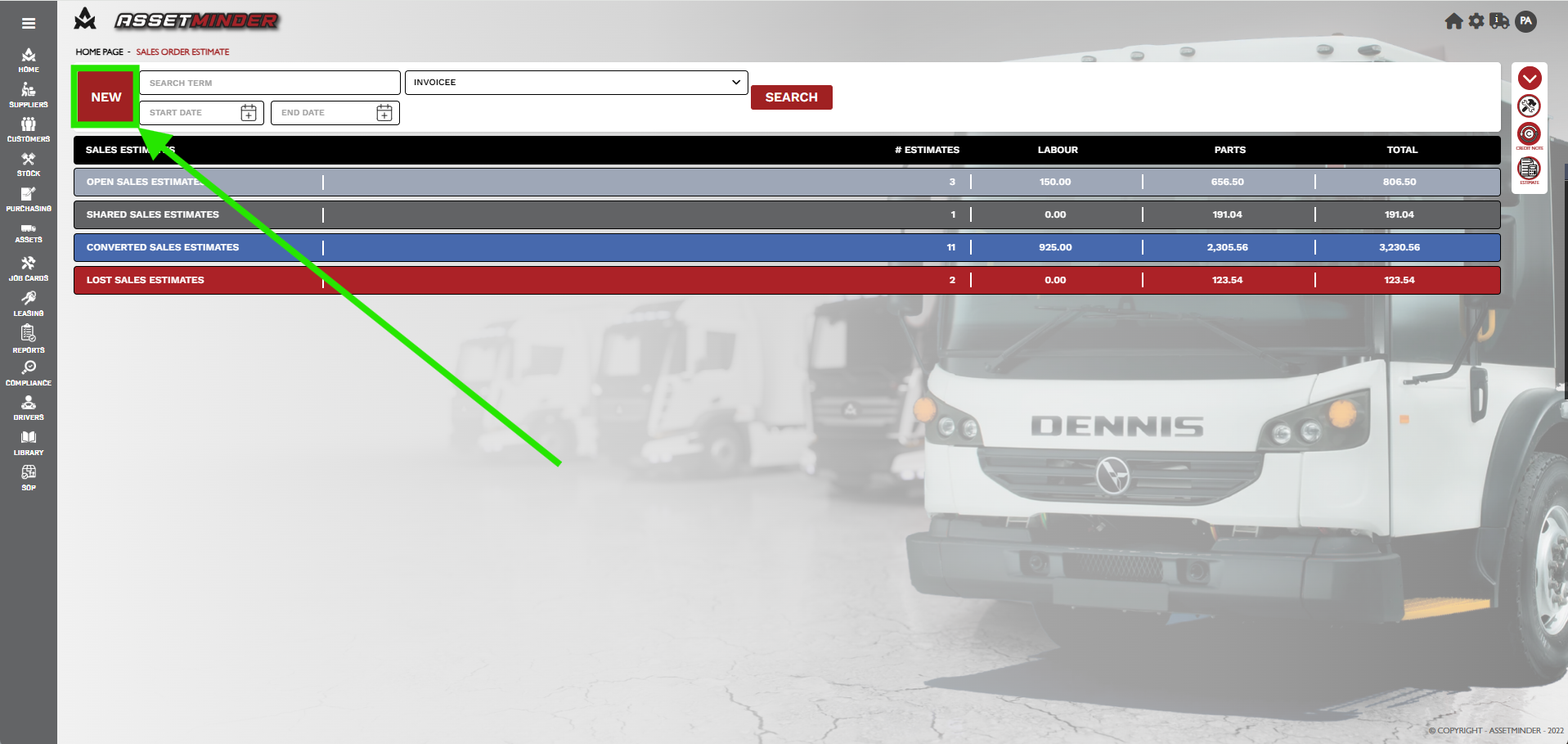
3. On the Sales Estimate screen, click New.
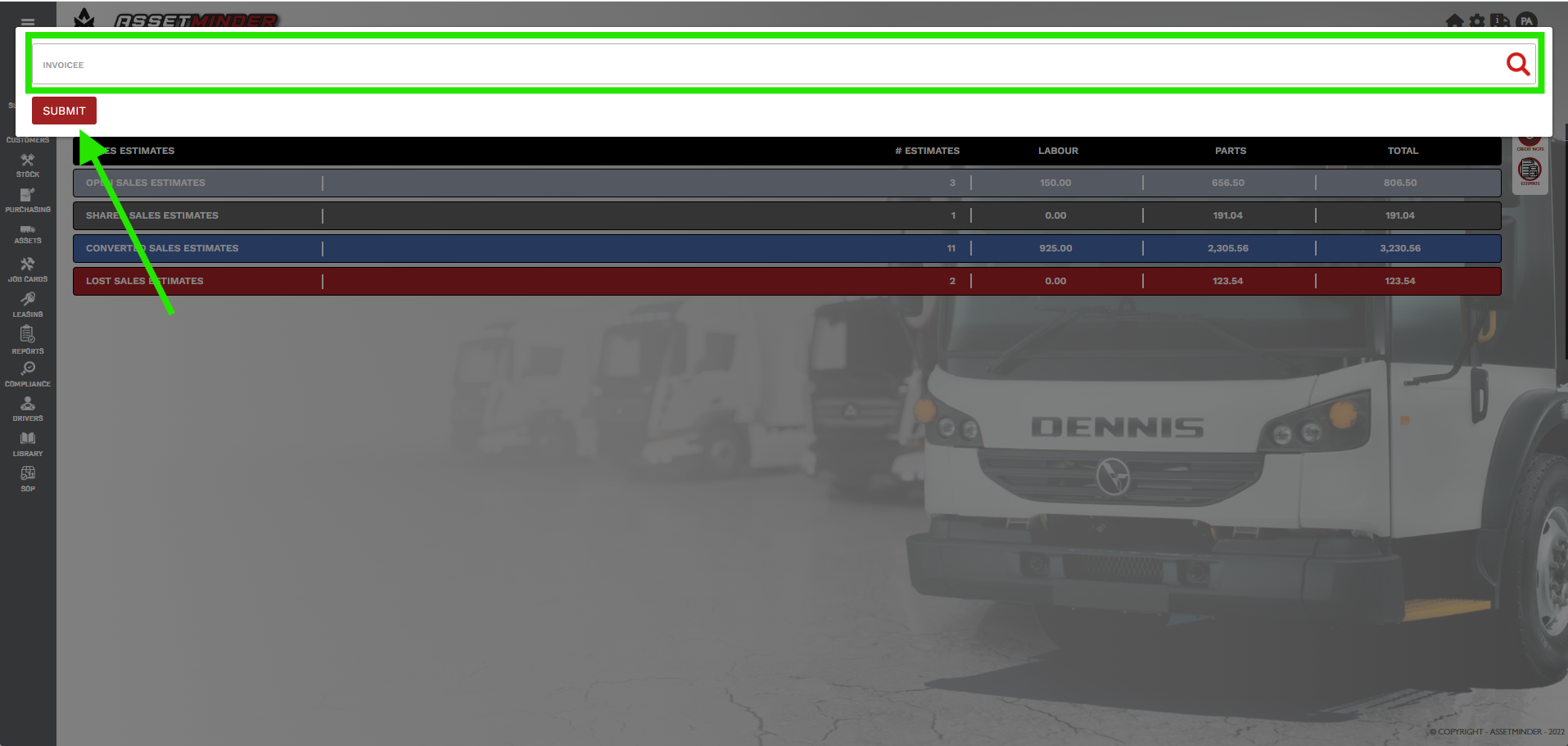
4. Search for the customer on the list.
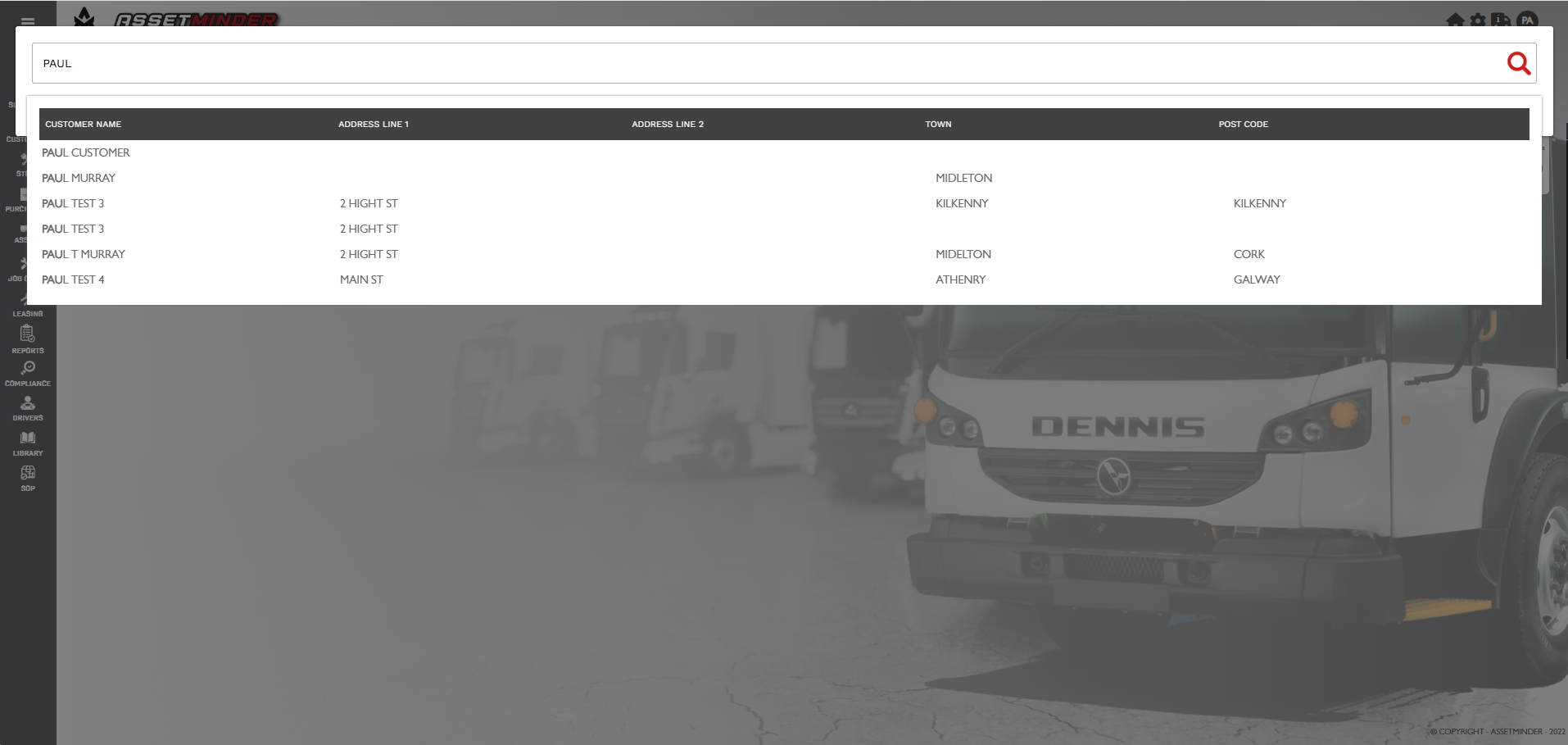
5. When the customer is selected, click Submit.
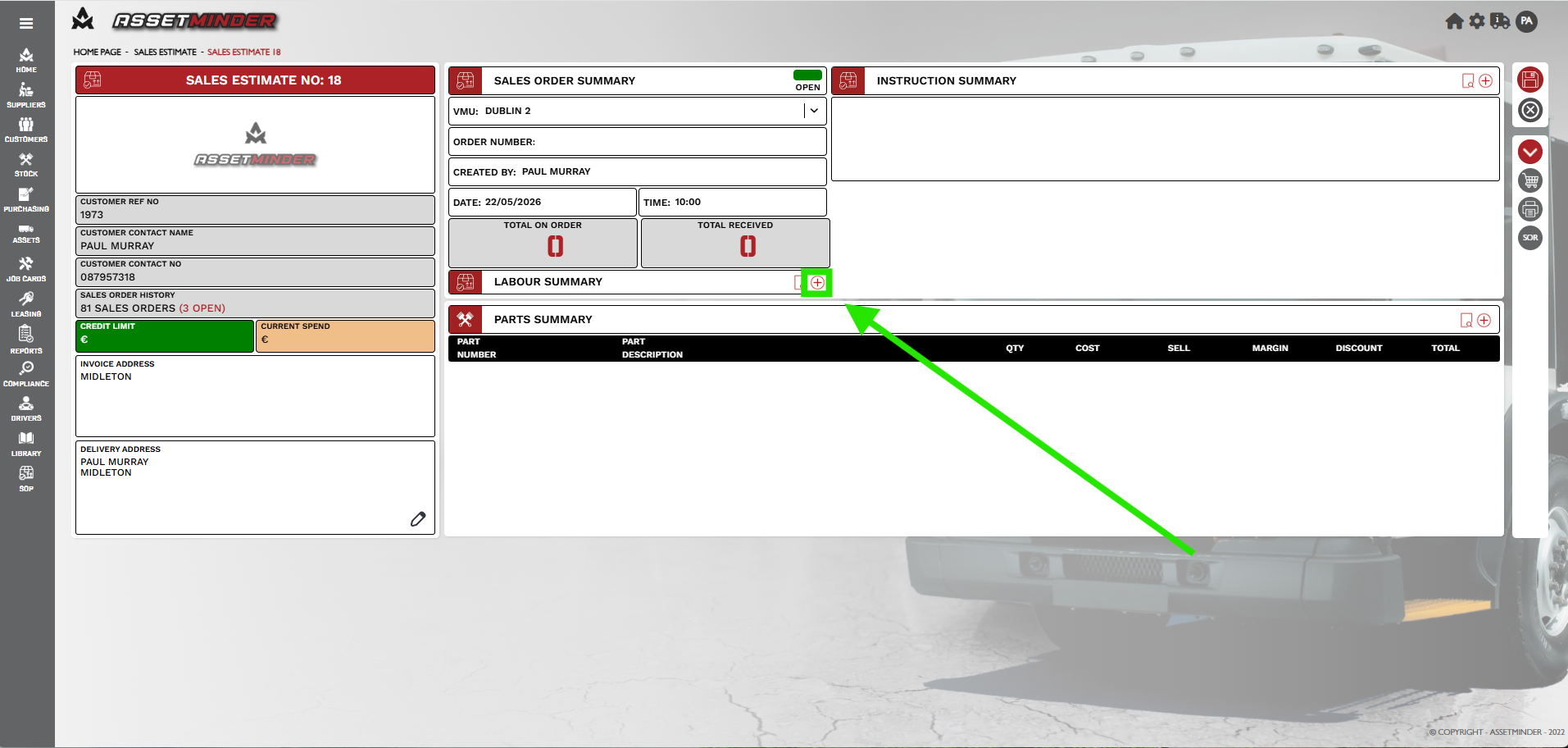
6. To add expected labour costs to the estimate, click the Add icon in the Labour tile
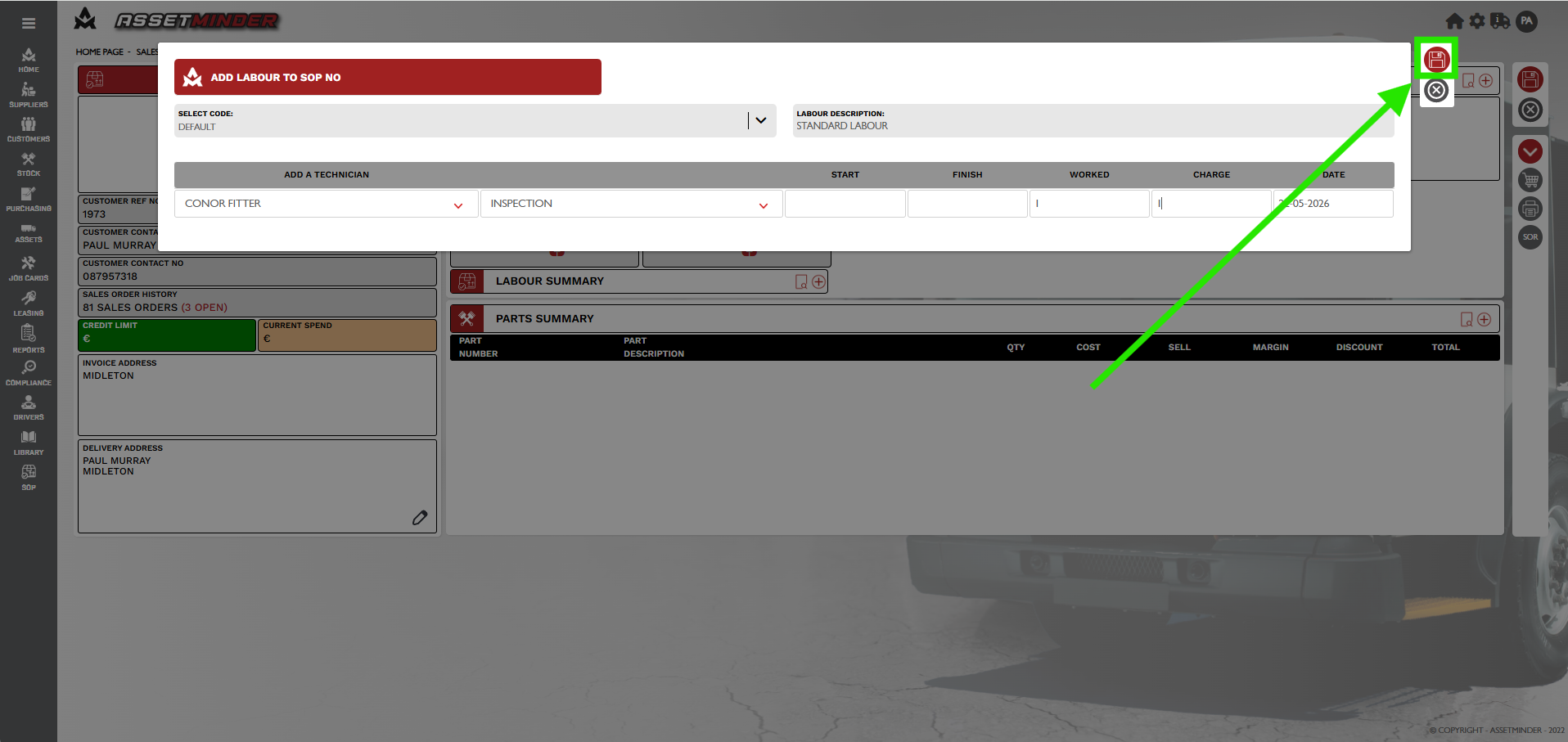
7. Fill in the labour rate, technician, expected labour hours, hours to be quoted, and repair code. Click Save when done.
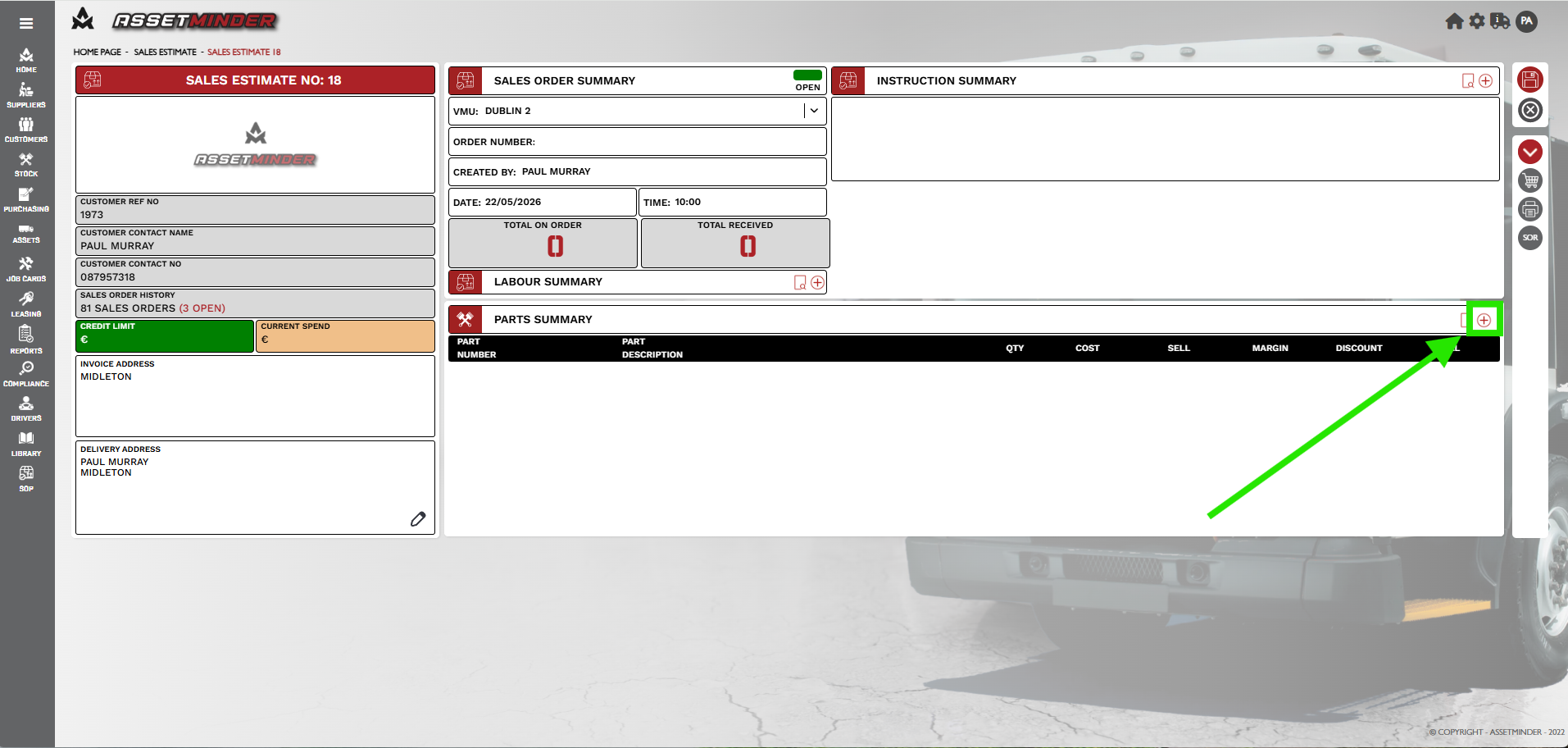
8. To add parts to the estimate, click the Add icon in the parts tile.
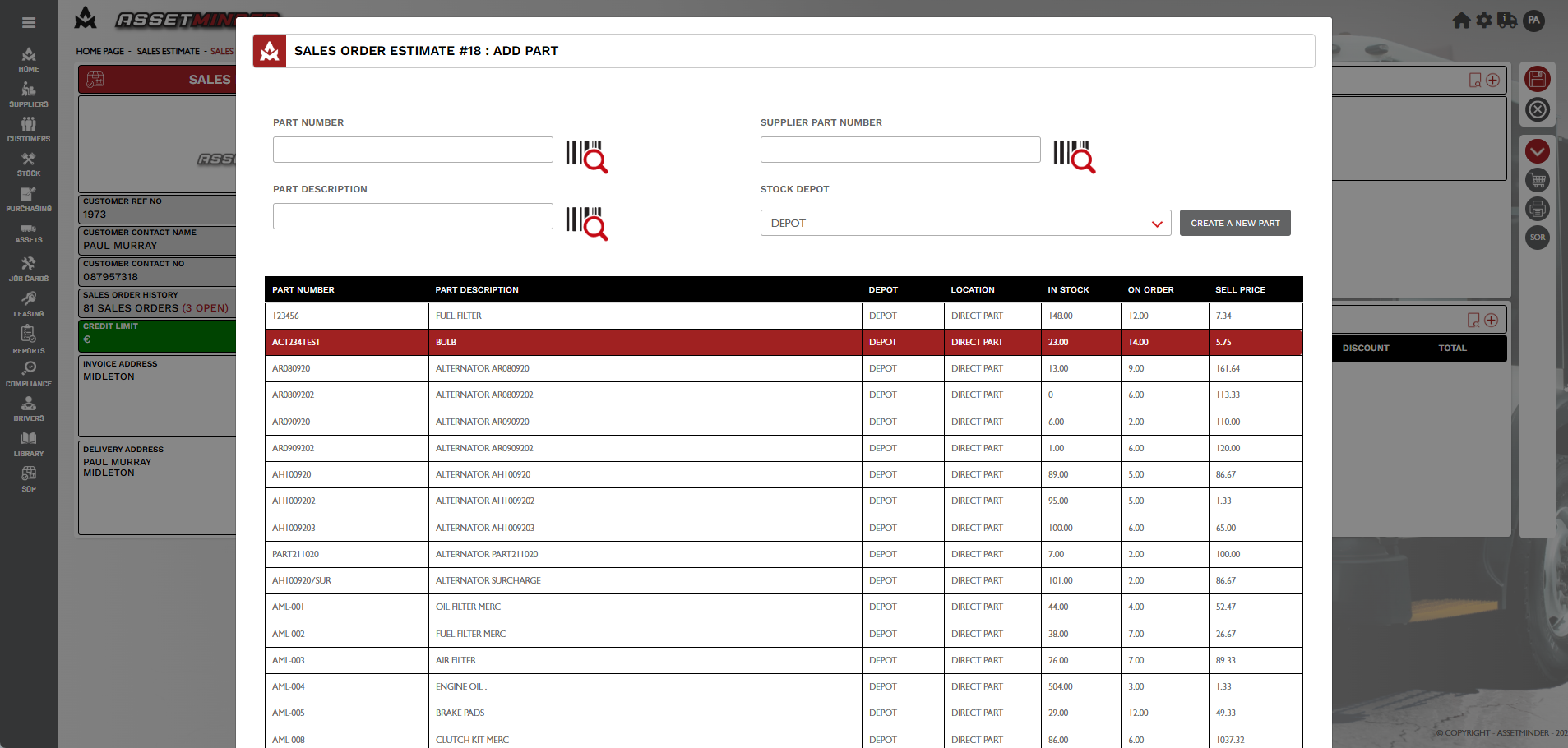
9. In the Add Parts screen, search for your part by PART NUMBER, PART DESCRIPTION or SUPPLIER PART NUMBER. Click on the the part.
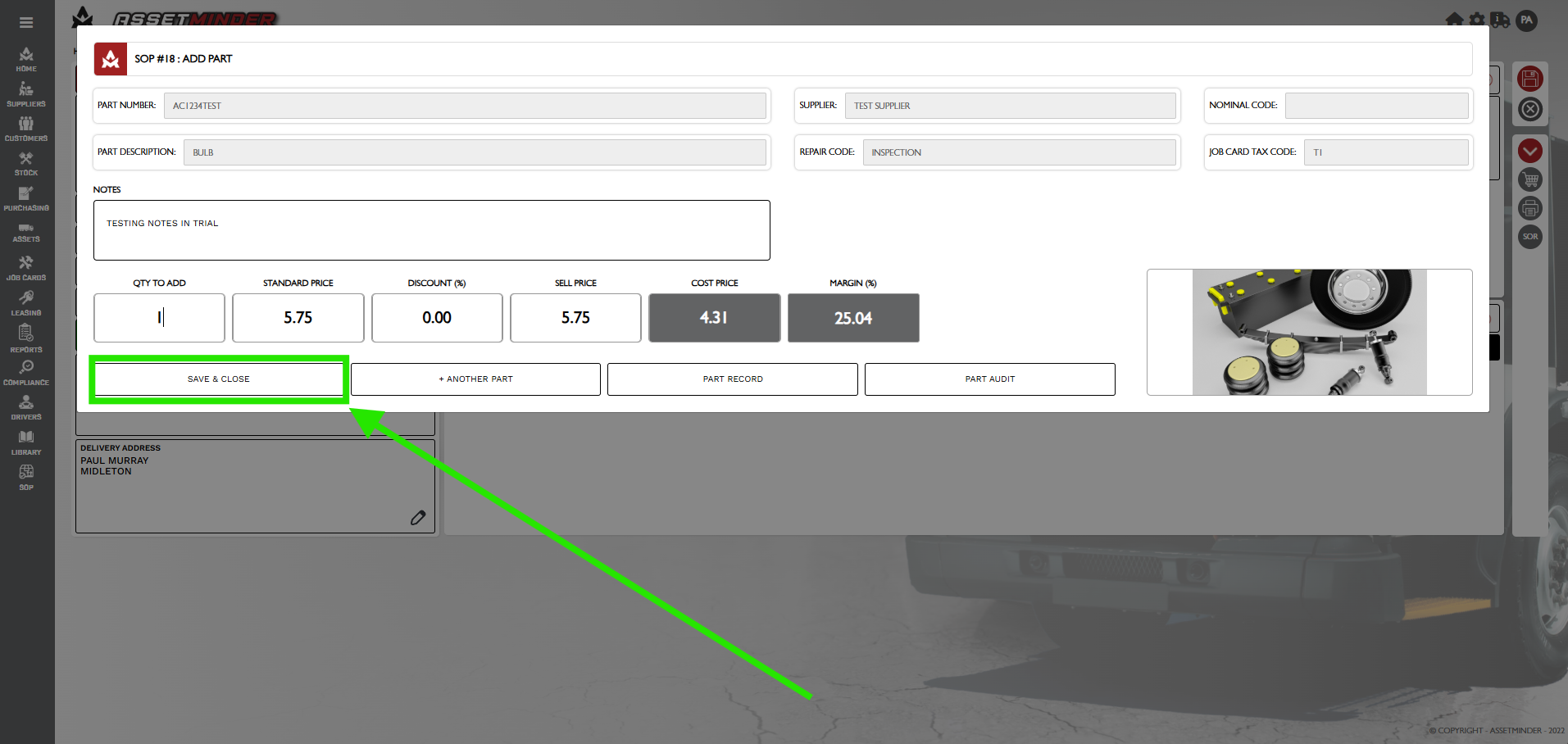
10. Add the quantity required and click Save & Close.
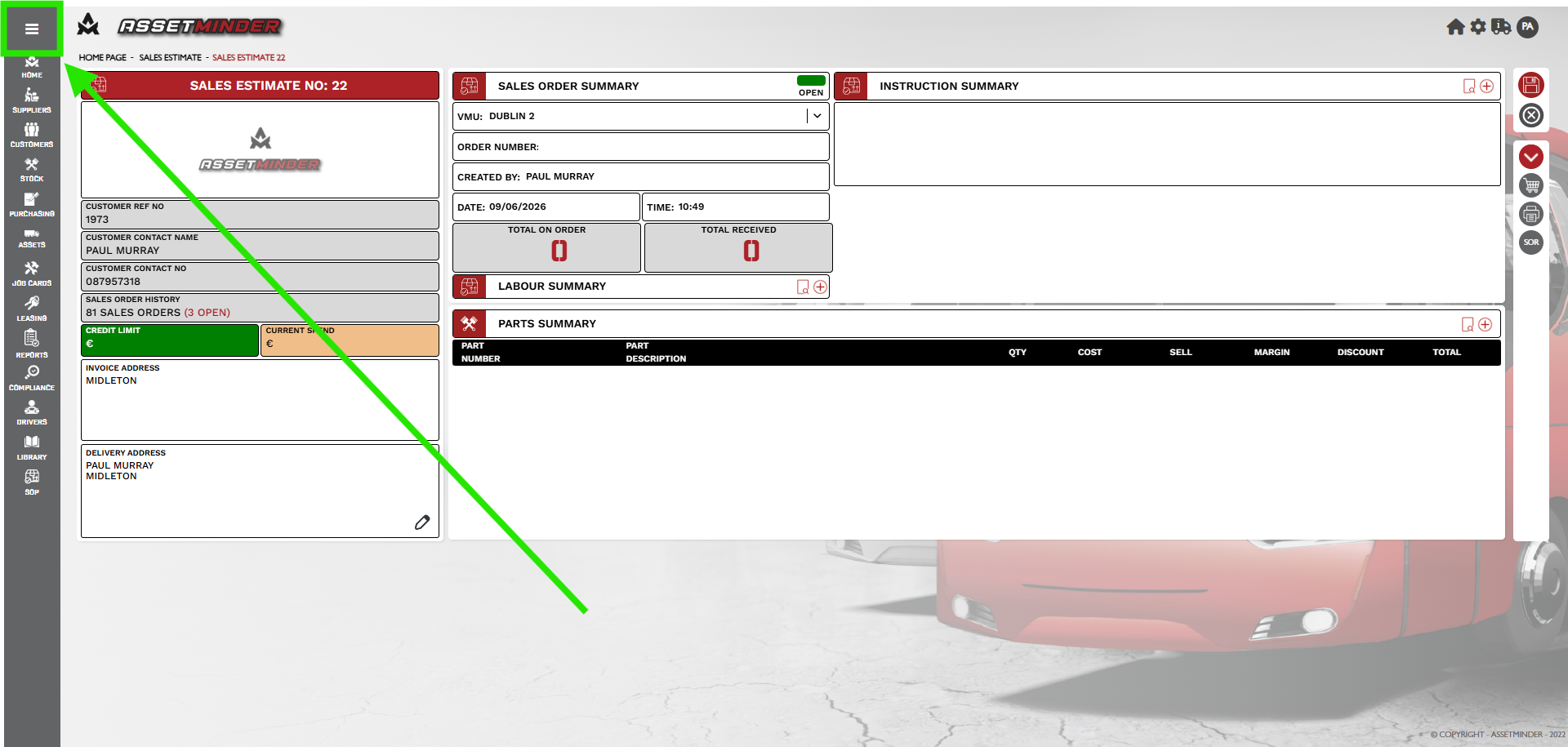
11. When all information has been added to the invoice, click the menu icon on the left hand side.
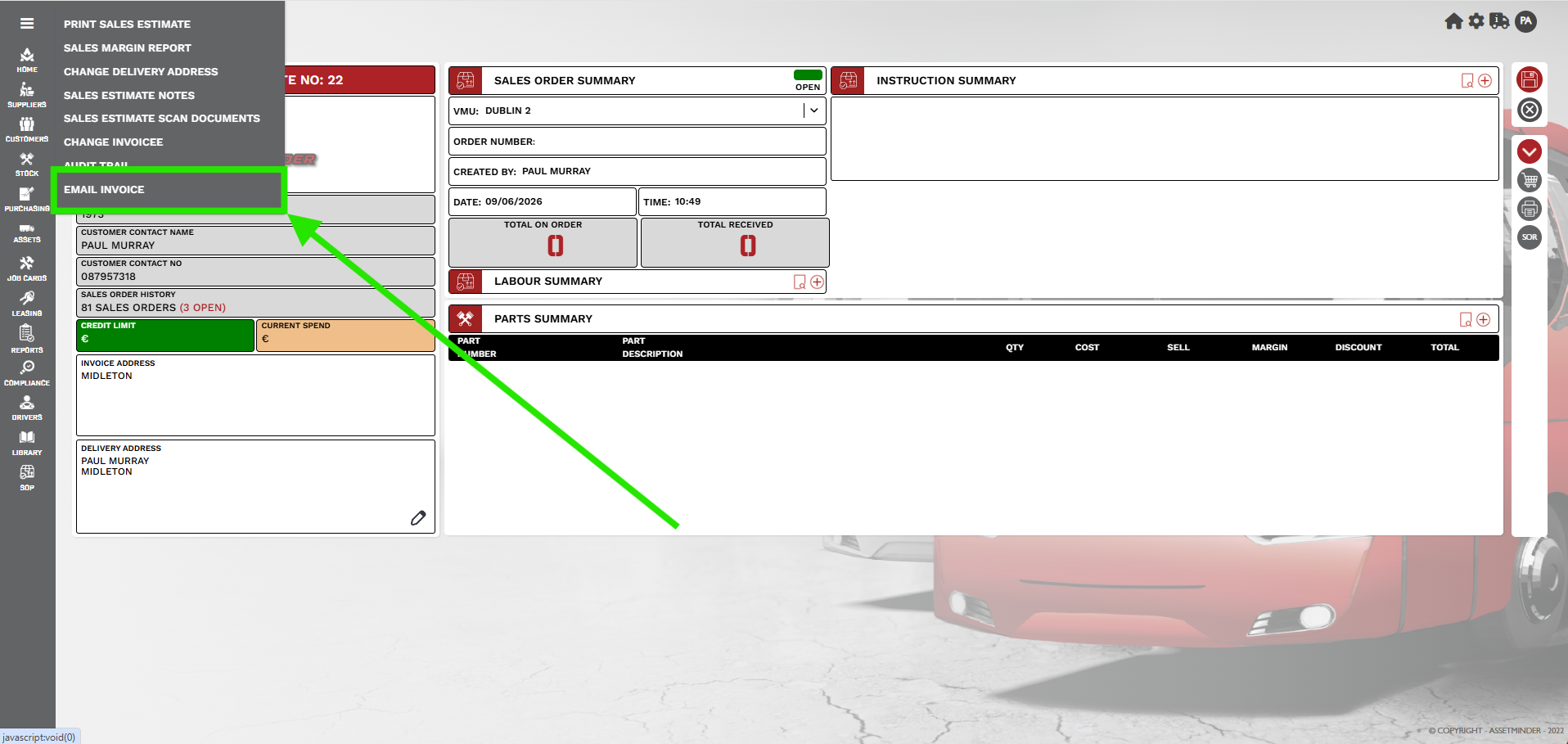
11. Click Email Invoice to send the invoice to the customer.
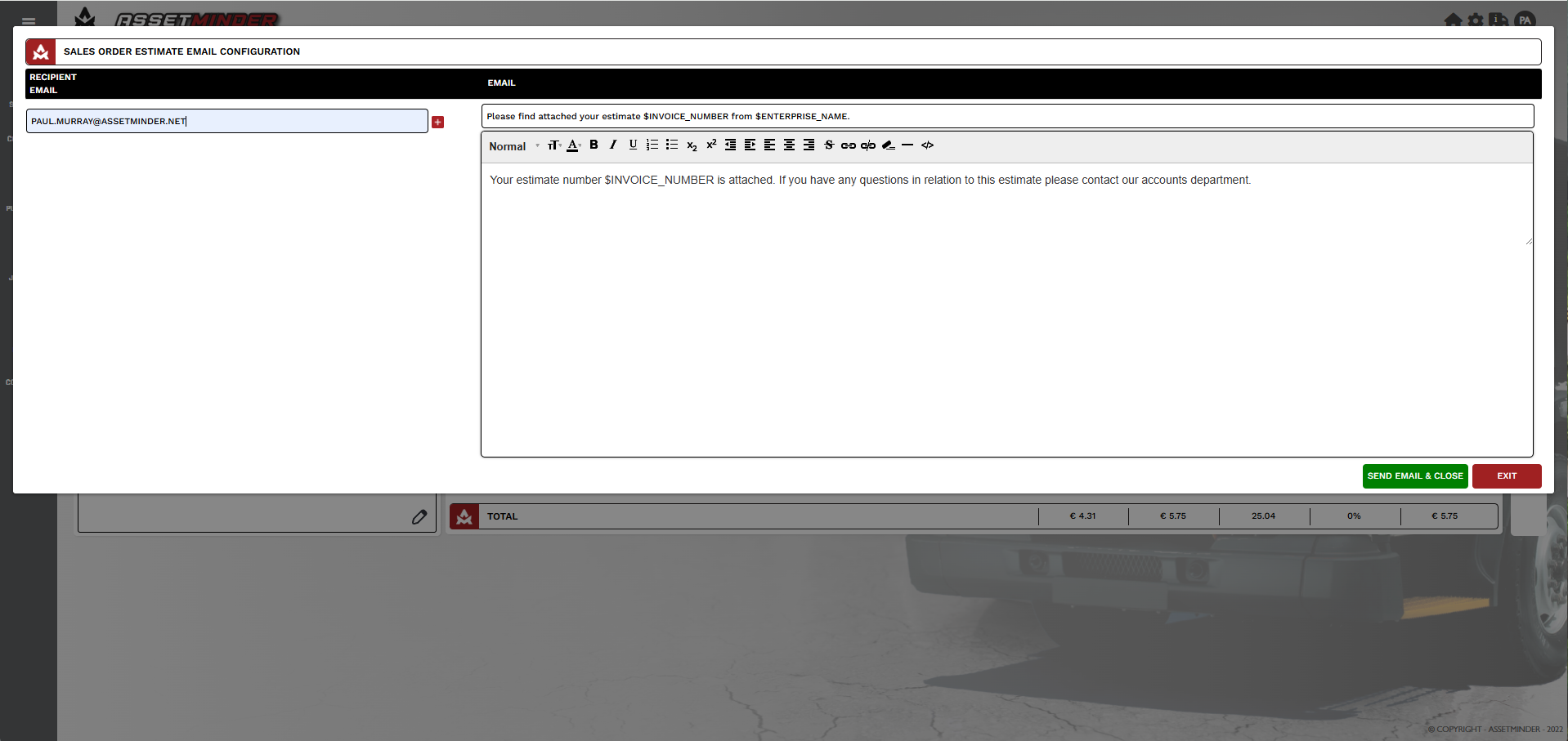
12. Enter the email address and click SEND EMAIL &CLOSE. Additional emails may be added if required.
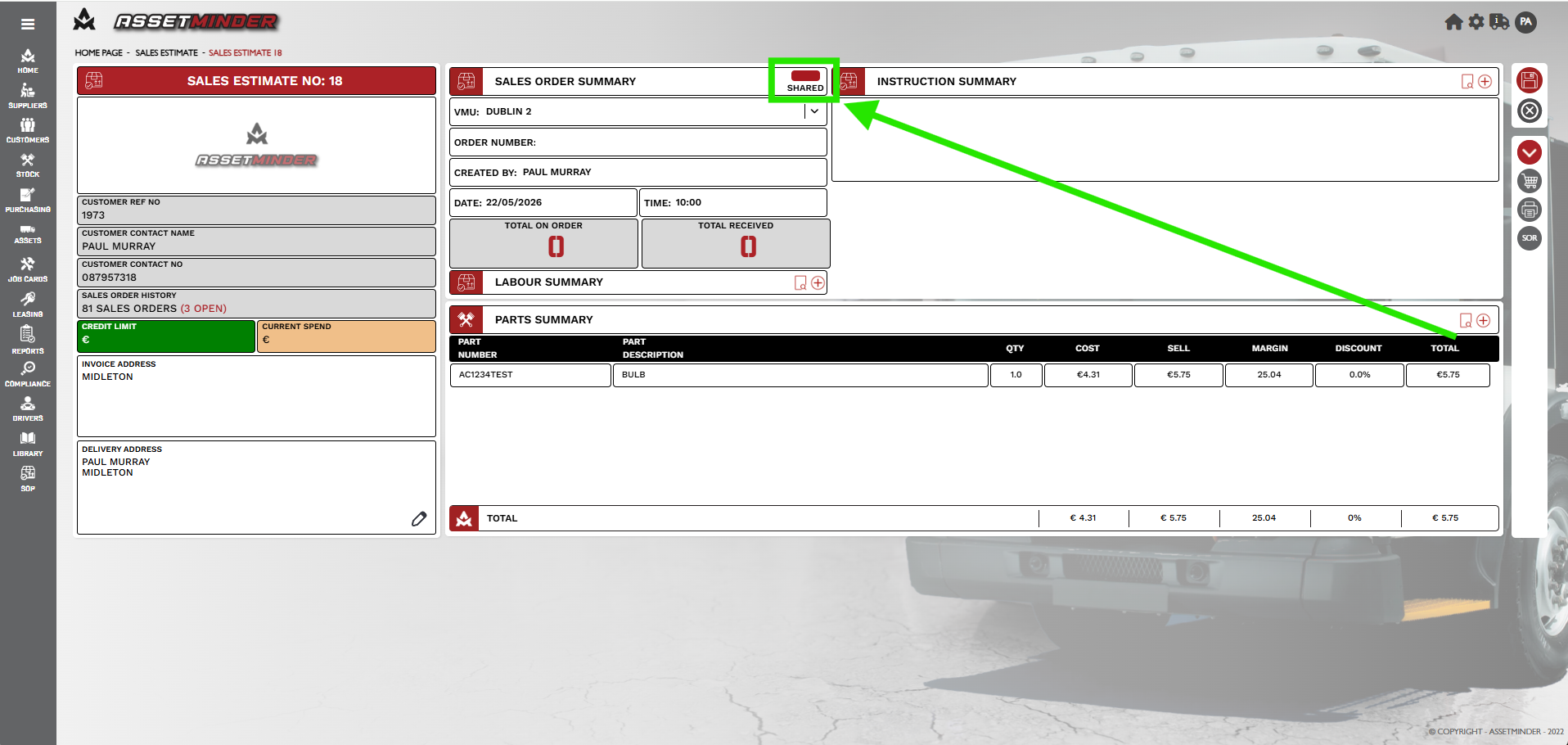
13. Toggle the estimate from Open to Shared.
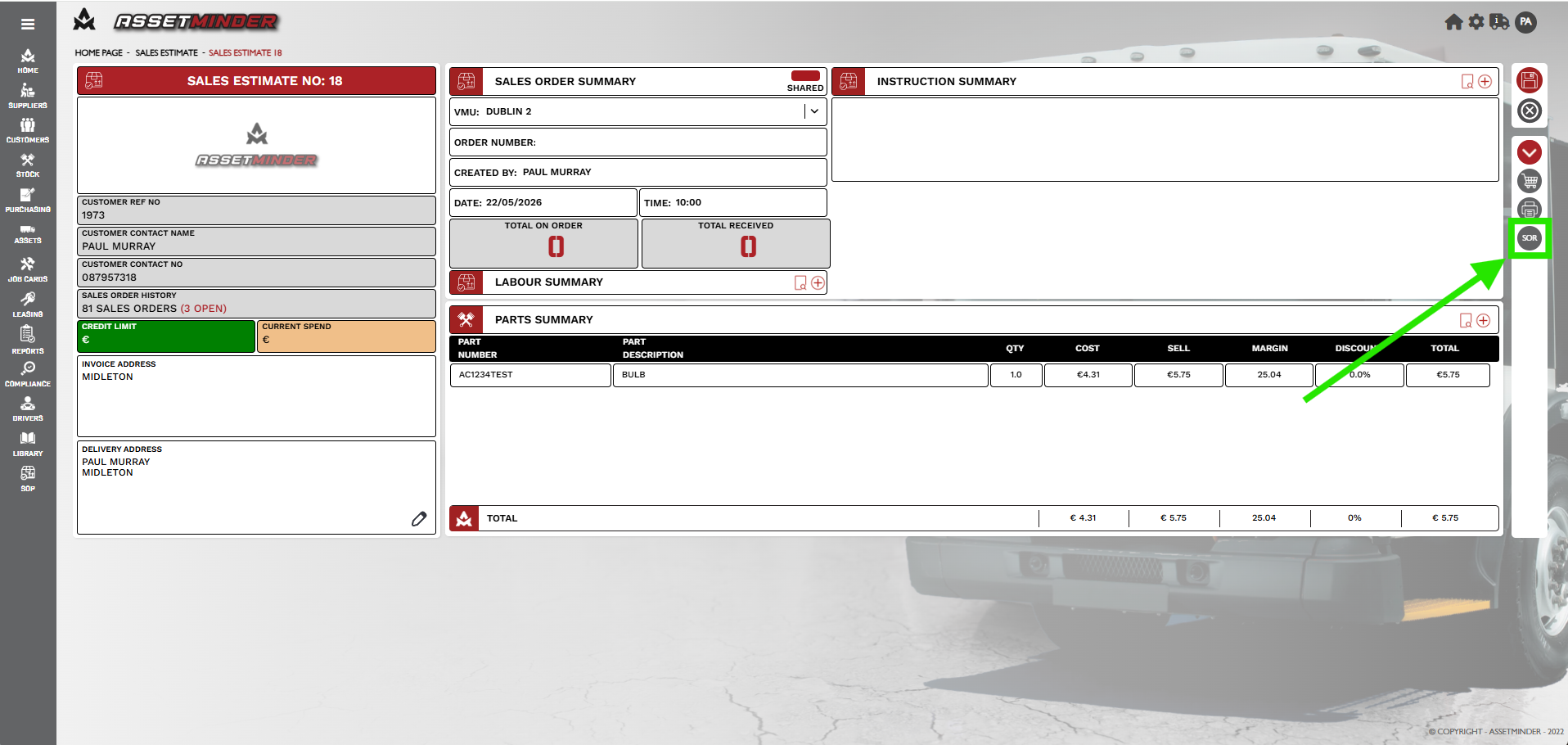
14. When the customer signs off on the estimate, the estimate can be converted into a sales order. Click the Sales Order Review icon.
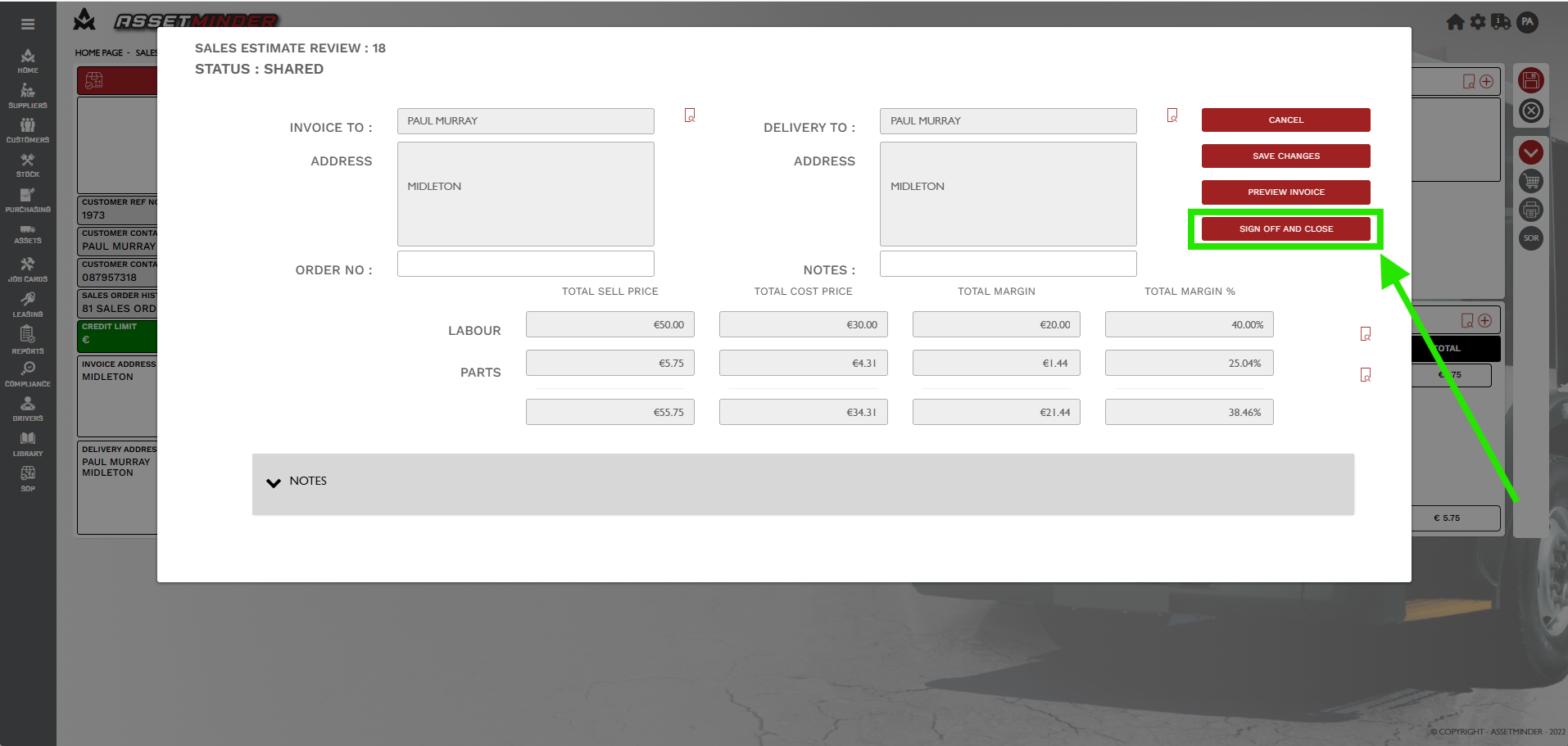
15. Click Sign Off & Close.
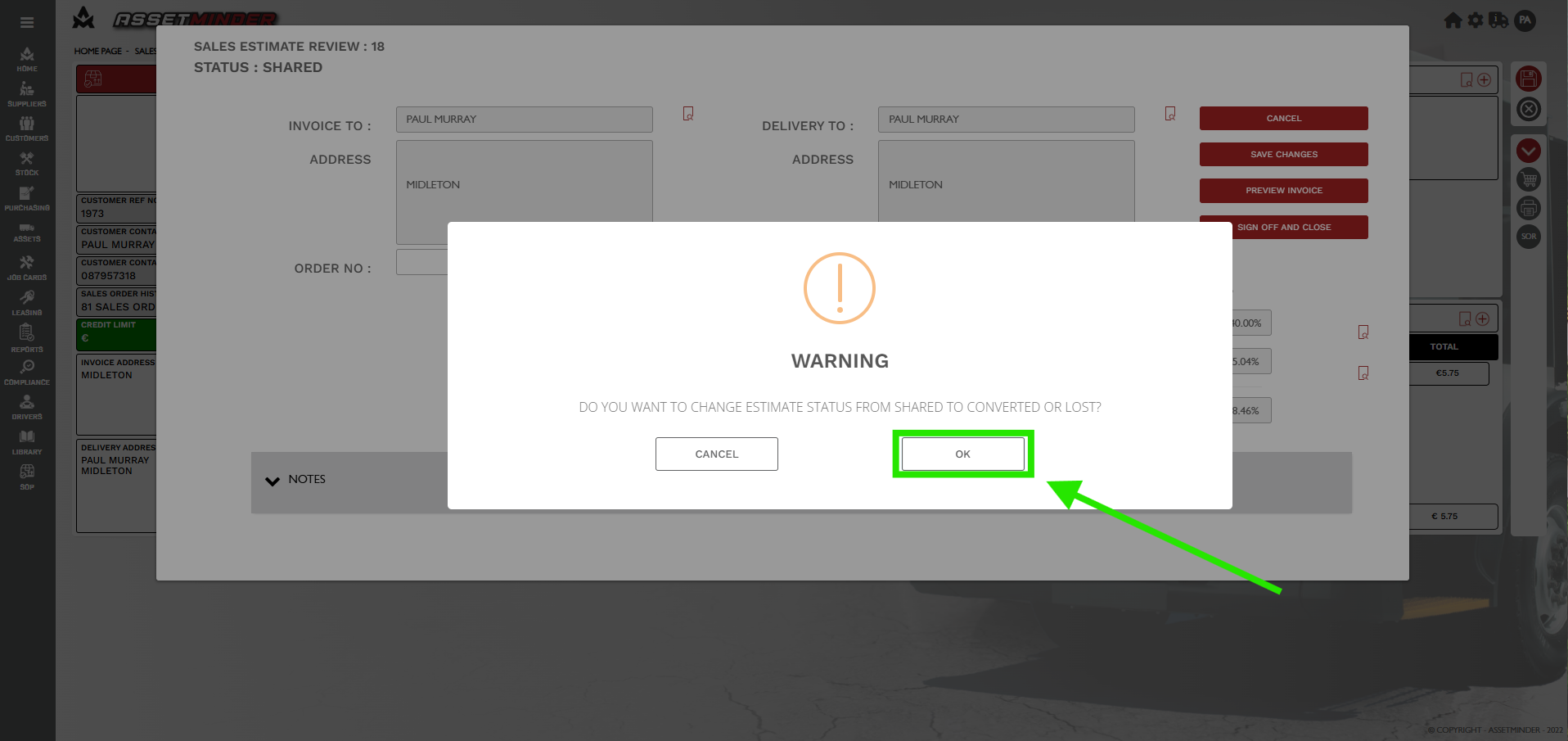
16. A warning will appear ' Do you want to change estimate status form shared to lost?' Click Ok.
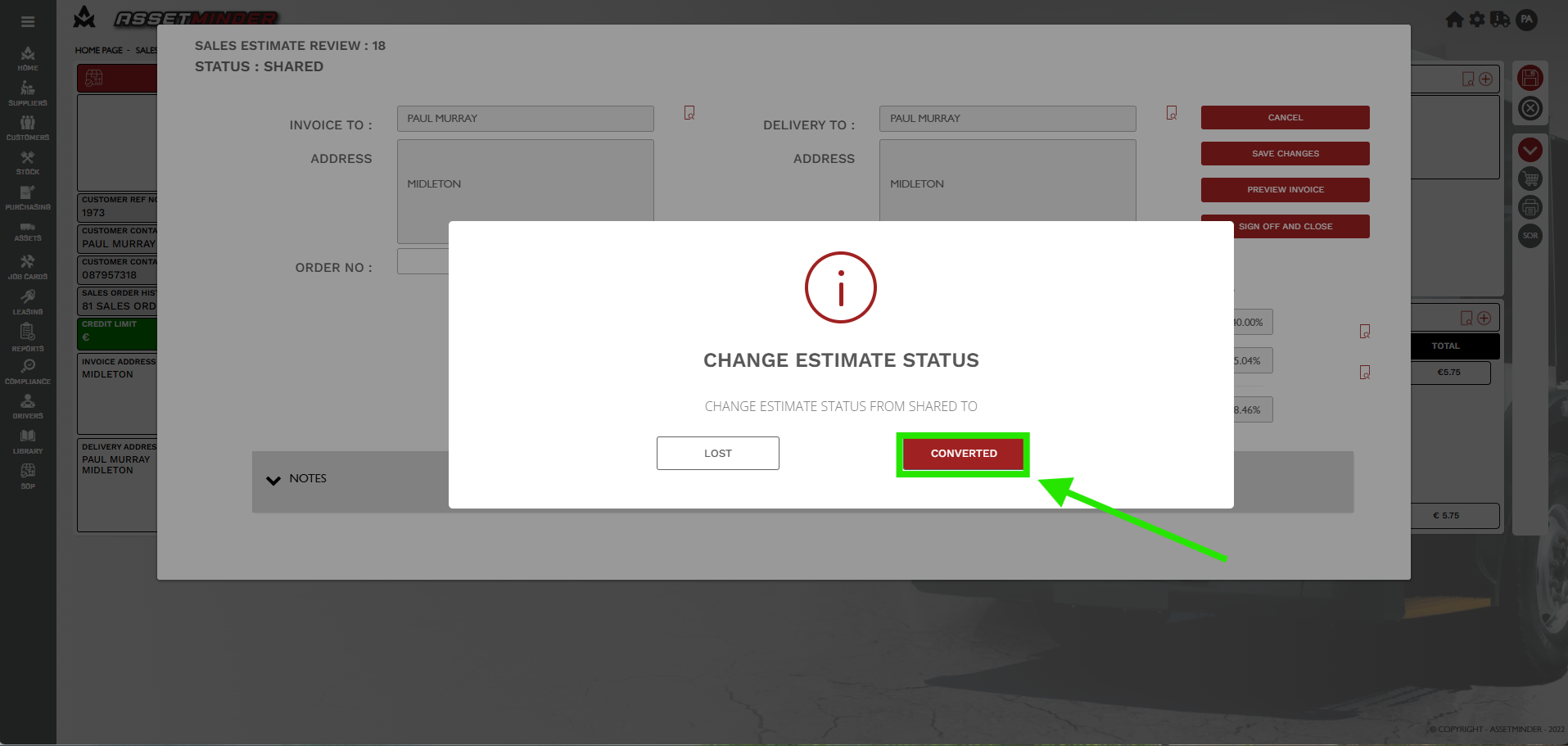
17. Read through the warning note 'Change estimate status from shared to ' and click Converted if you want to convert. Choose Lost if the estimate is rejected.
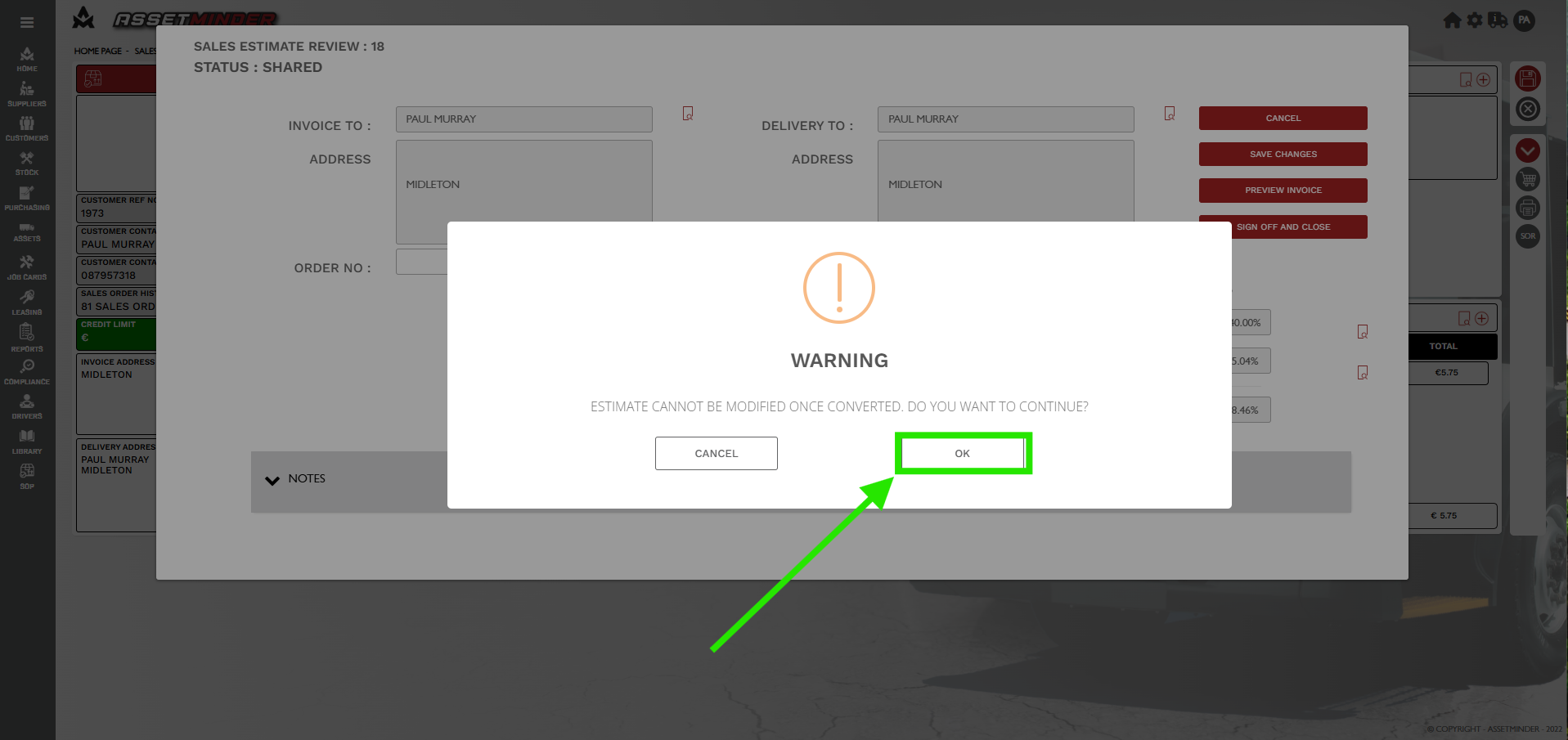
18. Read through the warning note 'Estimate cannot be modified once converted. Do you want to continue?' Click Ok.
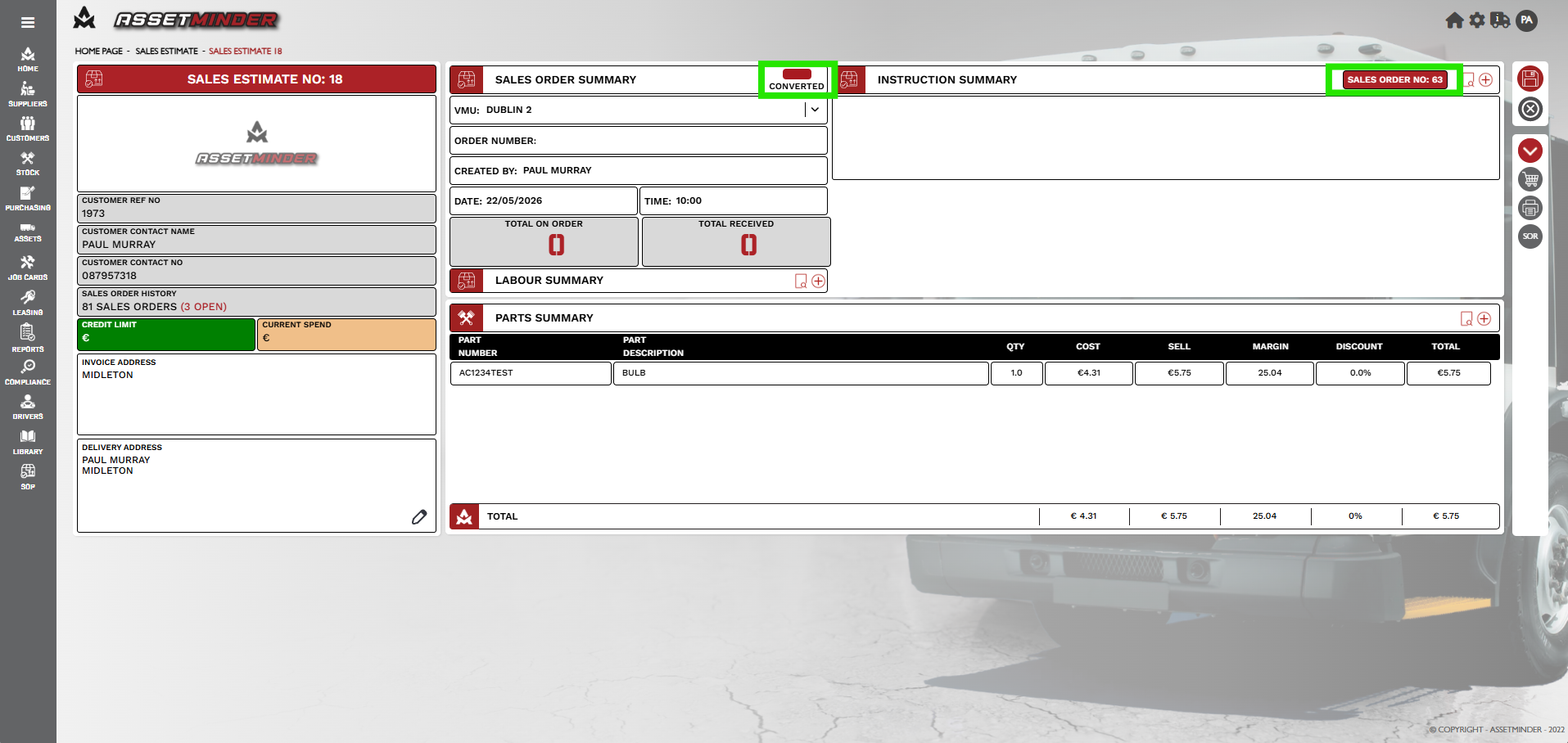
19. The estimate is now converted into a sales order. Click through to the sales order if needed.
Paul Murray
Comments