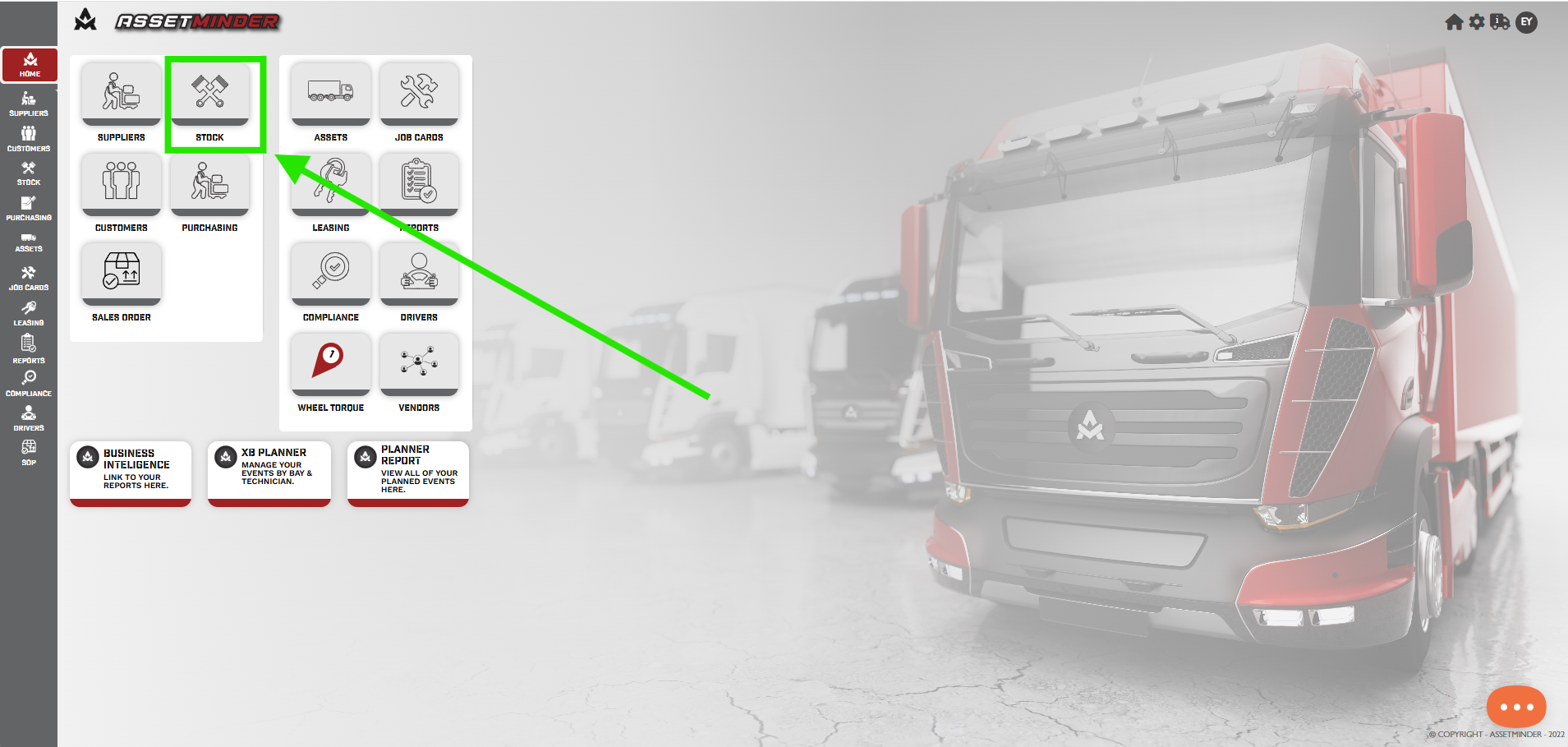
1.Click on Stock icon on the home page.
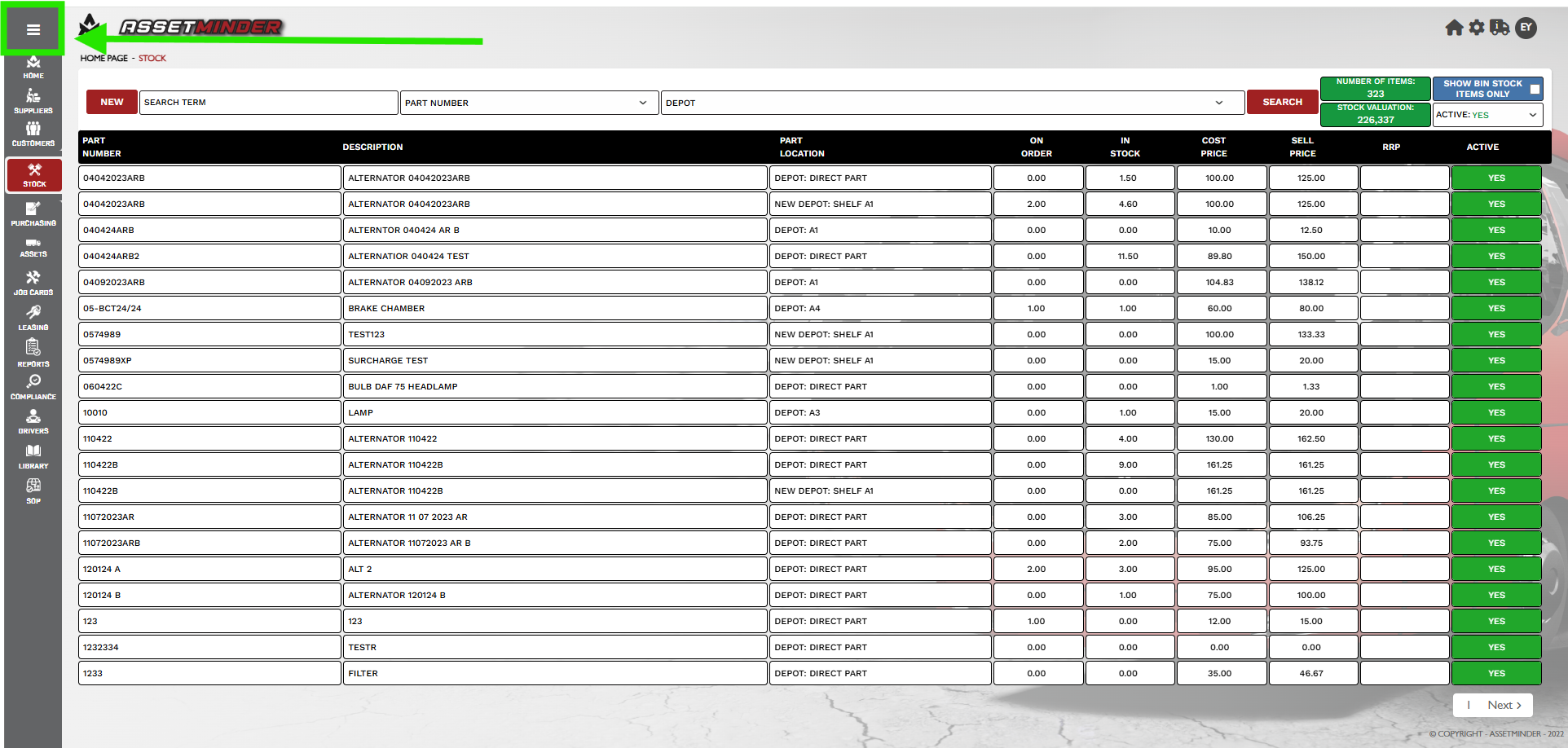
2. Click on the Burger menu.
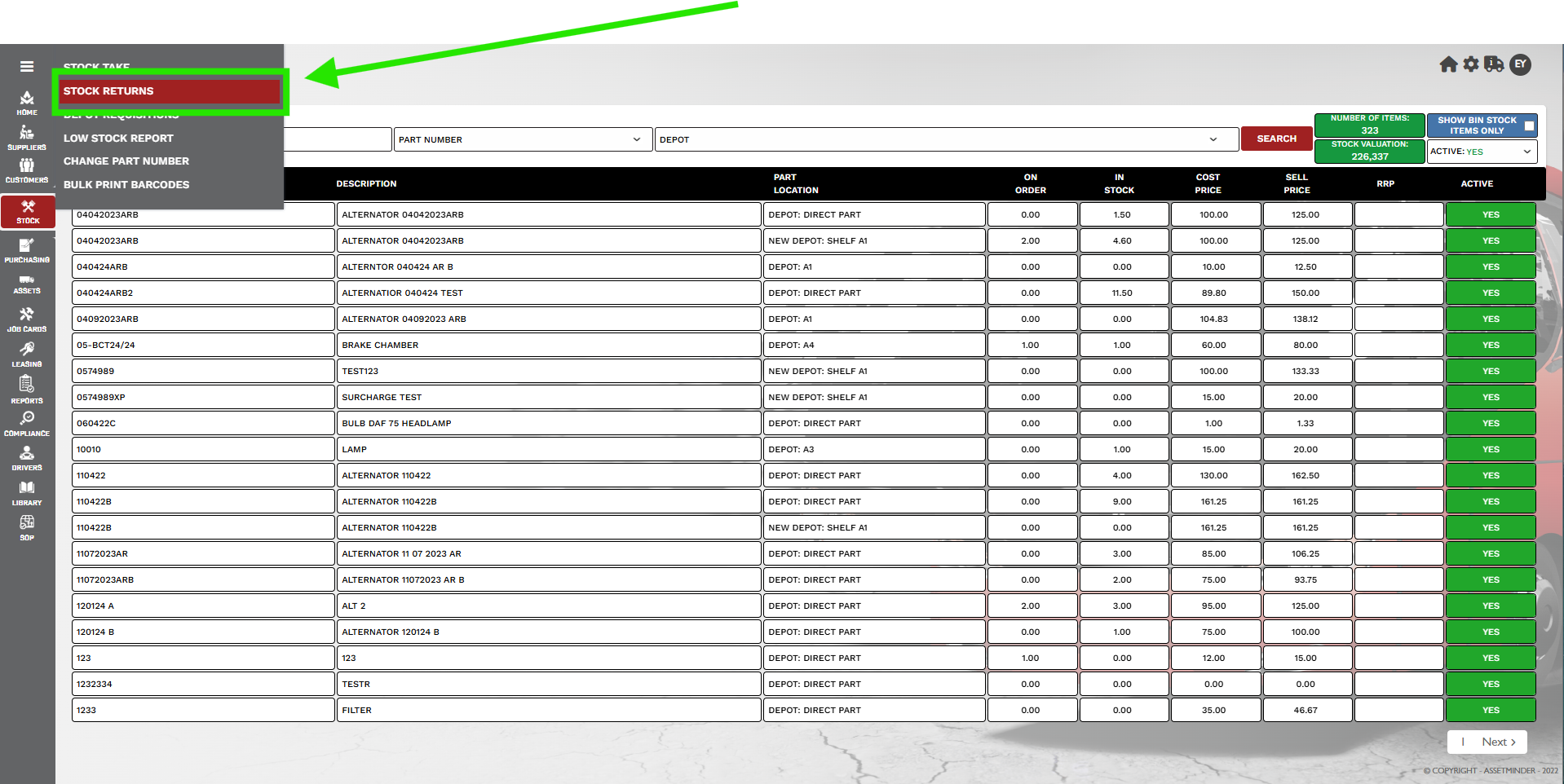
3. Select Stock Return.
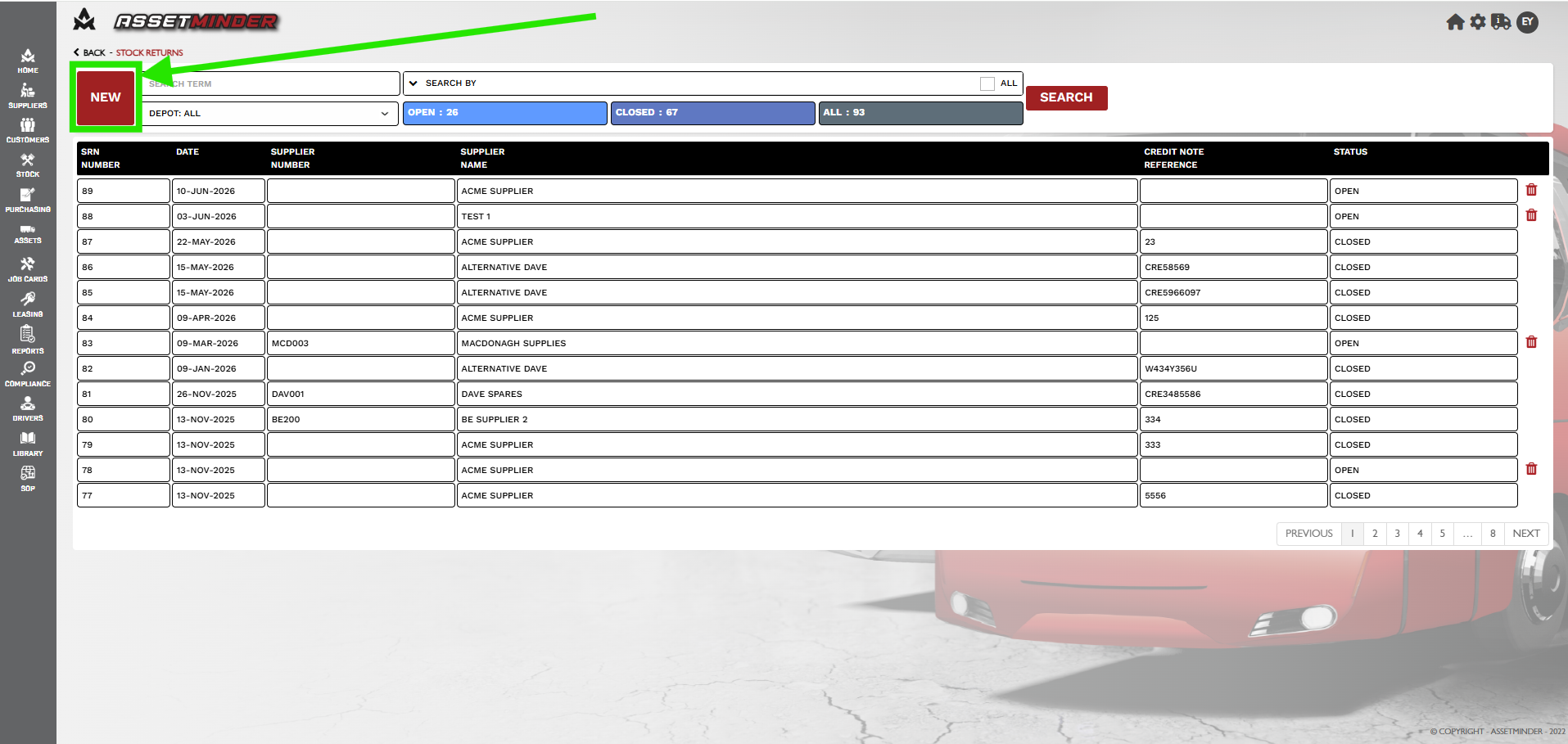
4. Select New.
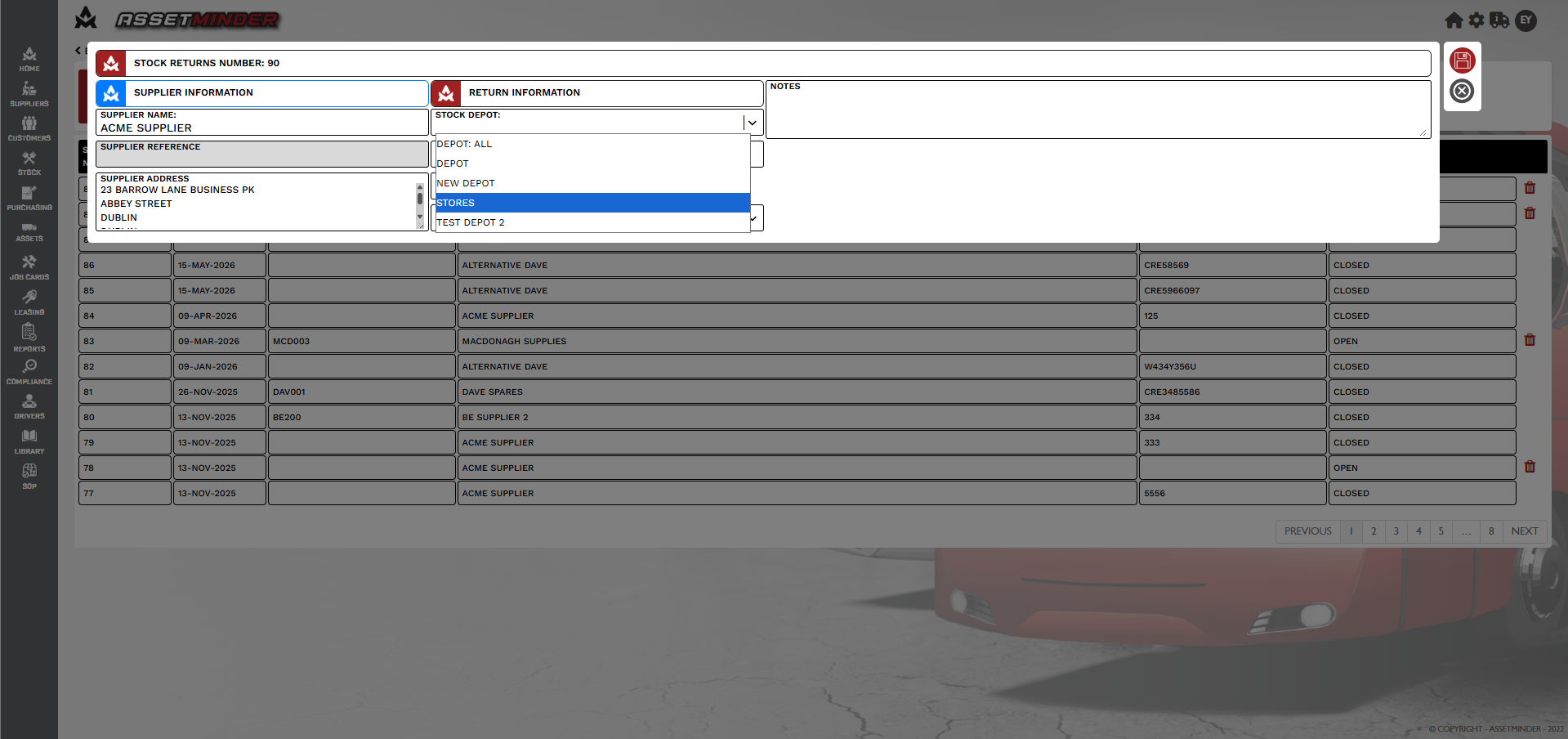
5.Enter Supplier name and select Depot.
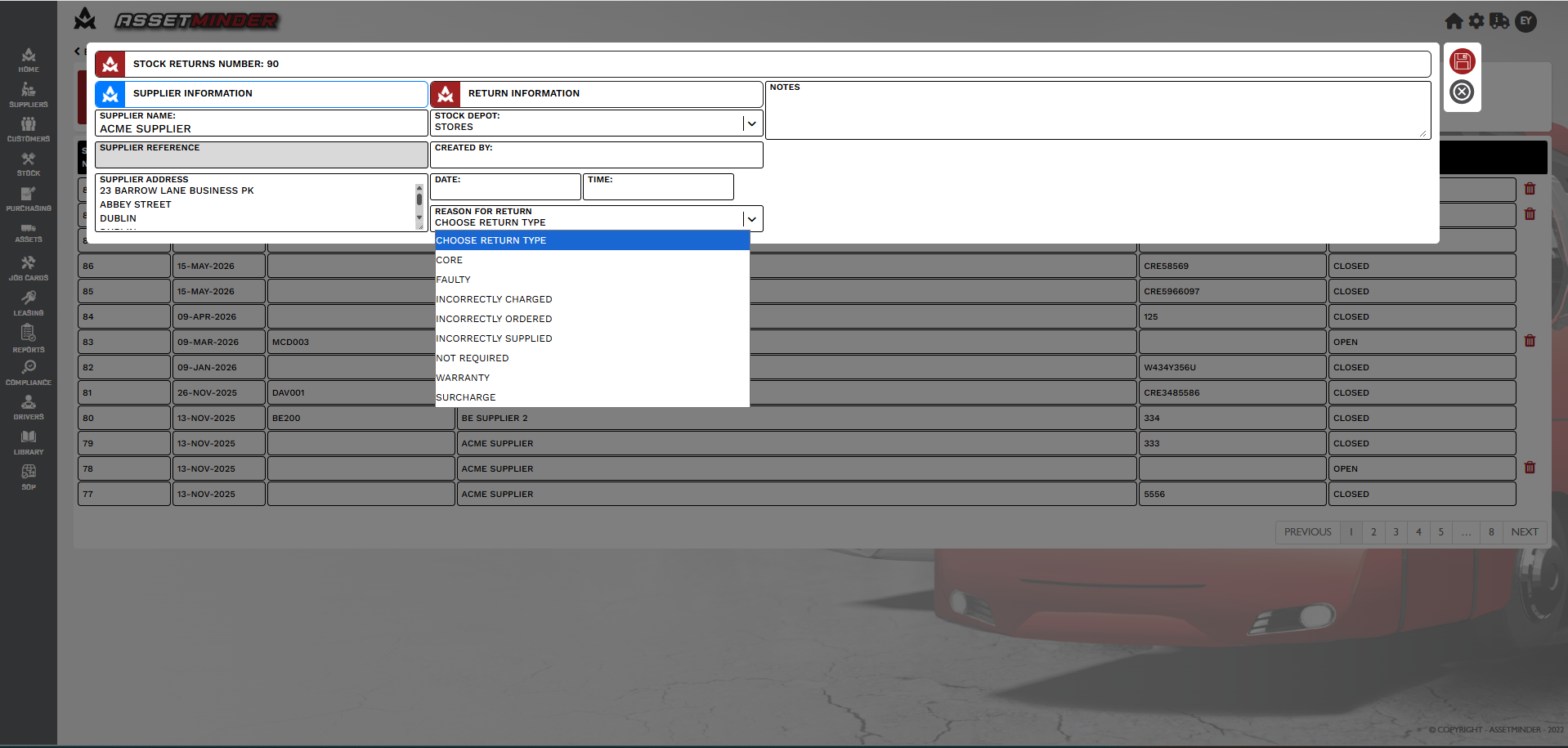
6. Select Reason for Return.
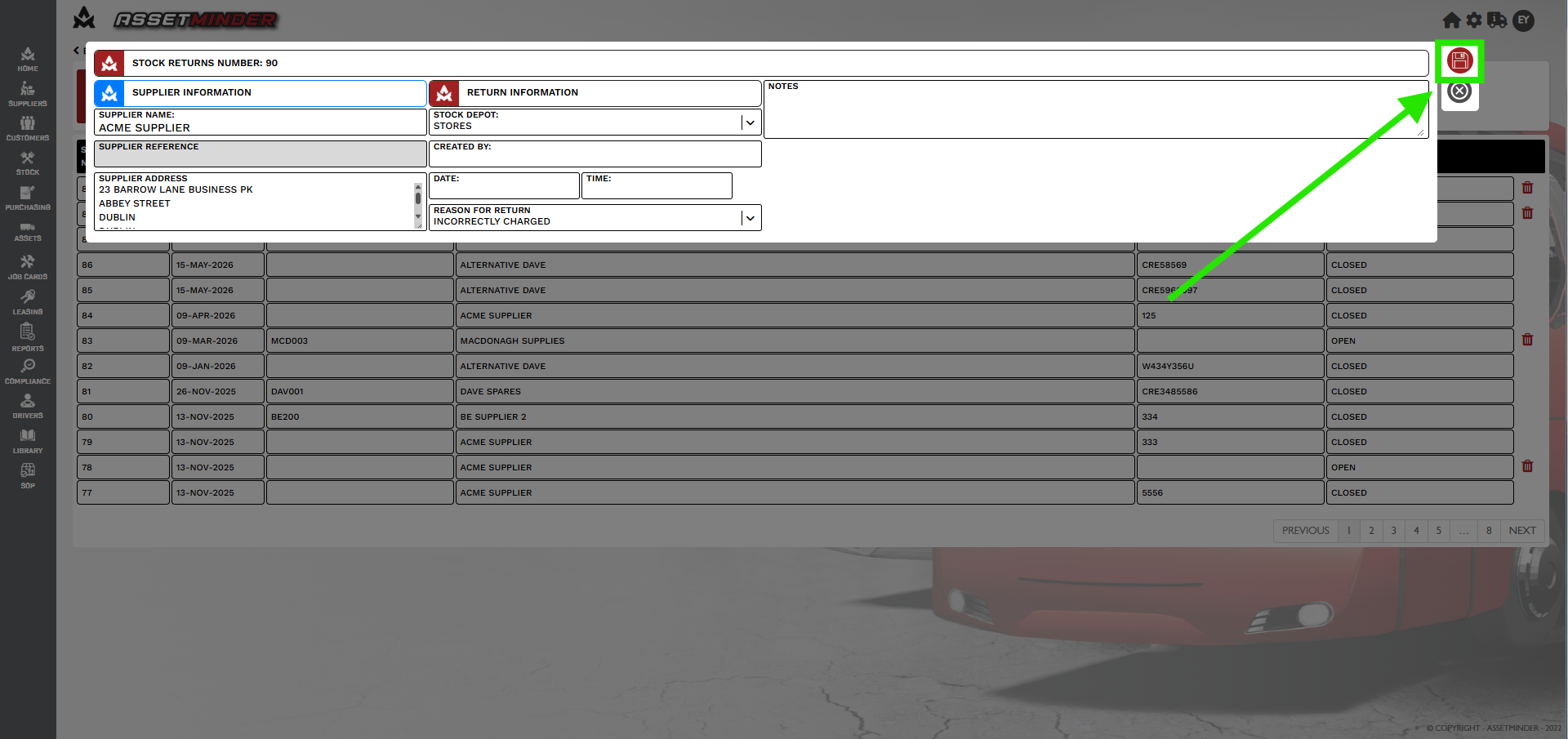
7. Click Save.
8. The stock return is now created. The part(s) can be added to the stock return.
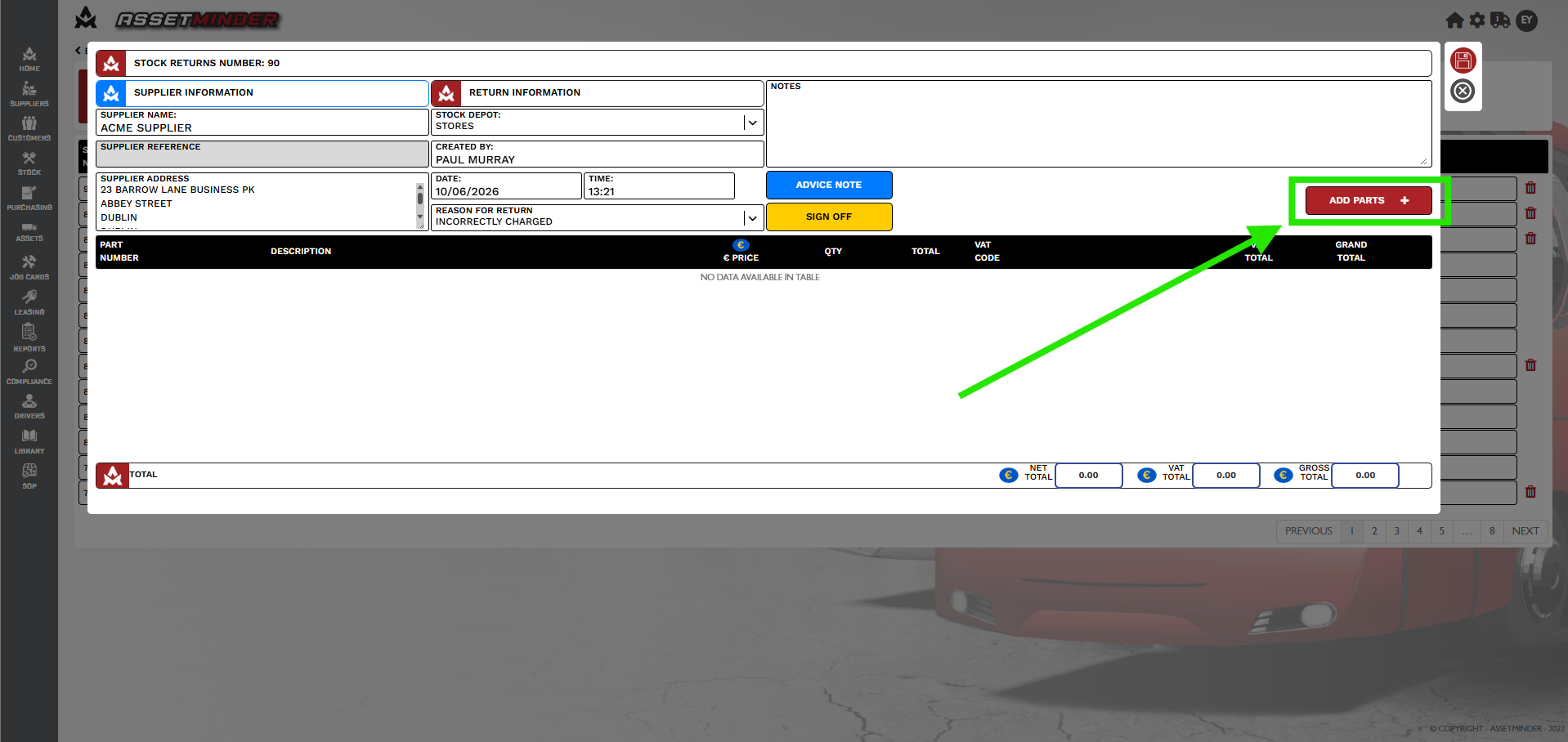
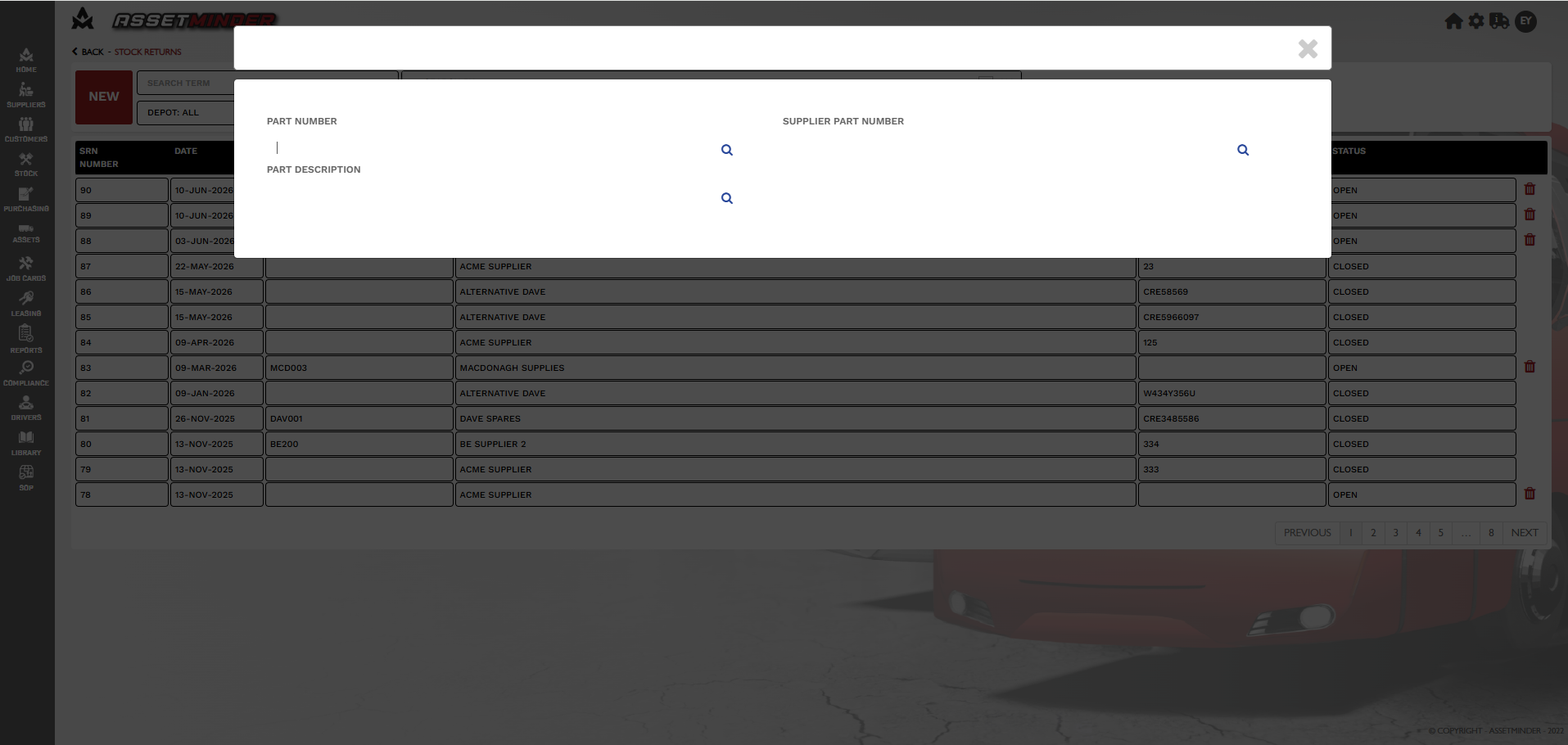
9. The parts can be searched by Part Number, Part Description or Supplier Part Number.
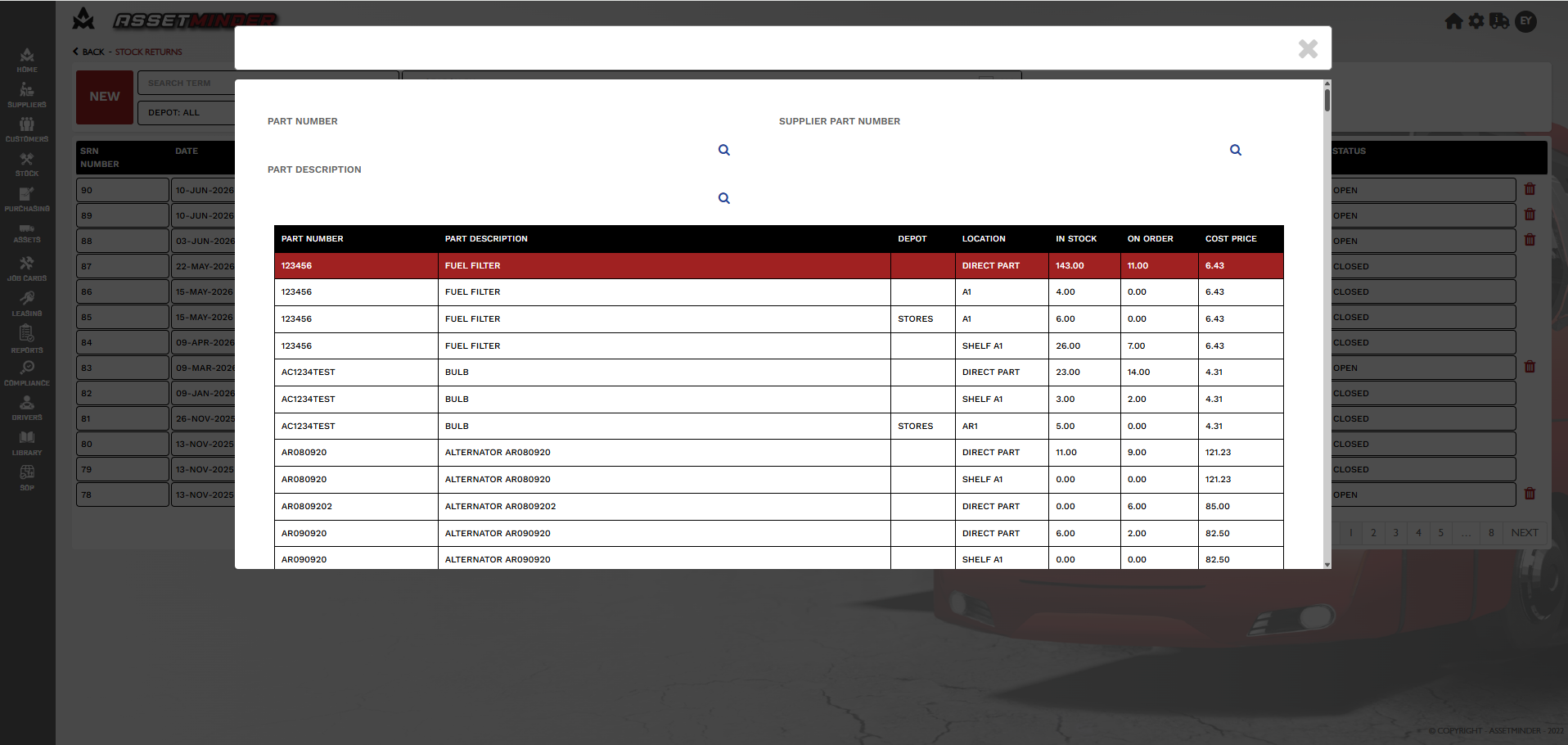
10. Select the part.
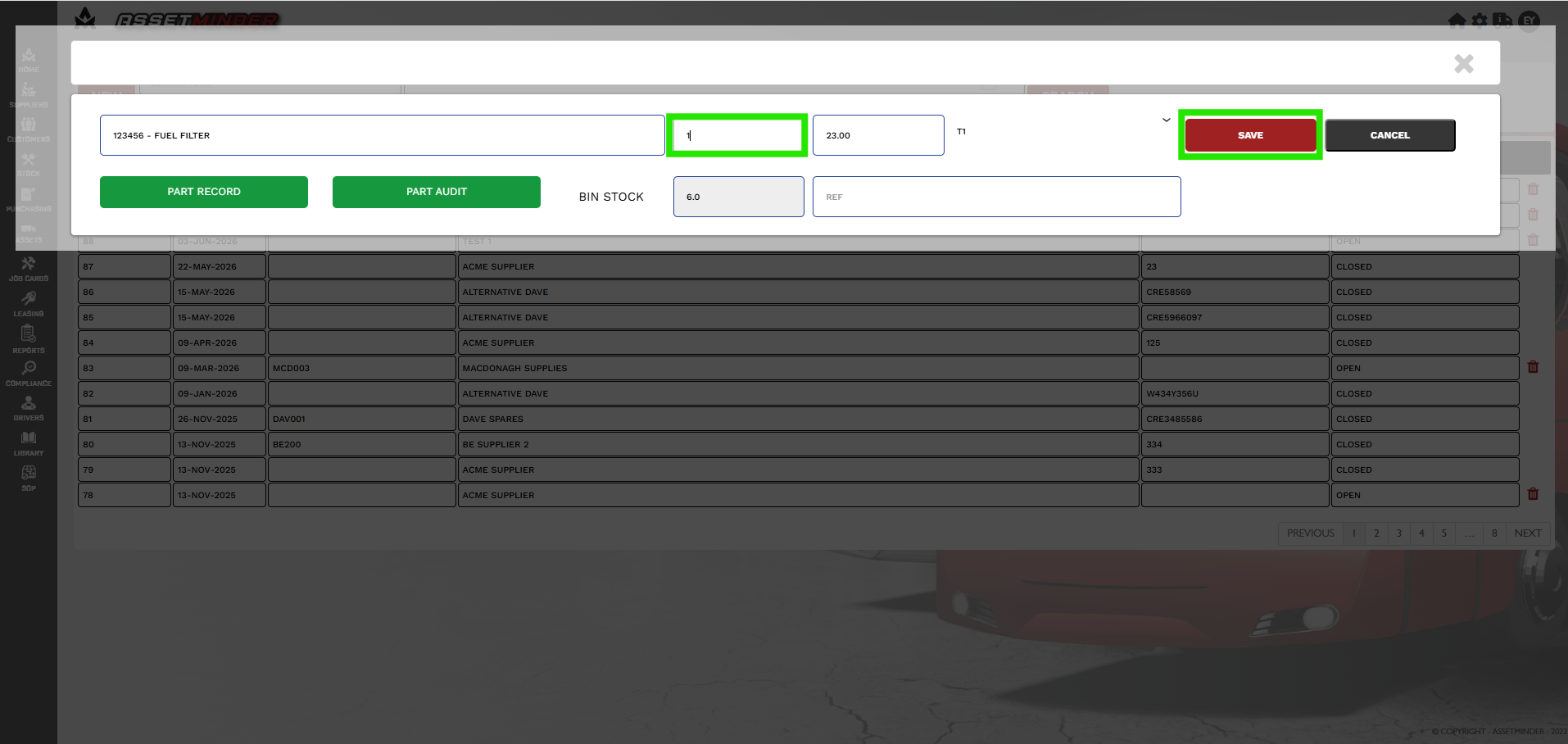
11. A dialogue box will open. Enter the quantity required to return. Click Save.
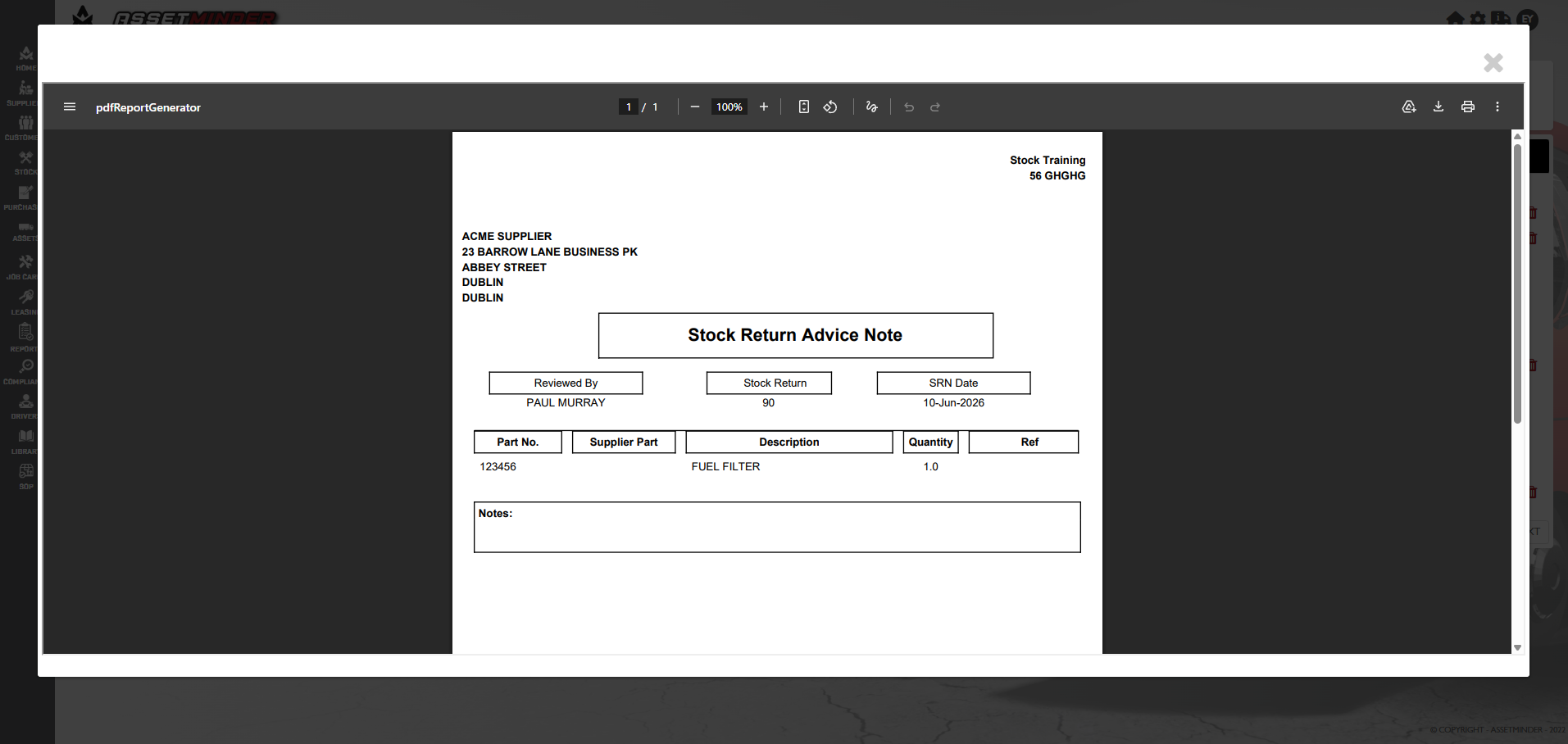
12. Print off the Advice note and return parts to the supplier.
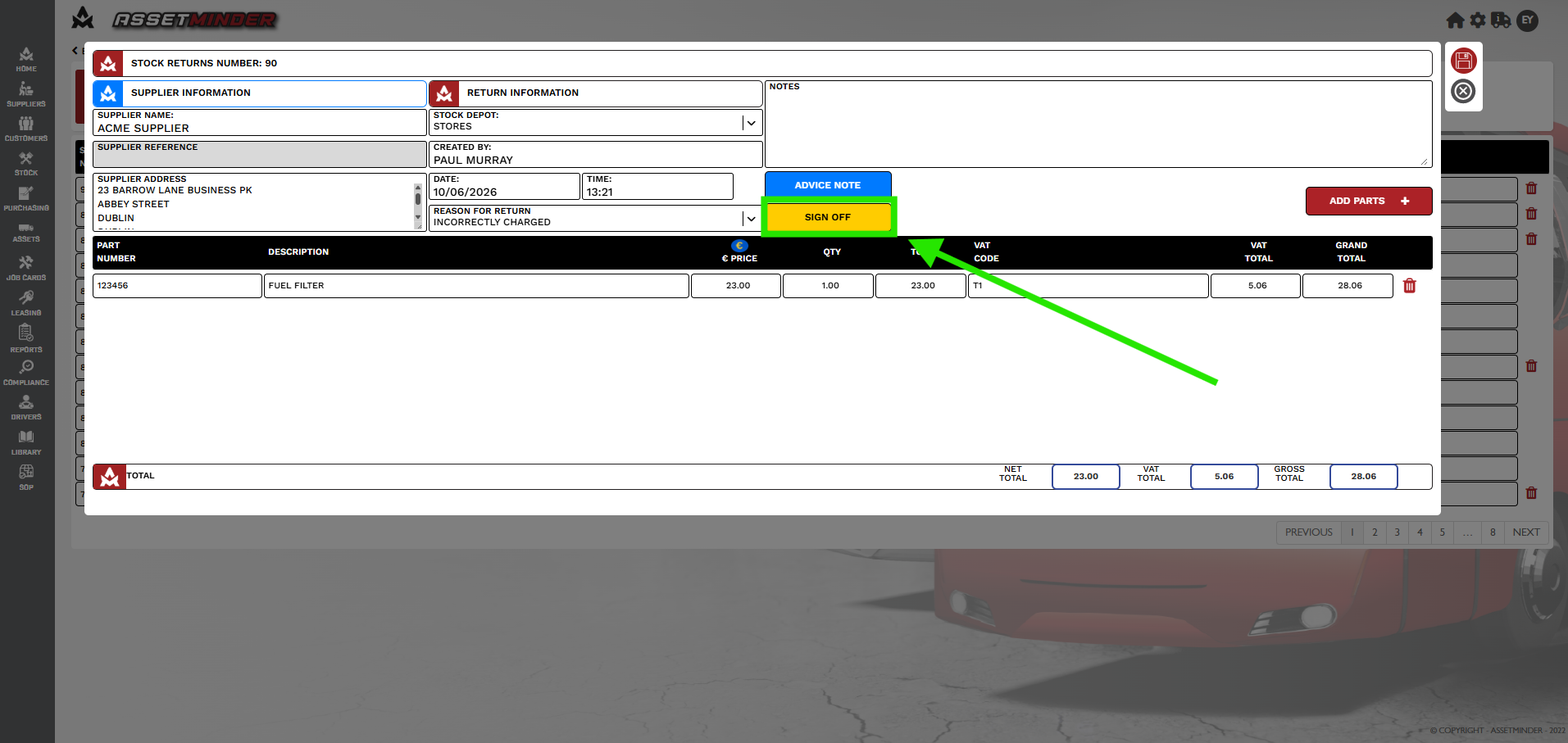
13. When the Supplier has received the stock they will create a Credit Note. The Stock return is now ready to sign off. Click SIGN OFF.
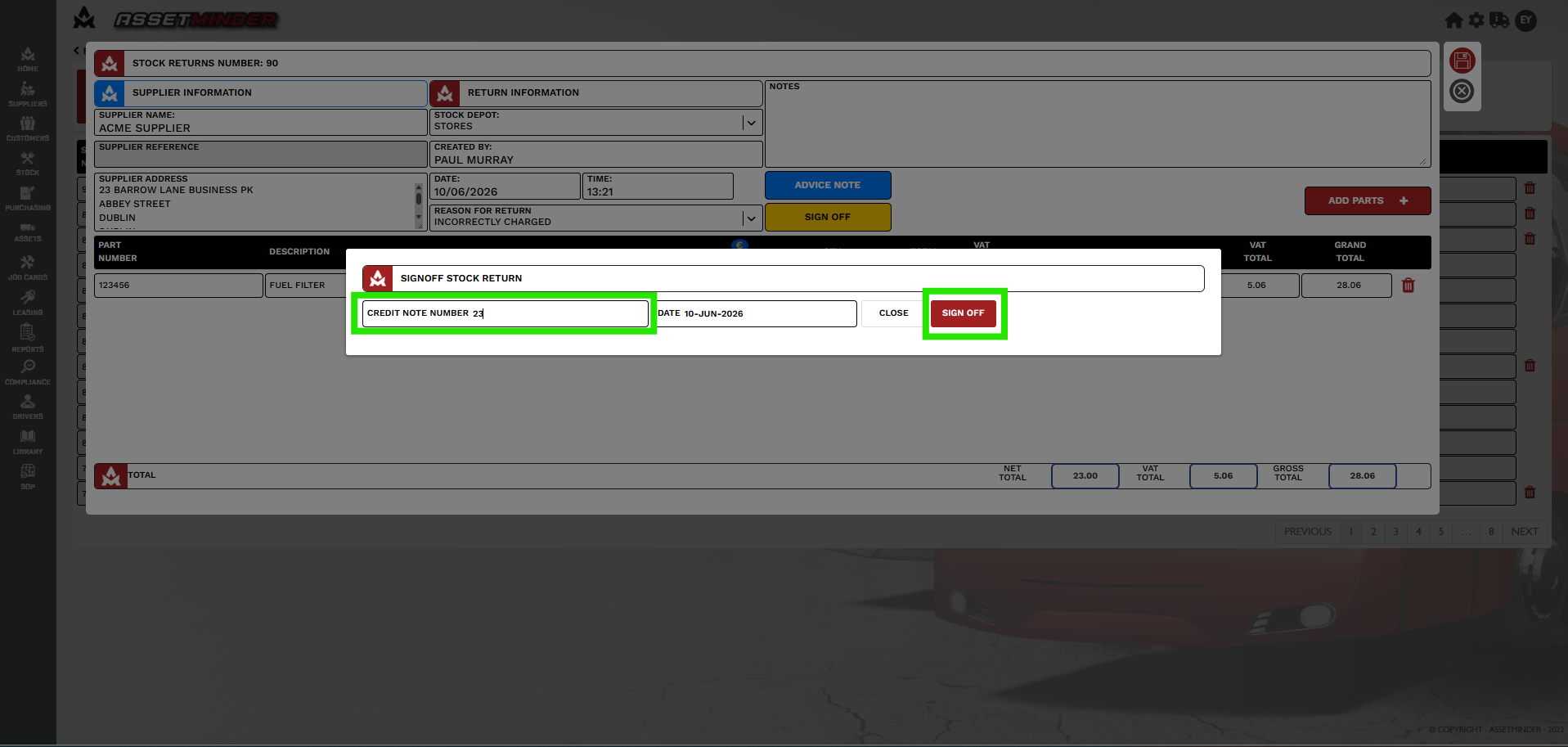
14. A dialogue box will open. Enter the Credit Note number provided by the supplier. Click SIGN OFF.
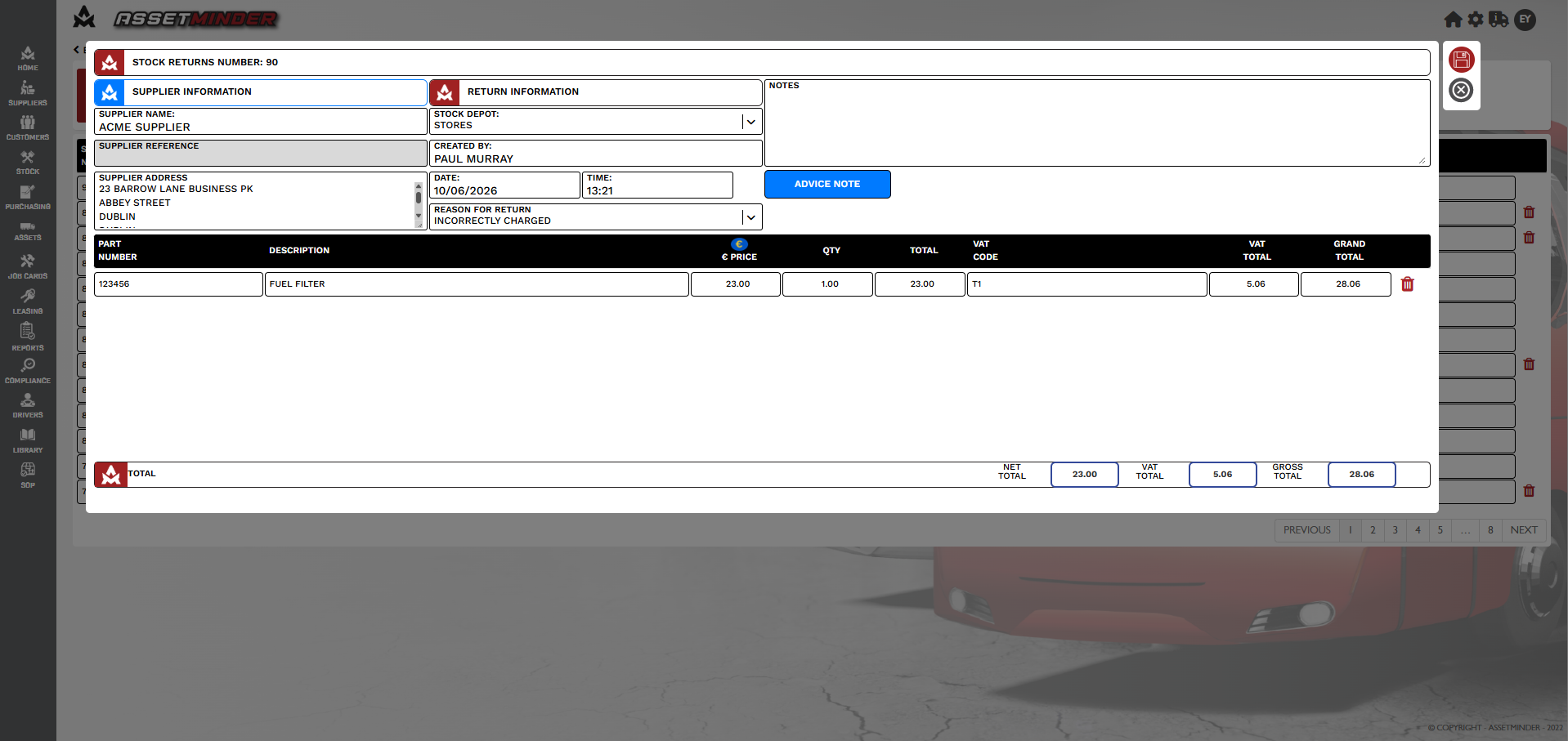
15. The Stock return is now closed.
Paul Murray
Comments