PROCEDURE
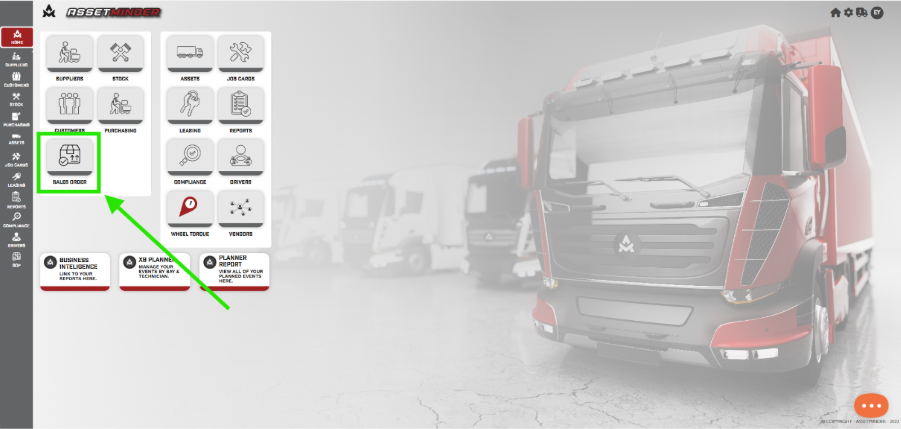
1.Open the Sale Orders on the home page.
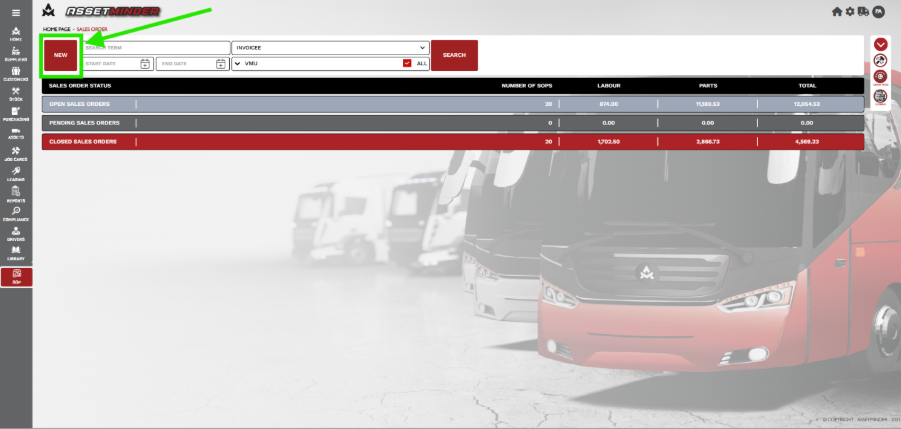
2. Click new.
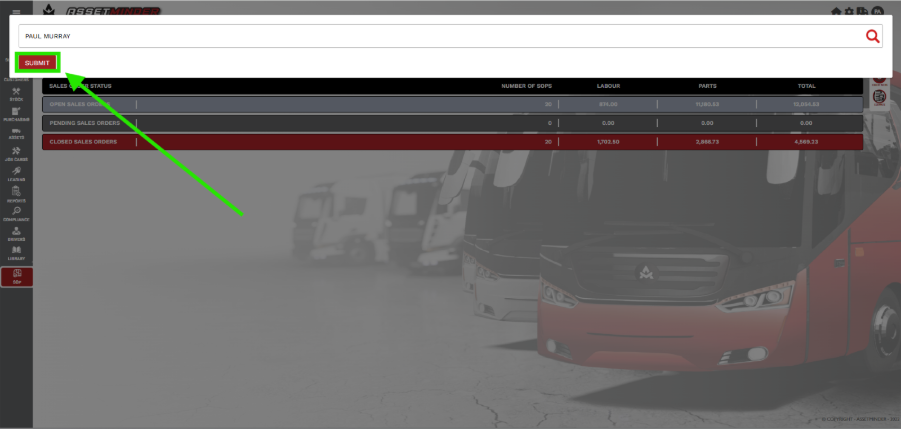
3. Add Invoicee and click SUBMIT.
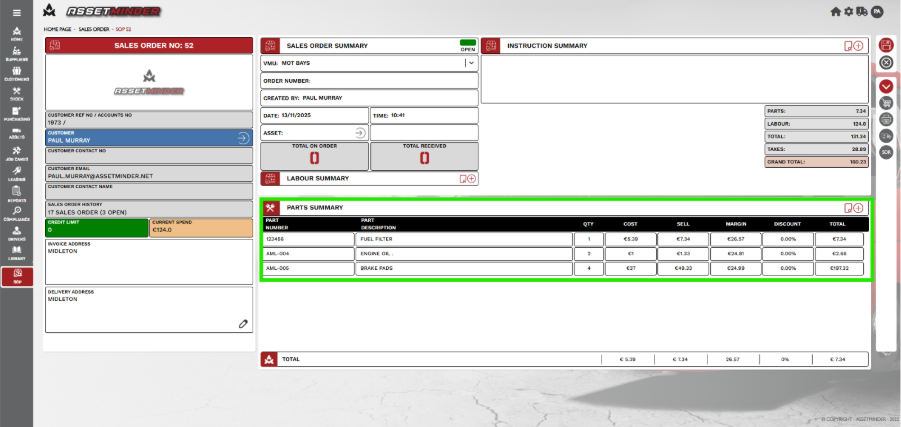
4. Add parts to the Sales Order.
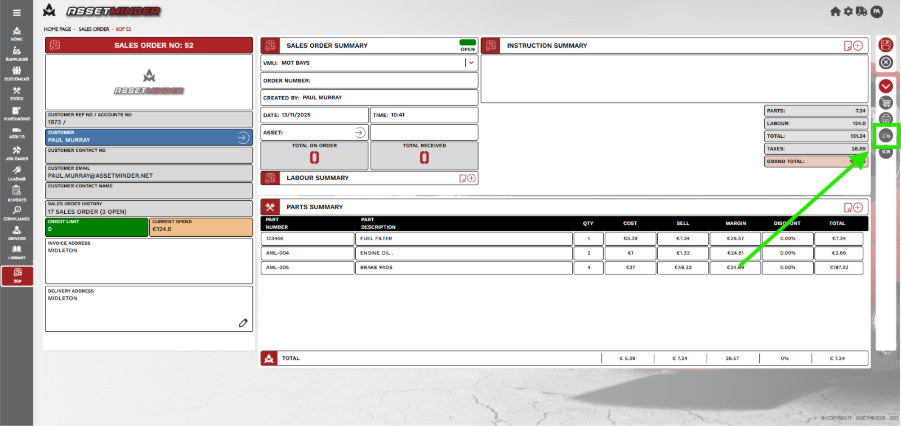
5. Click Sales Order Dispatch.
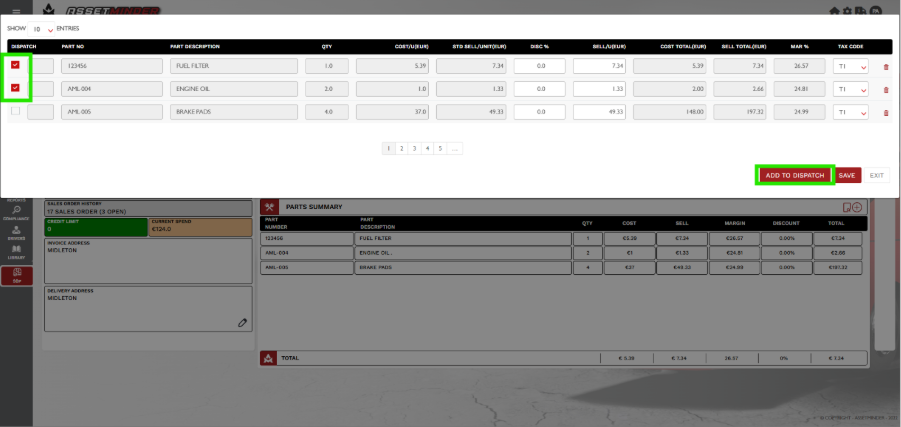
6. Tick the parts to dispatch and click add to dispatch.
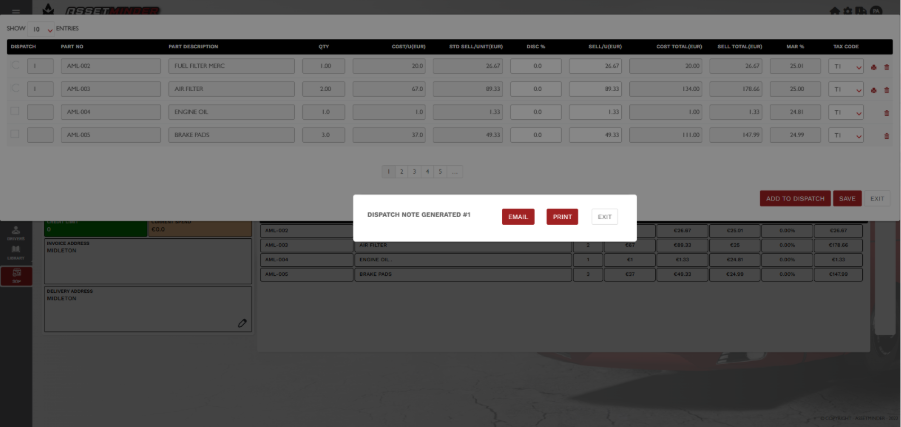
7. The dispatch can emailed or printed. Click Exit to return to SOP
8. When the remaining parts are ready to dispatch repeat steps 5- 7.
9 Change status to Pending
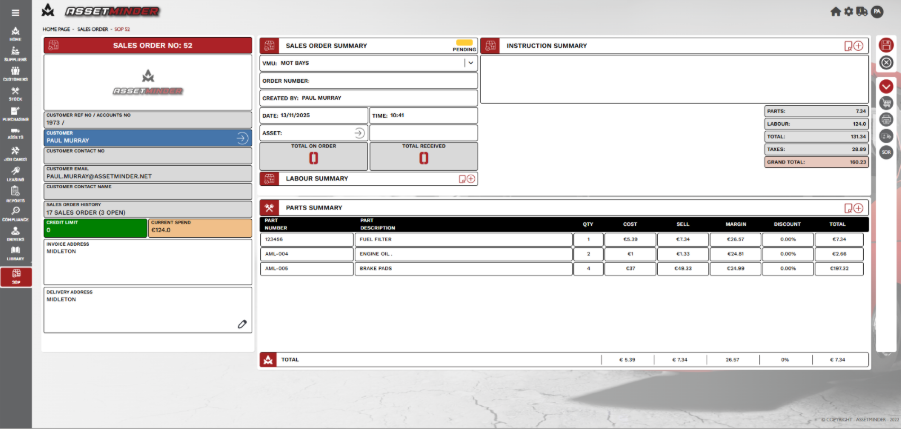
10. When all parts have been dispatched the SOP can be signed off. Click on SOP review. 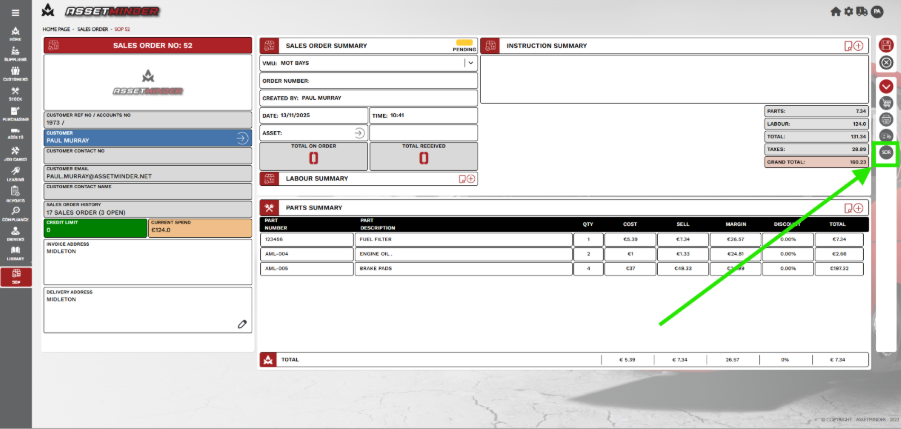
11. Click on Sign off and close.
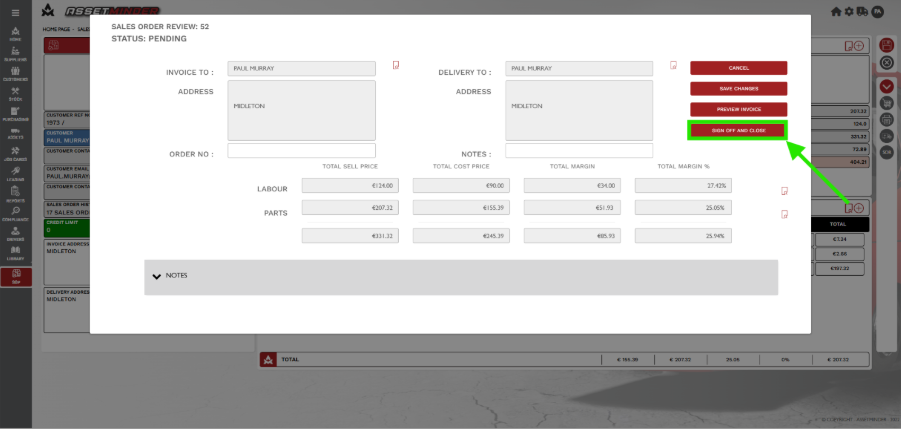
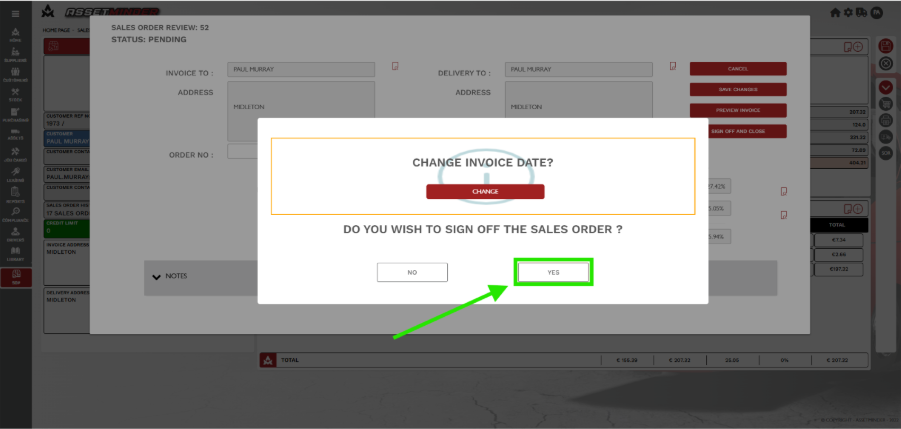
12. Sign off the PO.
13. The Sales Order can now be Emailed or printed.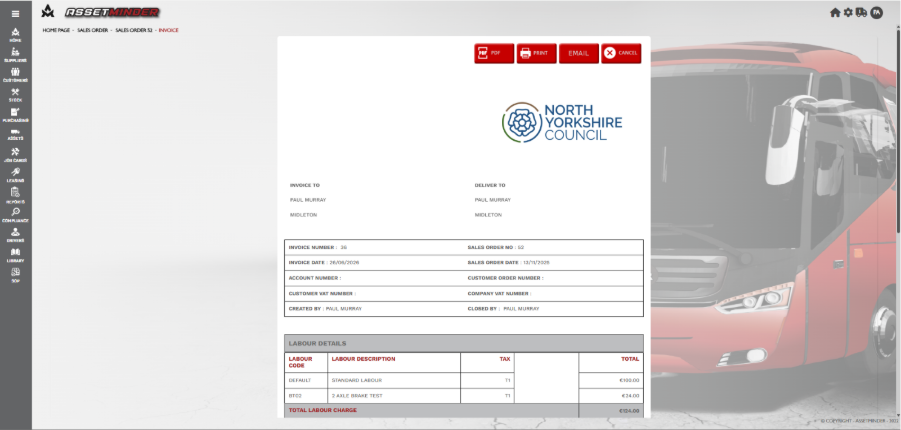
14. The Sales Order is now closed.
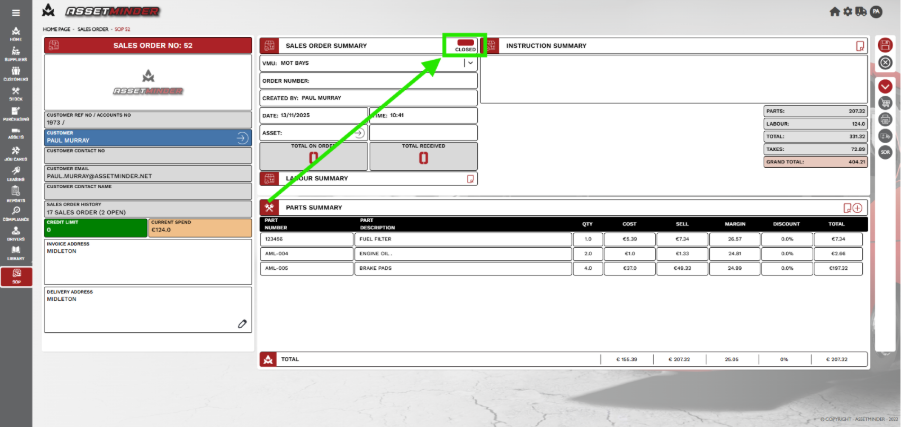
Note: If the remaining parts have not been dispatched, they will be automatically dispatched on sign off.
Paul Murray
Comments